State of the art, project management and documentation
1. Documentation
Documentation is very important for keeping a record of what you've done so you don't forget; it saves time and reduces errors, allowing for continuous improvement.

-
On GitLab, you’ll upload images, documents, etc.
-
In Web IDE you’ll write the code
-
On your page, you’ll see the saved changes.
-
The language used to write the code is Markdown or HTML
-
It’s not as hard as it looks
2. Process and workflow
Here is the Fabricademy tutorial: Tutorial
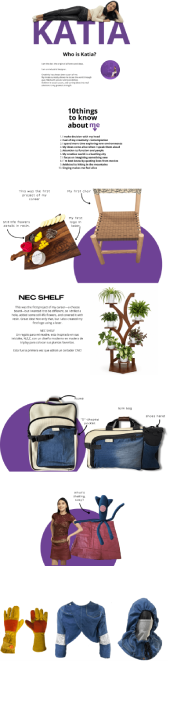
To start, I began by creating a design in Canva of what I wanted to see: the projects, the information I wanted it to include, and the order in which they would appear. This helped me a lot in figuring out what code or tools I needed to make it look exactly the way I wanted.
How to Start Adding Content to My Fabricademy Page?
Once I logged in to my Fab.ios page, I accessed the GitLab platform.
Next, to start editing the page, press the key under “Code” > “Web IDE” > “docs” > “index” * Here video to access to IDE
Once you're there, you can edit every part of your page!
2.1 New directory
To start adding images to my page, I first created a special folder on my GitLab account that I named home. I’ll upload all the photos that will be included in that section there.
From my GitLab page, I navigated to my username > “docs” > “images” > “+” > "new directory" > named it.
2.2 Upload image
Adding images to your page will be a regular task, so you should upload images between 80 and 100 KB or less.
Some images will need to be compressed twice. To ensure they don't lose quality, you can upload them to Fab compress and reduce the file size of the images by changing the number of pixels or the quality percentage
From my GitLab page, I navigated to my username > “docs” > “images” > “home” > “+” > “upload file”
Tips
- Use lowercase letters for image file names
Web IDE
Let's go to our Web IDE
- Here are some commands I used. When you're not sure how to write a command, ask ChatGPT for help, whether it's in Markdown or HTML or look for a Markdown cheet sheet for basic syntax
IMAGES
Add images

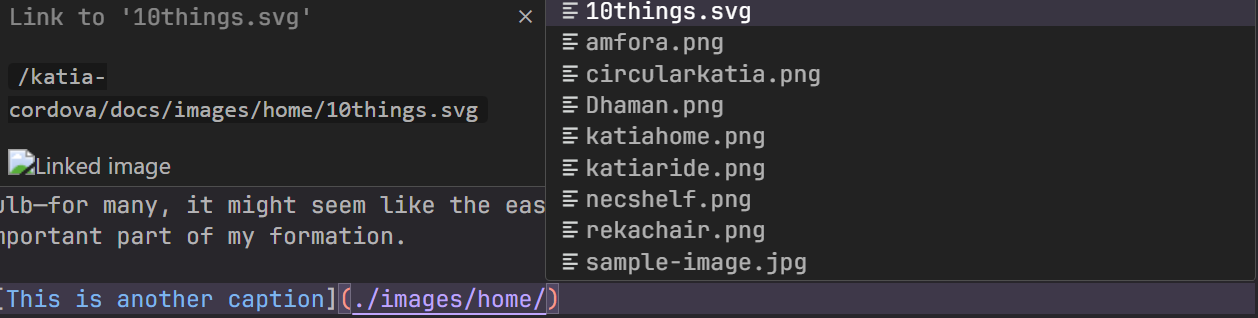
Tips
- Refresh the page before linking an image. Otherwise, the image you uploaded won't appear in the IDE
Align images
{ width=500 align=left/right }
Tips
- If you want to include an image with text aligned to the left or right, first insert the image code and then the text
Centered images
<figure markdown>
{ width=(Image size in number)}
<figcaption></figcaption>
</figure>
COMMIT
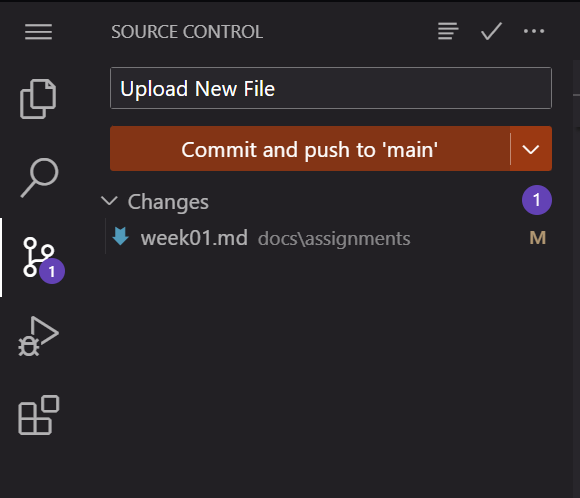
Once you've added information to your page, it's time to save your changes.
Go to the Source Code Control option. Enter a name for the change, then click the “commit and push to main” button so that the changes are reflected on the main page.
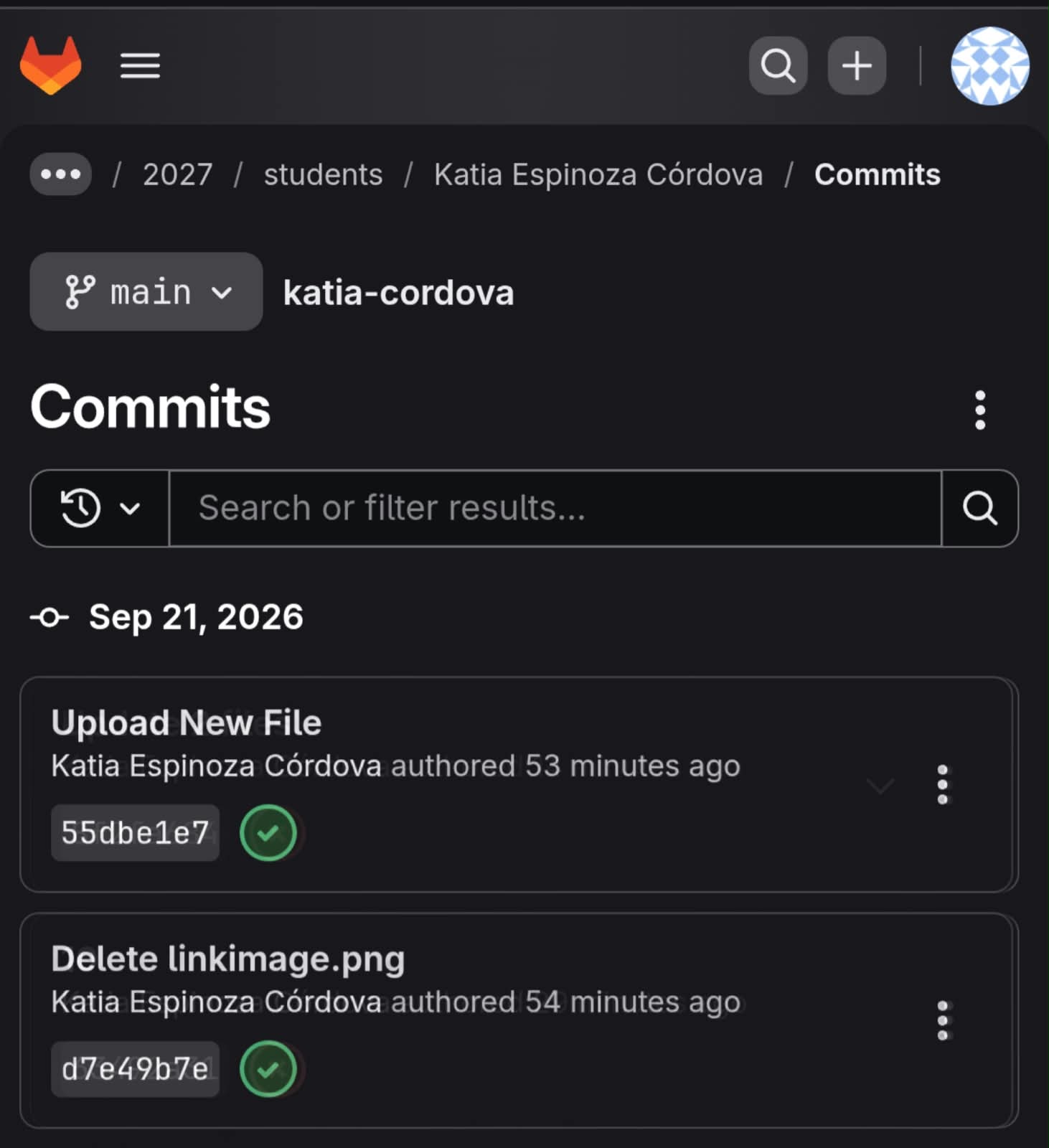
You can check whether your changes have been updated correctly in the GitLab window > “Code” > “Commits,” where you’ll be able to see the progress of the changes until a green checkmark appears, which means the changes are ready.
Commit
Commit progress
TEXT
Align text Left or Right
<h3 align="left/right/center">text</h3>
Two columns of text
<div style="display: flex; justify-content: space-between; width: 100%;">
 <div style="text-align: left;">
  Left text
 </div>

 <div style="text-align: right;">
  Right text
 </div>
Vectorized letters
For this type of titles, I created them in Illustrator so they wouldn't lose quality, and I saved them in SVG format to make them smaller in file size.

VIDEOS
In order to add a YouTube video to your video page, you must copy it’s embed code and paste it on your web IDE.
- Here is an explanation video
LINK PAGES
[Name of page](URL)
This is also useful for Links to online reference files, PDF, booklets](https://heyzine.com/flip-book/bb9fdd25c1.html)
PDF DOCUMENTS
PDF files should also be compressed; use a file compressor. For files larger than 2 MB, it's better to create a ZIP folder.
To zip a file on Windows, right-click the file or folder, select "Show more options," choose "Send to," then "Compressed (zipped) folder." watch On a Mac, select the file or folder and choose "Compress" from the context menu. watch
From my GitLab page, I navigated to my username > “docs” > “files” > “(name of your directory or week)” > “+” > “upload file”
Embed PDF
<object data="../../files/fabricademy-booklet.pdf" width="100%" height="620">
   <p>Unable to display PDF file. <a href="../../files/fabricademy-booklet.pdf">Download</a> instead.</p>
</object>[Name of page](URL)
AUDIO
Record an audio file, then upload it to GitLab in the folder “docs” > "files" > “+” > “upload file”.
insert audio
audio id="1" controls preload="auto">
Nueval
Nueval is our evaluation platform. It allows you to track your weekly progress, view feedback from your local and global evaluators, and review the week's assignment to create a checklist of what you've completed and what still needs to be done. Nueval
3. Tools
List the tools you used
FABRICADEMY IDIT IBERO PUEBLA
Let’s get to know the Fabricademy! It is located on the campus of the Dr. Carlos Escandón Domínguez SJ Institute of Design and Technological Innovation (IDIT), which is part of IBERO Puebla.
Machinery
Thanks to Fabricademy, we have access to all the machinery at IDIT.
This includes: * Laser cutter * 3D printers * CNC router * Sublimation printer * 3D scanner * Vinyl cutter * Electronics equipment
Spaces
- Chemistry and Food Laboratory
- Electronics Laboratories
- Computer-Aided Design Laboratory
- Textile Workshops
- Photography, Video, and Digital Animation Studio
Learn more about the Fab Lab here: (https://www.iberopuebla.mx/IDIT/fabricacion-digital)
IDIT IBERO Puebla service catalog: (https://www.iberopuebla.mx/IDIT/espacios-y-maquinaria)
Booking system
-
To use the laser cutter, you must send an email to the department manager at least 2 hours in advance, with a copy to our local advisor.
-
For use of laboratories such as chemistry and/or food science, you must request access at least one day in advance. Similarly, to request materials and reagents, you must submit a form to the appropriate department at least 2 hours in advance so that your materials can be prepared.
-
For the CNC router, it is important to sign up on a list one day in advance.
Safety rules
Dificulties
While doing my research, I realized that image compression was the most time-consuming part, especially when it came to finding the right balance between an appropriate file size and decent quality.
Also, for a week, while I was still figuring out how the code worked.
The WEB IDE stopped updating my changes, so my commits appeared in red. This prevented me from seeing the changes I’d made and from continuing to make progress. After some time, with the help of my fellow programmers, we realized it was a fairly simple problem: an extra space in my code.
One of the most common mistakes when writing HTML code is failing to properly place the opening and closing <div> tags. Think of them as a sandwich: every <div> that opens a section must have a corresponding </div> to close it. If you forget a closing tag or place it in the wrong spot, elements can end up inside a section they don’t belong in, which affects the layout, alignment, and appearance of the content on the page.
<div>
  <div>
    This is the content inside.
  </div>
</div>
Correct code: Each opening tag has a corresponding closing tag. This helps keep the content organized within its respective containers.
<div>
  <div>
    This is the content inside.
  </div>
  </div>
      ↑ extra space
When an extra space is added, the top part has nothing to align with to close the code at the same distance
Tips
Remember: every time you open a <div>, make sure to close it in the right place so that the code is well-structured.
4. Weekly reflection & critical thinking
After several commits and pushes, I started documenting my work and learned a new way to organize information. Now I’m more careful with my code and make sure to check that the changes are actually being implemented. It was definitely more labor-intensive than I had imagined, but I’ll keep looking for ways to ensure the images don’t lose quality and also for code to organize the information more creatively.