E-textiles
Initial thoughts
Since I was a freshman, I have been fascinated by how microcontroller boards look: the lines, the connections, the board colors... I even made handmade jewelry with them in my 20s.
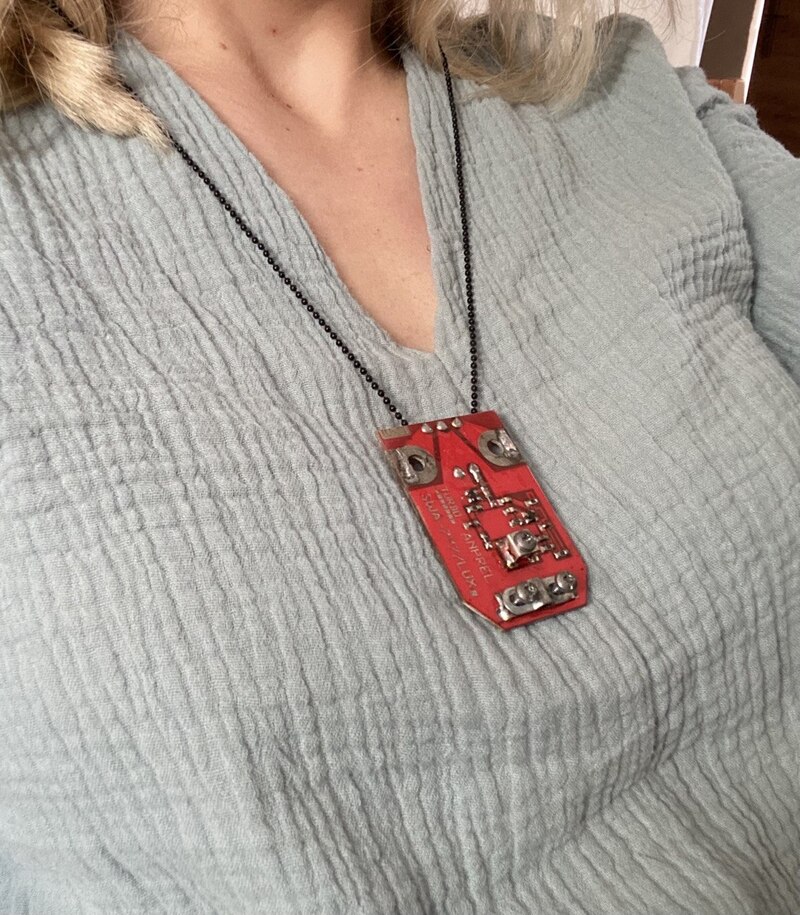 Photo is taken by Luiza Naslyan
Of course, back then, I could not imagine myself understanding the boards or dealing with them at all. But after attending Liza Stark's online lecture and acquiring knowledge from my Fabricademy local instructor, Anoush Arshakyan and Fab Lab Armenia director, Onik Babajanyan, I felt confident practicing making circuits and designing my own sensors.
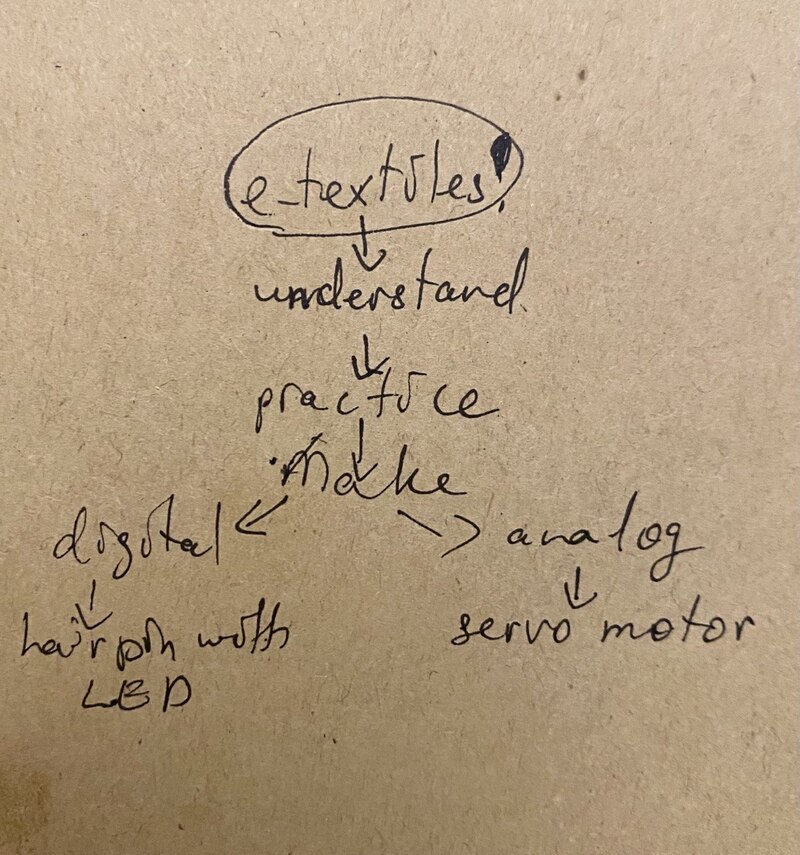
So, my weekly to-dos are:
-
understand voltage, resistance, and capacitance
-
learn about boards, conductive materials, and Arduino software
-
practice making various sensors
-
make 1 digital and 1 analog sensor
-
do not forget to take photos and videos
-
document them
Research & inspiration
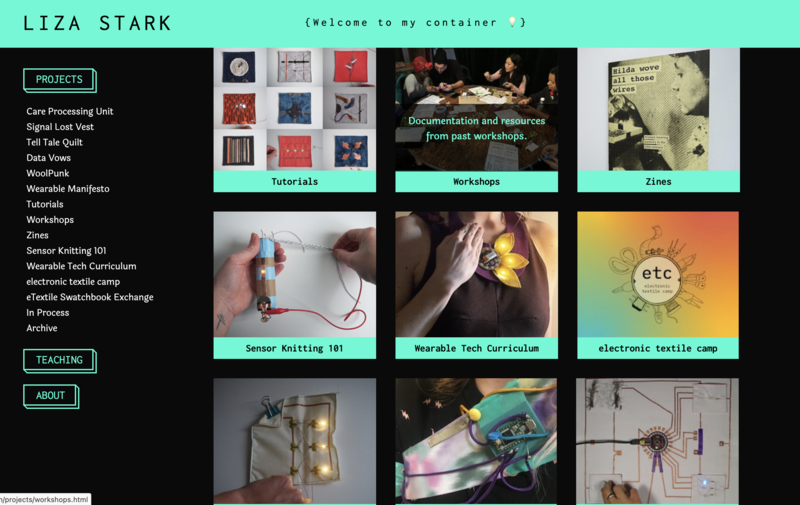
From day one of E-textile week, my curiosity was sparked by Liza Stark's lecture; by her way of explaining complex ideas, her presentation, the care and confidence she transferred to the attendees—at least personally to me. So, my first inspiration is her! This specific website of hers was encouraging and informative. In one of her videos, she gave tips to newbies in e-textiles, and definitely, I will take some with me forever: "Own your voice," and "it does not have to be complex to be awesome; the simplest circuit with a simple button and an LED can be incredible in the RIGHT CONTEXT."
Handmade sensor knitting guidebook
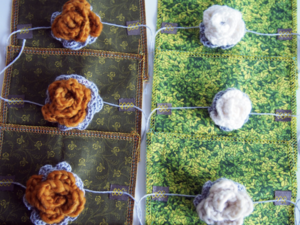
Crochet pressure sensor
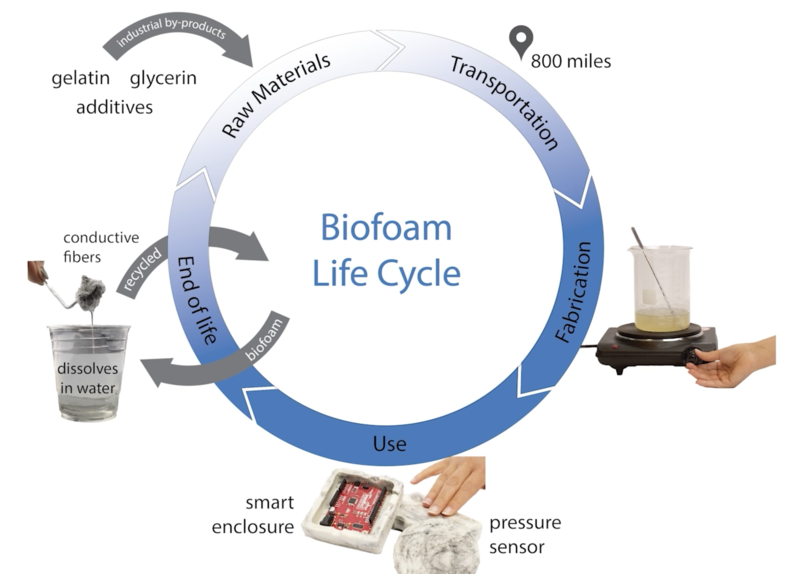
I was highly inspired by Eldy Lazaro's portfolio on biofoam. Before watching the video, I read the description and it sounded like she created a material that is not real, but rather sci-fi: "The biofoam can be cooked, molded, layered, extruded, dissolved, or recooked, opening up possibilities to consider the entire material life cycle in the design process." Well, it is real, highly versatile, and incredibly circular. This inspired me to think of my final project from a different angle: incorporating e-textiles with such a material and bringing some patterns to life: MOVE them.
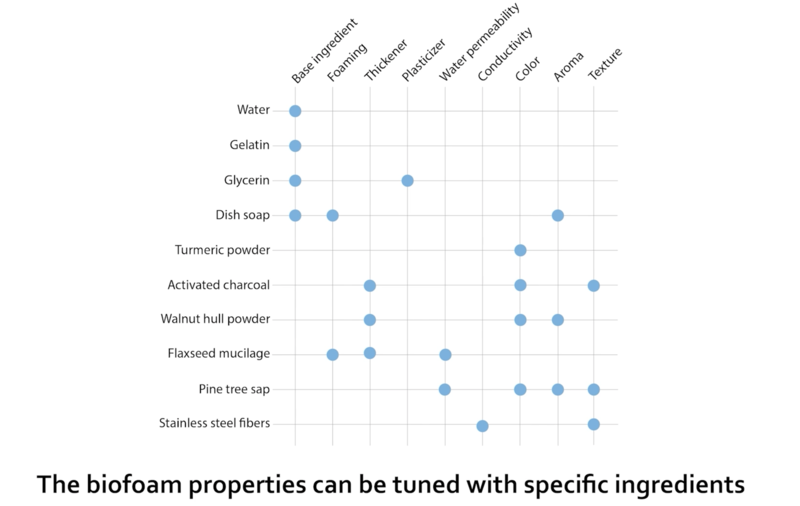
This chart was useful to me.
My next inspiration is from Irene Posch's conductive yarn experiment. While researching Kobakant, I came across this great idea of making conductive yarn at home. 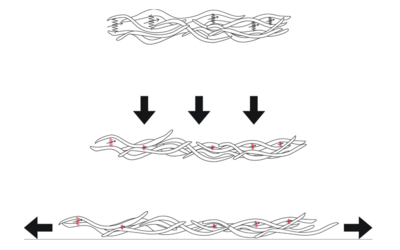 Irene Posch spun short conductive steel fibers with wool, which results in the steel fibers touching each other under pressure, enabling electricity to pass through. The risk in this method can be the conductivity dependence on the density of the steel fibers in the spun yarn. I had the idea of making a sensor carpet in the end; however, I was not sure how to turn already woven carpet patterns into sensors.
 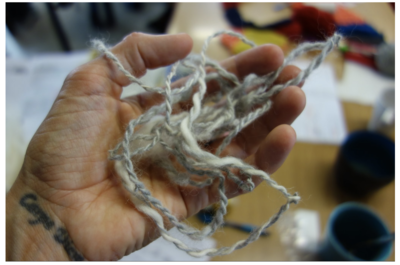 But due to this experiment, I rethought the order of the carpet weaving process and got inspired to first spin my own yarn with a conductive material, then weave the carpet. I should experiment with Irene Posch's method and the method I thought of after Christmas to understand which one works best for my project.
Tools
- Alligator clips
- LED lights
- 3V battery
- Battery holder
- Conductive threads
- Insulation tape
- Conductive materials (Velostat, copper plate, VeilShield)
- Multimeter
- Breadboard
- Jumper wires
Resources
- E-textile workshops, tutorials, and much more by Liza Stark
- Exploring Biofoam as a Material for Tangible Interaction by Eldy Lazaro
- E-textile tutorial by Emma Pareschi
- Kobakant
- Computational craft
- E-textile and wearables vocabulary
- Datasheet for Servo motor
Software
Process and workflow
Step 1: Multimeter
A multimeter is a device with a central rotary dial with an arrow sign, which can be used to turn to the function needed. I used a multimeter to check these measures:
- Voltmeter (V) - to measure the voltage
- Ohmmeter (Ω) - to measure the value of a resistor
- Ammeter (A) - to see how much power a Servo motor and an LED draw
- Continuity ( •)))➔| ) - to check if materials are conductive
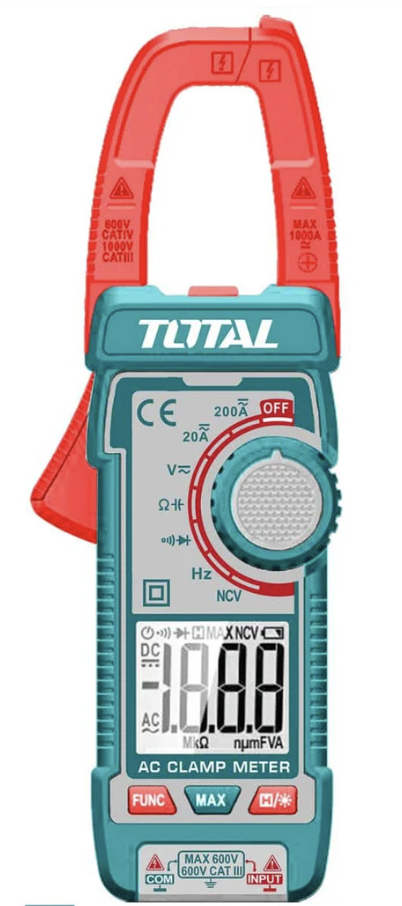 Photo is from Google
Step 2: Sensors
Sensors are devices that detect changes in their environment, like pressure, sound, movement, etc., and convert that stimulus into an electrical signal. We can program them to produce an output based on a certain signal. Thanks to Onik Babajanyan, I understand sensors more deeply and learned the signs:
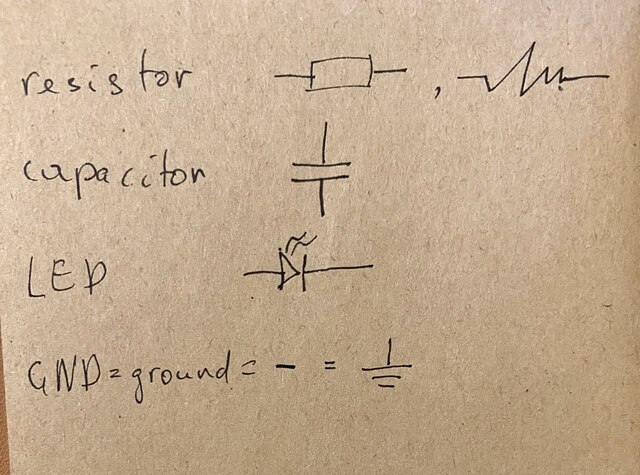
For complete beginners like me, I would like to share some key concepts I have learned during my research:
-
a circuit/current has positive (+) and negative (-) ends. The electricity/current flows from positive to negative;
-
there are sensors based on resistance and capacitance;
-
resistance-based sensors are: pressure sensors, bending sensors, and flexible sensors;
-
based on the signal type, sensors are digital (on=high and off=low states represented by 0 and 1) or analog (vary and are represented by various numbers: e.g., 0, 1, 2, 3, etc.; they can measure light, sound, etc.).
-
Voltage divider, in my practice the resistor, splits the higher input voltage into smaller voltage, and sue to it we can connect it to Arduino IDE and check the values on Serial monitor.
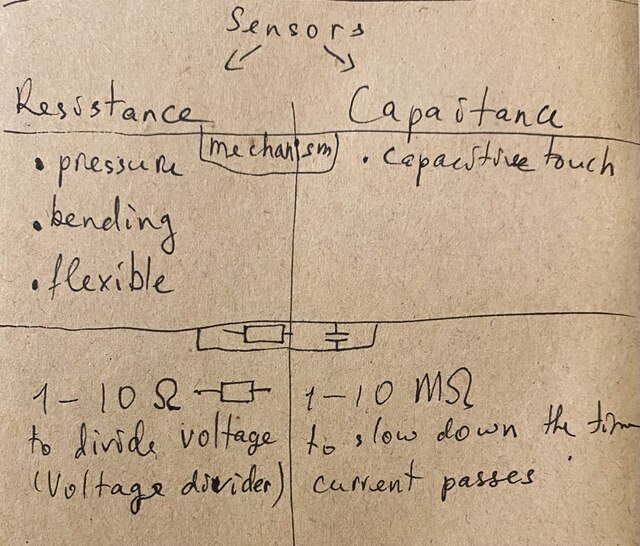 Photo is taken by LuizA Naslyan
Step 3: Arduino
Download
The next step in my workflow was to download the Arduino IDE software for my iMac to be able to work with an Arduino board.
Arduino IDE interface
Then, I needed to learn the Arduino IDE interface and understand the code. I want to share some key concepts I learned:
-
there are sentences in gray; these are descriptions for us to understand the functions. Even if we change anything there it will not result in a function change;
-
const int - here we need to specify the pin that we want to program;
-
void setup - under this phrase, we make sure to include all the components in our circuit; for instance, a servo motor, an LED, etc.;
-
Void loop - here we write the function, which is what the components we included in our circuit should do;
-
in one code there should be 1 set up and 1 Void loop. For instance, if you have several components in the circuit, you should not write set-up and void-loop for each component; just add the component name under Void setup and all the functions one after another in Void loop.
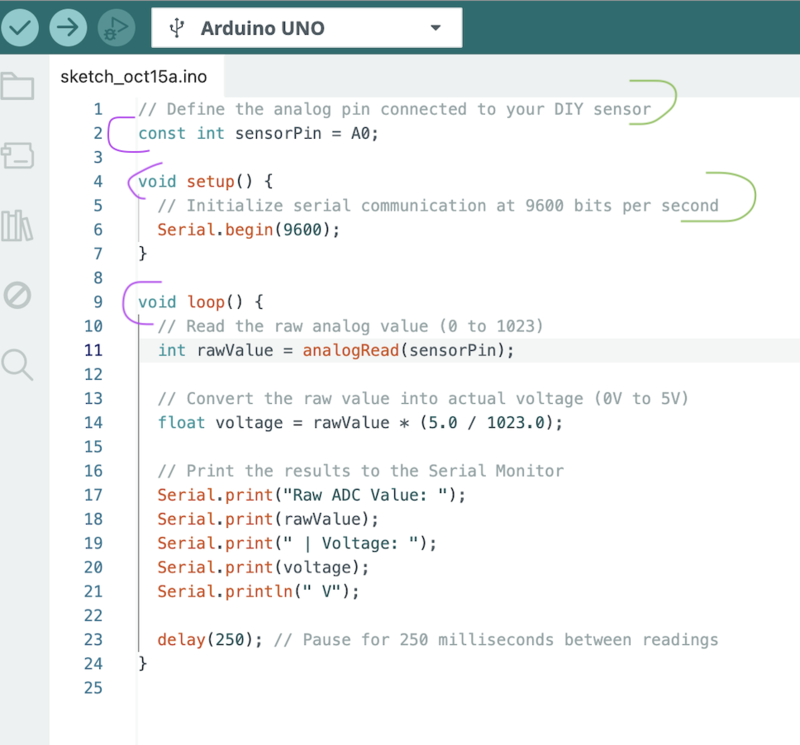 Here you see the gray lines and the functions.
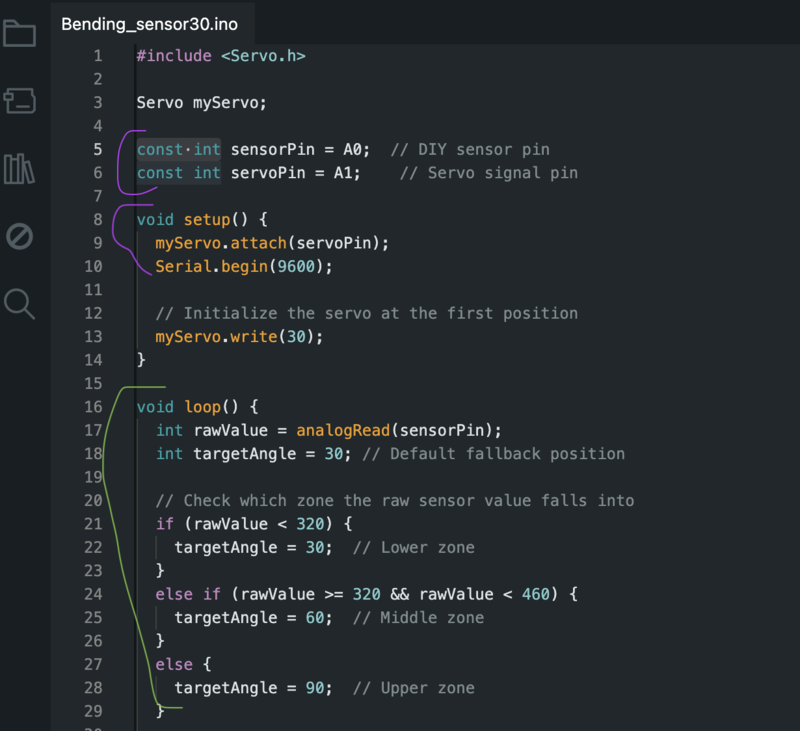 Here you can see more components added under the Void setup and Void loop.
Arduino uno board
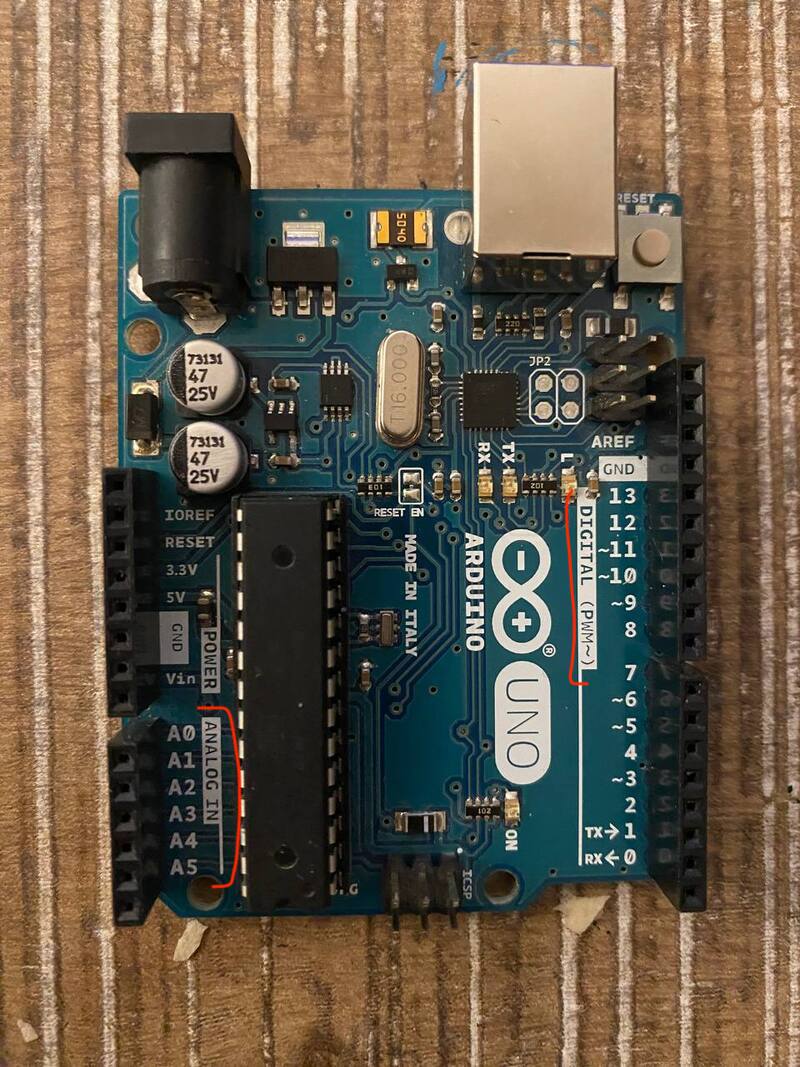
It is crucial to understand the board in terms of the functions needed for making digital and analog sensors. First, on the right side there are the digital ports marked with DIGITAL and on the left side there are the analog ports marked with ANALOG.
The ports marked with GND are for the negative (-) side of the circuit.
The ports marked with 5V and 3,5V are for the positive (+) side of the circuit.
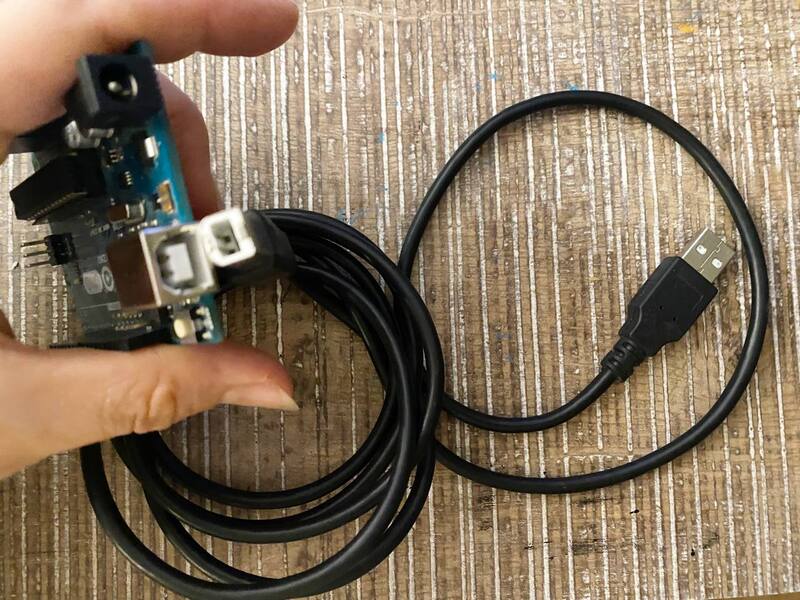
Plug in Arduino uno board
To program any function using an Arduino uno board, first it's necessary to plug in one end of the cable to the laptop and the other end to Arduino uno board.
Settings
I used Google AI mode to generate the codes based on my promps. For example, "give me a code for a diy bend sensor using a servo motor". After that I read the code it generated and edited it.
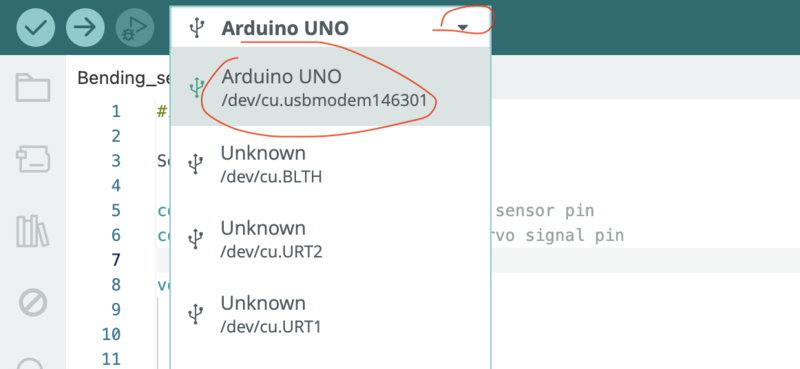
Then, I pressed on the dropdown arrow and chose the board name: Arduino uno.
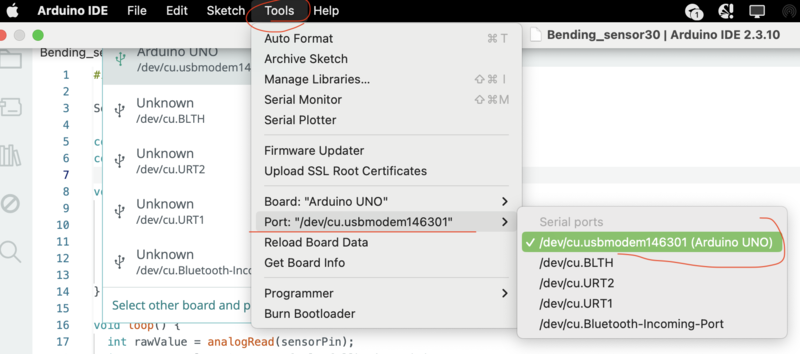
Then on the upper bar I press on TOOLS -> PORT -> Arduino uno to choose the port.
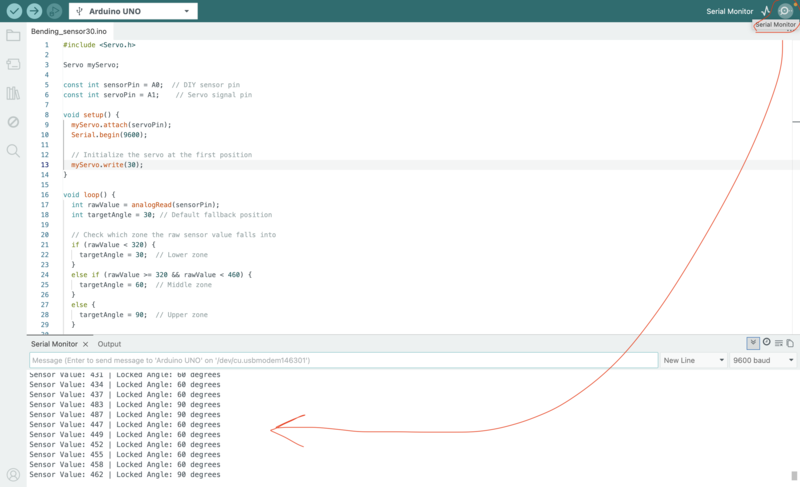
Once the board and the port were chosen,I clicked on the upper right corner to turn on the Serial monitor.
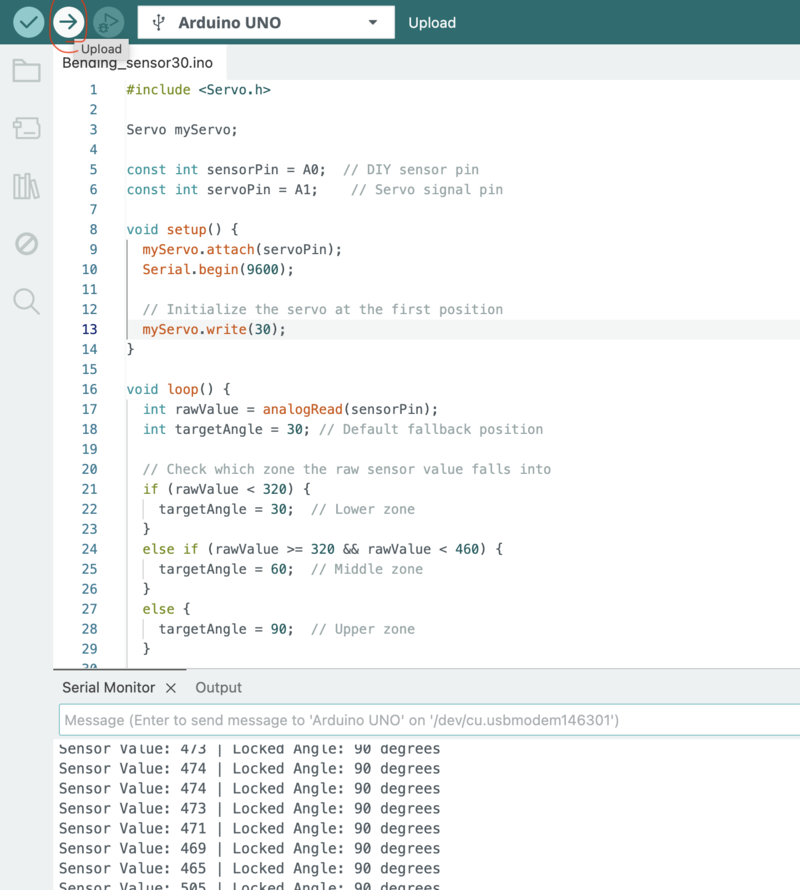
and once the code was good to me, I pressed Verify and Upload.
Step 4: Adafruit
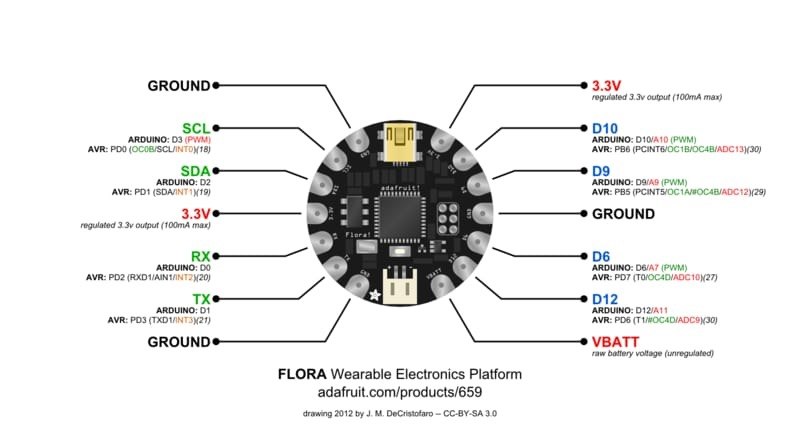
I also got to know Adafruit boards, specifically Adafruit flora board. I installed it to my Arduino IDE. I am sharing the steps with you:
-
open Arduino IDE software
-
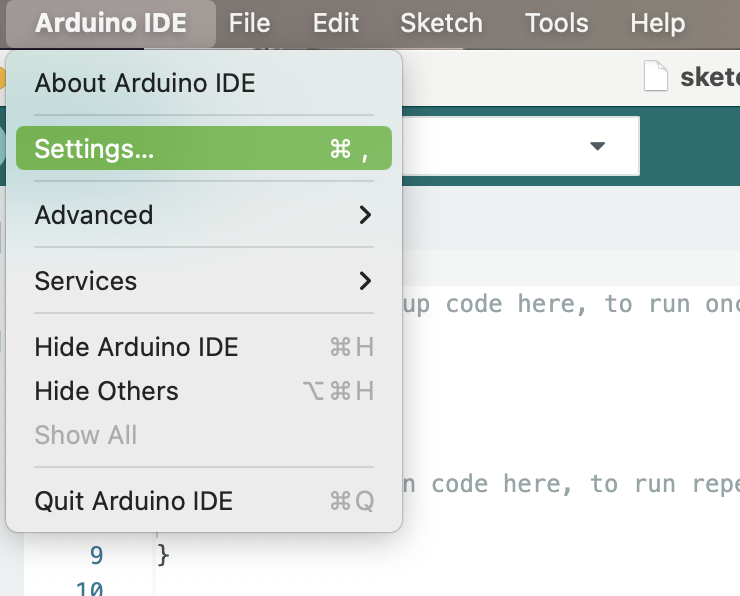
click on Arduino IDE from the upper bar in iMac and choose Settings;
-
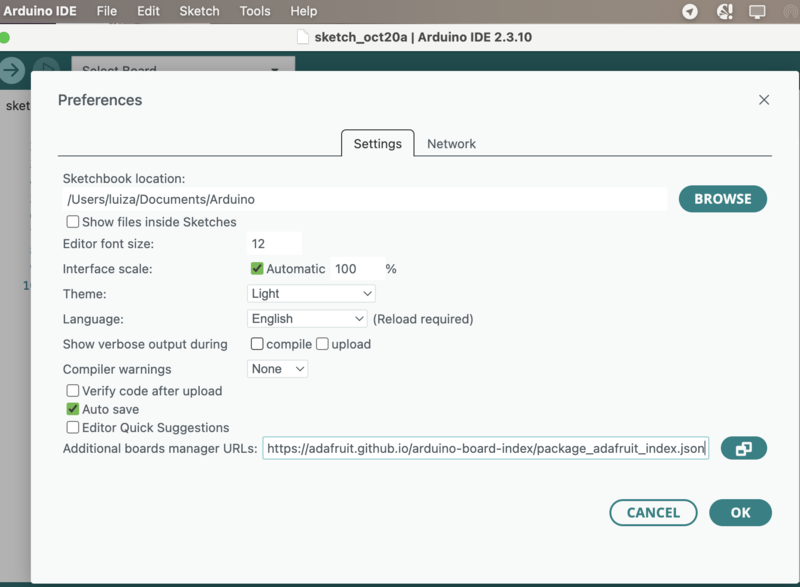
in the Settings, copy and paste this link in Additional boards manager URLs and click OK;
-
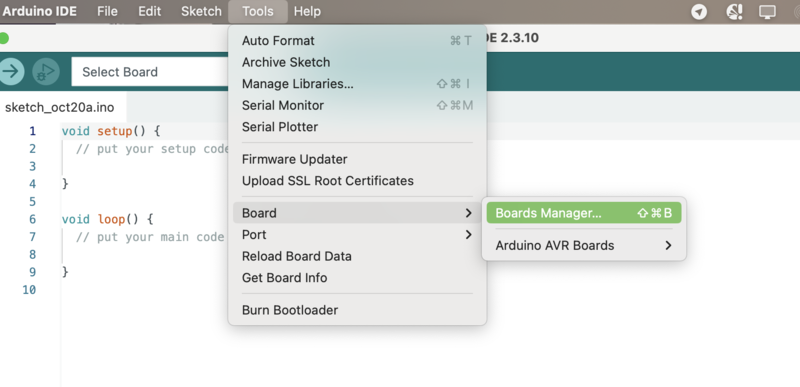
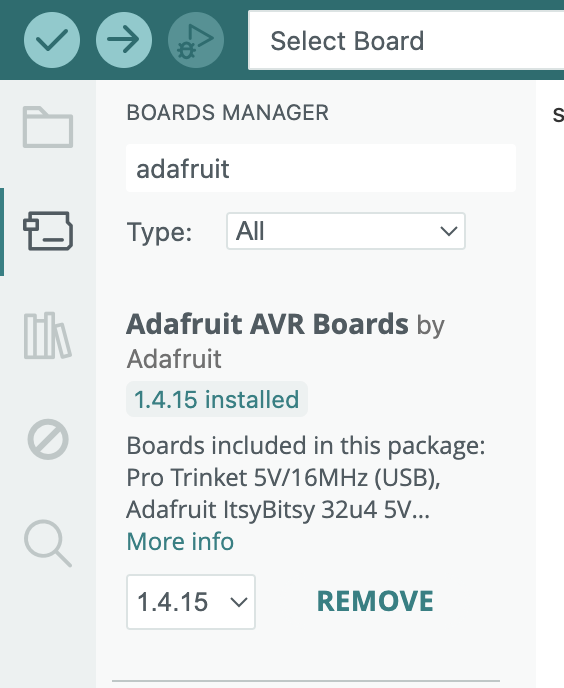
go again to the upper bar and choose Tools -> Board -> Boards Manager
-
check if Adafruit AVR Boards is installed, if not click on Install
-
the last step is to close the Arduino IDE and reopen.
Step 5: Practice
I practiced making several sensors in the lab with Anoush's guidence. Firstly, I made a pressure sensor:
.jpeg) Photo is taken by Luiza Naslyan
Photo is taken by Luiza Naslyan
Tools needed: alligator clips, an LED light, a power source (3V battery), 2 copper plates, a piece of Velostat.
- Attaching the longer leg of an LED light to the positive (+) side of the power source (3V battery) with an alligator clip
- Attach another alligator clip from the short leg of the LED light
- Attach another alligator clip from the negative (-) side of the power source
- Now we have 2 ends of alligators from positive and negative sides free
- Attach small copper plates to each free end
- Cut some Velostat a bit bigger than the copper plates so they will not touch each other
- Press them
Here is a video of practicing the pressure sensor with the values changing in the Serial monitor in Arduino IDE:
Video is shot by Anoush Arshakyan
Then, I made a bend sensor:
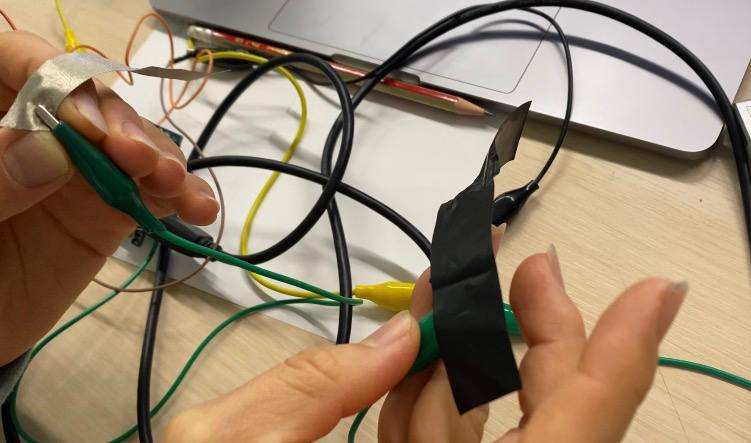
Tools needed: alligator clips, jumper wires, an LED light, power source (3V battery), 2 pieces of conductive fabric (VeilShield), a piece of Velostat.
- Attach an Arduino Uno board to the laptop with its cable
- Insert a jumper wire into an analog port on the Arduino Uno board (e.g. A0)
- Connect the other end of the jumper wire to an alligator clip
- Attach the other end of the alligator clip to one of the conductive fabric pieces
- Insert another jumper wire to the 5V port on the Arduino Uno board
- Connect the other end of the jumper wire to an alligator clip
- Attach the other end of the alligator clip to the second piece of the conductive fabric
- place a bigger piece of Velostat in between the conductive fabric pieces
- bend and test how the conductivity changes when the sensor is bent
Here is a video of practicing the bending sensor with the values changing in the Serial monitor in Arduino IDE:
Video is shot by Anoush Arshakyan
I also practiced analog bend sensor with Servo motor where Servo motor was moving according to the bend sensor, the values on serial monitor were changing ranging from 200 to 900 bits.
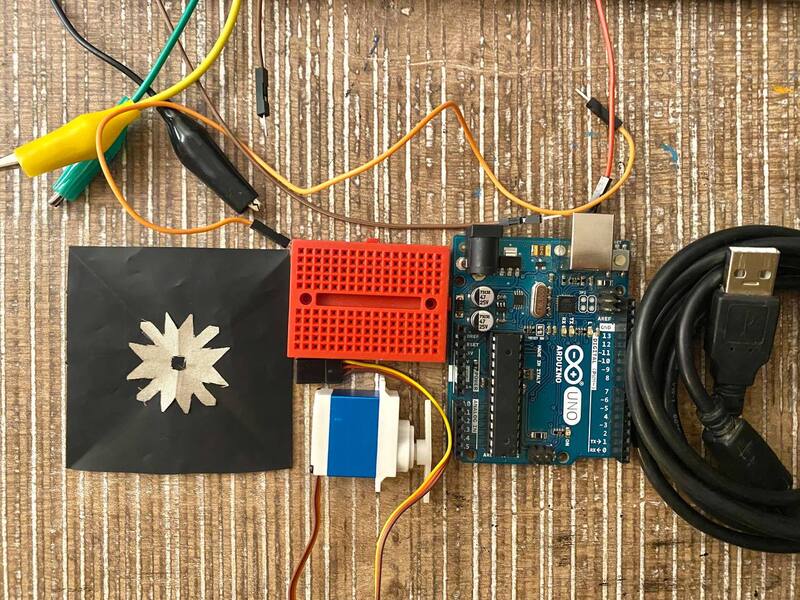 Photo is taken by Luiza Naslyan
Video is shot by Anoush Arshakyan
Next, I made a capacitive touch sensor:
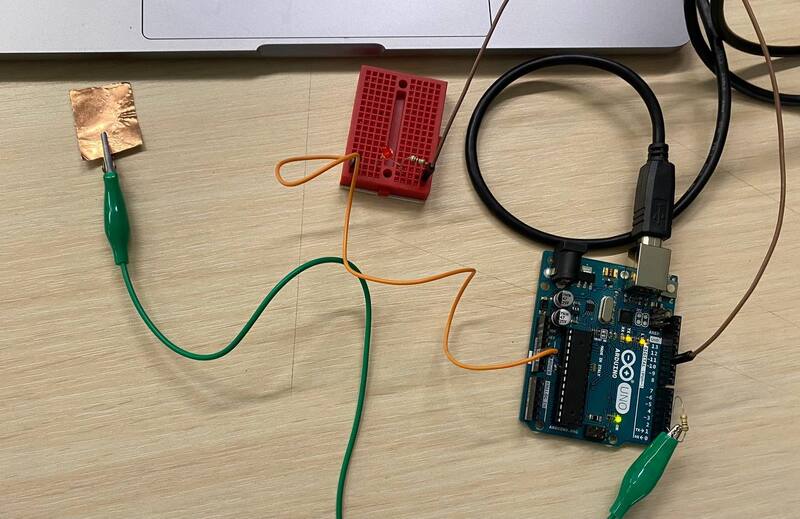 Photo is taken by Luiza Naslyan
Tools needed: an alligator clip, an LED light, Arduino uno board and a cable, a copper plate, a breadboard, a resistor (up to 1K), a mega resistor (1 M to 10 M), 2 jumper wires.
- Attach an Arduino Uno board to the laptop with its cable
- Insert a mega resistor into 2 digital ports on the Arduino Uno board (e.g., D4 and D2 ports)
- Connect one end of an alligator clip to the mega resistor
- Connect the other end of the alligator clip to the copper plate
- Insert one jumper wire to a port on the Arduino Uno board (e.g., D11 port)
- Insert the other end of the jumper wire into a breadboard
- Insert the resistor into the same segment on the breadboard as the jumper wire
- Insert the long leg of the LED light into the same segment on the breadboard as the resistor
- Insert the short leg of the LED light into another / a new segment on the breadboard
- Insert the 2nd jumper wire into the same segment on the breadboard as the short leg of the LED light
- Finally, insert the other end of this 2nd jumper wire into a negative (-) / GND (ground) port on the Arduino Uno board
- Test
Here is a video of practicing the capacitive touch sensor. The LED light turns on both when I am touching the copper plate and when my finger is at a certain distance from the copper plate. Depending on the mega resistor, the higher the resistor, the further my finger can expect the light to turn on without touching the copper plate.
Video is shot by Anoush Arshakyan
Results
As a result of all the research, learning and practicing, I made 2 sensors: a digital sensor hairpin and an analog sensor with a Servo motor.
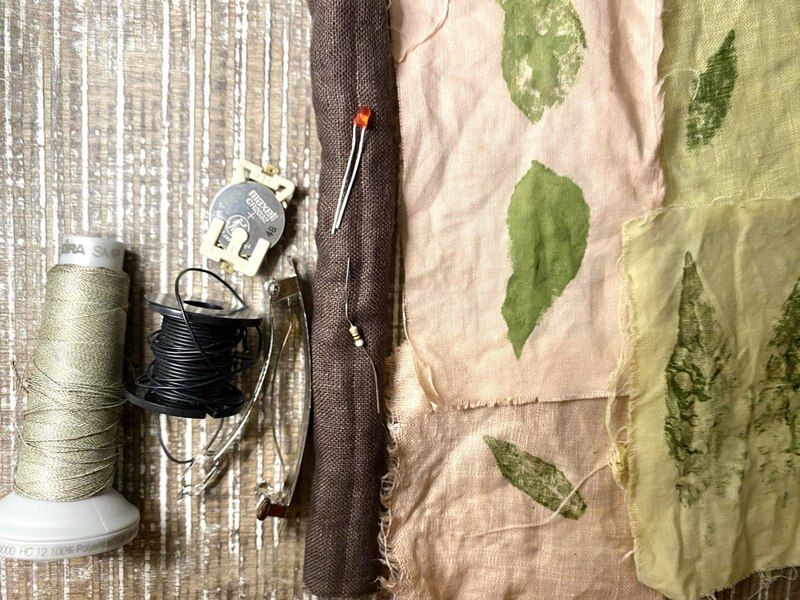
For digital sensor:
-
ideation: first I checked my box full of odds and ends, and chose my 20-year-old hairpin. I could not even remember what brooch was attached to the metallic pin, but I am glad I saved it. So, I thought to dare me to make a hairpin with an LED light on top, when I pin my hair, the light will turn on.
-
Next, I sketched the sensor circuit with a pencil:
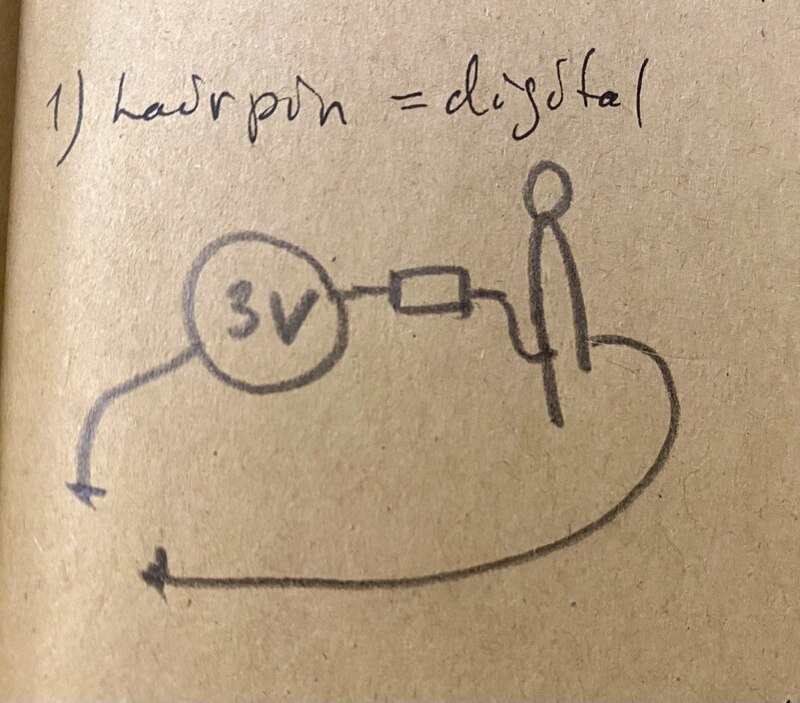
-
I checked it with a multimeter Continuity function to see if it is a conductive one. It was, so I had to insulate the wires to avoid any contact with the pin.
-
So, I chose linen fabric from my fabric scraps and sewed a rectangular tube to place my pin into.
-
I chose silicon covered conductive wire to secure a safe, non-conductive connection between the sensor components
-
I chose fabric pieces that I dyed with madder roots and marigold petals during my BioChrome week, picked up some leaves from my garden and pounded them on the fabric pieces with a hammer. I used them as a bow on top of the pin to cover the circuit and decorate the LED light.
-
I stitched the linen fabric on the upper part of the pin.
-
I measured the wires and cut them according to my pin.
-
I rolled the LED light and the resistor legs, making sure to roll the LED LONG leg in a different way to remember later
-
I started to attach the wire to the positive side (+) of battery holder, then to the resistor, then to the LONG leg of the LED light, then one more wire that connected the short leg of the LED light to the upper end of hairpin.
-
I attached one slightly longer wire to the negative side (-) of the battery holder and attached to the lower part of the hairpin.
-
I turned the dyed and pounded fabric piece into a bow, used my carpet weaving needle to make a hole in the center by pushing my needle through without cutting any threads.
-
I placed the bow on the LED and stitched the sides on the linen underneath.
It looked neat and tidy, it worked well.
For my analog bend sensor I decided to use an Adafruit board with a piezoelectric speaker because it can be good practice for my final project. I needed these tools for my sensor: an Adafruit flora board and cable, a piezoelectric speaker, jumper wires, alligator clips, conductive thread, 2 conductive fabric pieces (VeilShield), Velostat, a 10K Ohm resistor (voltage divider).
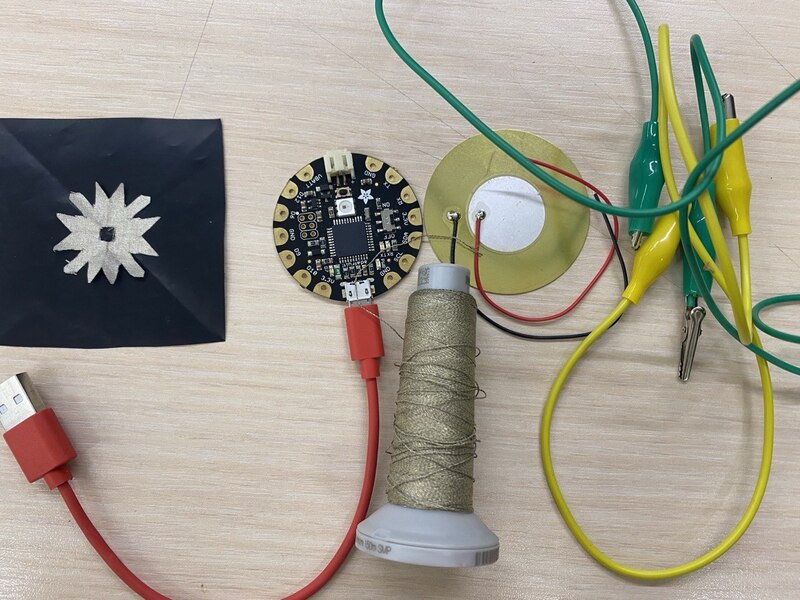 Photo is taken by Luiza Naslyan
-
first of all, I installed an Adafruit AVR board in my Arduino IDE;
-
I generated a code via Chat GPT, checked it and edited the pins;
-
I connected the piezo speaker to the board: the black wire to the GND and the red one to D6 / A7 pin and programmed that pin in Arduino IDE to be sensible to the bend sensor;
-
Then, I connected a piece of the conductive fabric to the resistor and the resistor to the GND on Adafruit flora board;
-
I connected the other piece of the conductive fabric to 3,3V pin on Adafruit flora board;
-
another wire connected the resistor and another GND pin on on Adafruit flora board;
-
I rolled one leg of the resistor twice because I needed to connect to wires from it. This might be useful for others too:
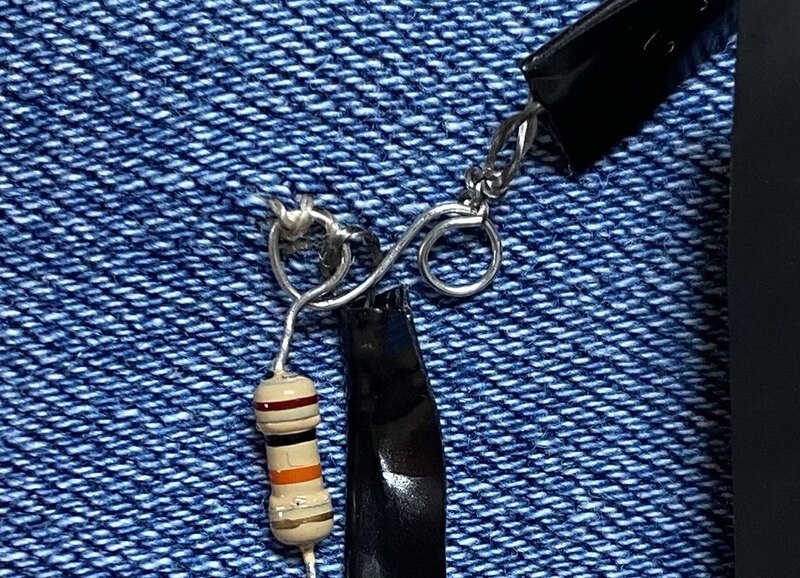
-
the final step was to connect the Adafruit flora board with the laptop and check the Serial monitor on Arduino IDE.
Video is shot by Anoush Arshakyan
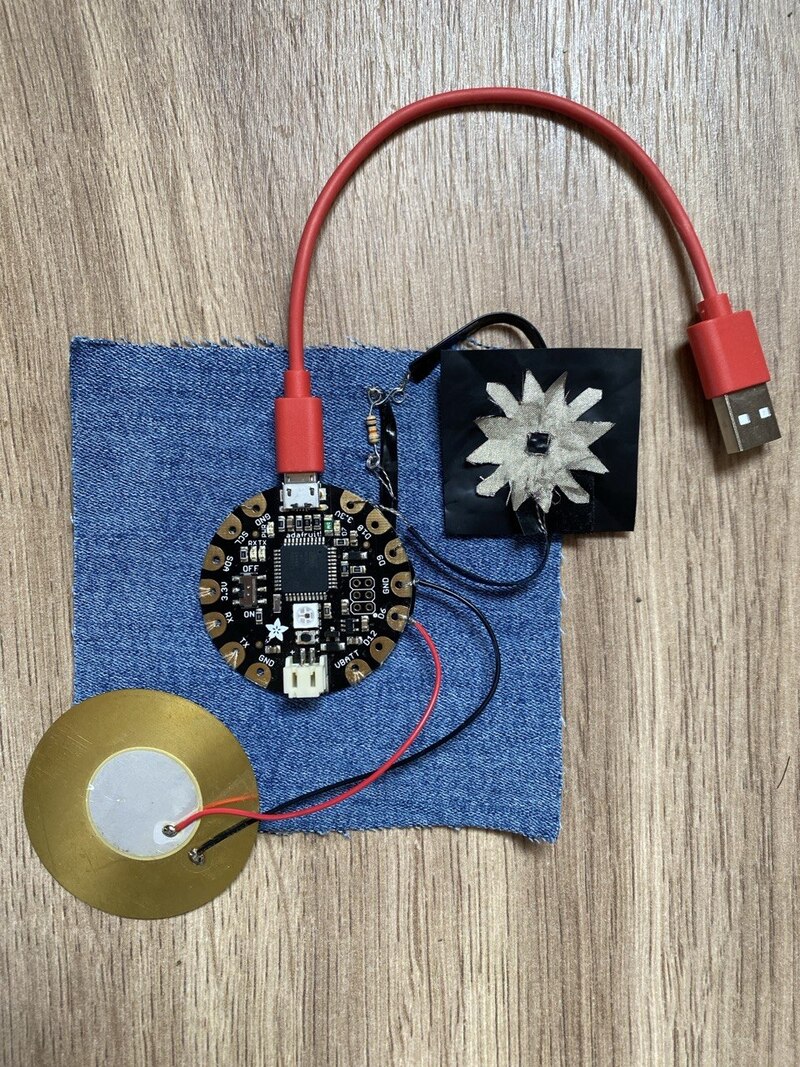 Photo is taken by Luiza Naslyan
Code
Here is the code for my analog bend sensor with piezoelectric speaker:
const int sensorPin = A9;
const int piezoPin = 6;  // A7 / D6 on Flora

// Sensor range
int sensorMin = 200;
int sensorMax = 1000;

// Piezo frequency range
int freqMin = 200;
int freqMax = 2000;

void setup() {
  Serial.begin(9600);
  pinMode(piezoPin, OUTPUT);
}

void loop() {
  // Read bending sensor
  int sensorValue = analogRead(sensorPin);

  // Keep values within selected range
  int limitedValue = constrain(sensorValue, sensorMin, sensorMax);

  // Map sensor values to piezo frequency
  int frequency = map(limitedValue,
                      sensorMin, sensorMax,
                      freqMin, freqMax);

  // Play sound
  tone(piezoPin, frequency);

  // Print values
  Serial.print("Sensor: ");
  Serial.print(sensorValue);
  Serial.print(" | Frequency: ");
  Serial.print(frequency);
  Serial.println(" Hz");

  delay(50);
}
Final thoughts
- I learned to trust myself more.
- I would take more detailed pictures of my circuits.
- This week was key for my final touch sensor project.
- E-textiles are highly versatile and the only limit truly is our own imagination.
Files
Adafruit flora zipped file: Analog Bend sensor with Piezo speaker