Circular Open Source Fashion
A week ago, I read through the class page, and it made me really excited for what was to come. This week, we looked at the linear and circular fashion cycles and the importance of making this circular so we keep recycling, avoid waste, and reduce the need for new materials. We also talked about the use of open-source systems and how they could improve the way we share, learn, and make items, machines, and systems. Are you curious what I made this week? Jump to the results!
Moodboard and Research
This week I wanted to add a bit of research behind the push factor for reusing and recycling. This kind of research is very up my alley, I dived into lots of reviews and articles during my studies to research different topics. I feel it’s really important to think about your motivation behind projects like this and understand why it matters. For me, numbers make problems like this clearer and more tangible. It really shows how big the problems are and how important it is that we act to improve the situation.
Textile production and consumption have more than doubled over the last two decades, driven largely by fast fashion, which relies on low-cost production, frequent purchasing and short garment use1. The resulting system is almost entirely linear: clothes are made, worn briefly, and then landfilled or incinerated, and well over half of fast fashion is estimated to be discarded within a year2. Textile waste is widely regarded as the fastest-growing waste stream in municipal solid waste, and only about 25% of it is reused or recycled, while the remaining 75% is landfilled or incinerated1.
This waste is far from uniform. It includes pre-consumer waste from manufacturing, such as yarn waste, offcuts and rejected fabric, and post-consumer waste, meaning garments that are no longer used, which forms a mixed stream that often harbours contaminants2. Of the 53 million tons of fibre produced for clothing in 2015, about 63% was plastic-based, 26% cotton and 11% other fibres1. Garment waste is therefore often a combination of natural and synthetic fibres together with non-textile items such as metal zips, buttons and snaps, which makes it difficult to degrade2 and to recycle, since blends, dyes and chemicals are hard to separate1.
The consequences are considerable. The sector is estimated to produce 8–10% of global CO₂ emissions, 20% of industrial water pollution and about 35% of primary microplastic pollution in the oceans, while an estimated US$500 billion in value is lost each year through underused clothing and the lack of recycling1.
Because I was quite excited for this week, I had lots of inspiration and ideas that I wanted to develop. Here is the moodboard I made that contains my references.
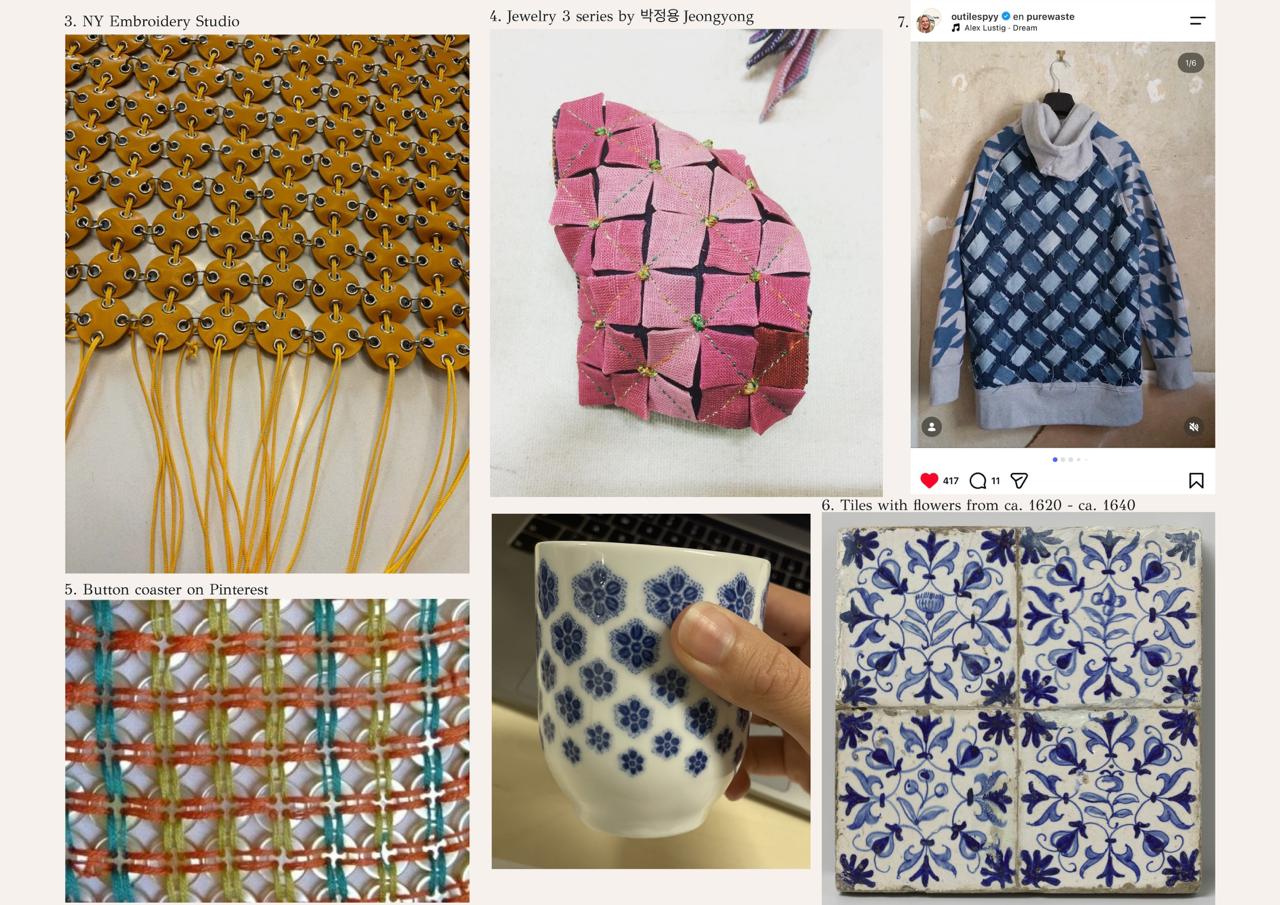
I’m really fond of the circles and crosses seen in the work of NY Embroidery Studio3, Jeongyong4, and the button coaster5 I found on Pinterest. Those shapes really stood out to me, and I went exploring with the circles and the crosses. I would like to to see if I can make a bag with these modules. For the type of material, I got very inspired by this jacket posted on Outi Pyy’s7 Instagram. Sadly, during the lecture, I heard that jeans are a difficult material to laser cut because of the fraying.
While working out some designs, I had a coffee at Passage Thiaffait, one of the locations of the Lyon node. The cup the coffee was in was, without me noticing, a source of inspiration, and that is seen in the sketches of the design and later brought back with some decisions. When I noticed that the cup was influencing me, it reminded me of the typical Delft blue tiles6, which have symmetrical patterns and most of the time a circle with a painting framed by flowers.
Process
It really started with the circles and the crosses for me, and from there on I built on that idea. A truly important factor for me this week was to create the least waste as possible and, where possible using scraps to get into the circular fashion cycle.
Designing in Inkscape and on paper
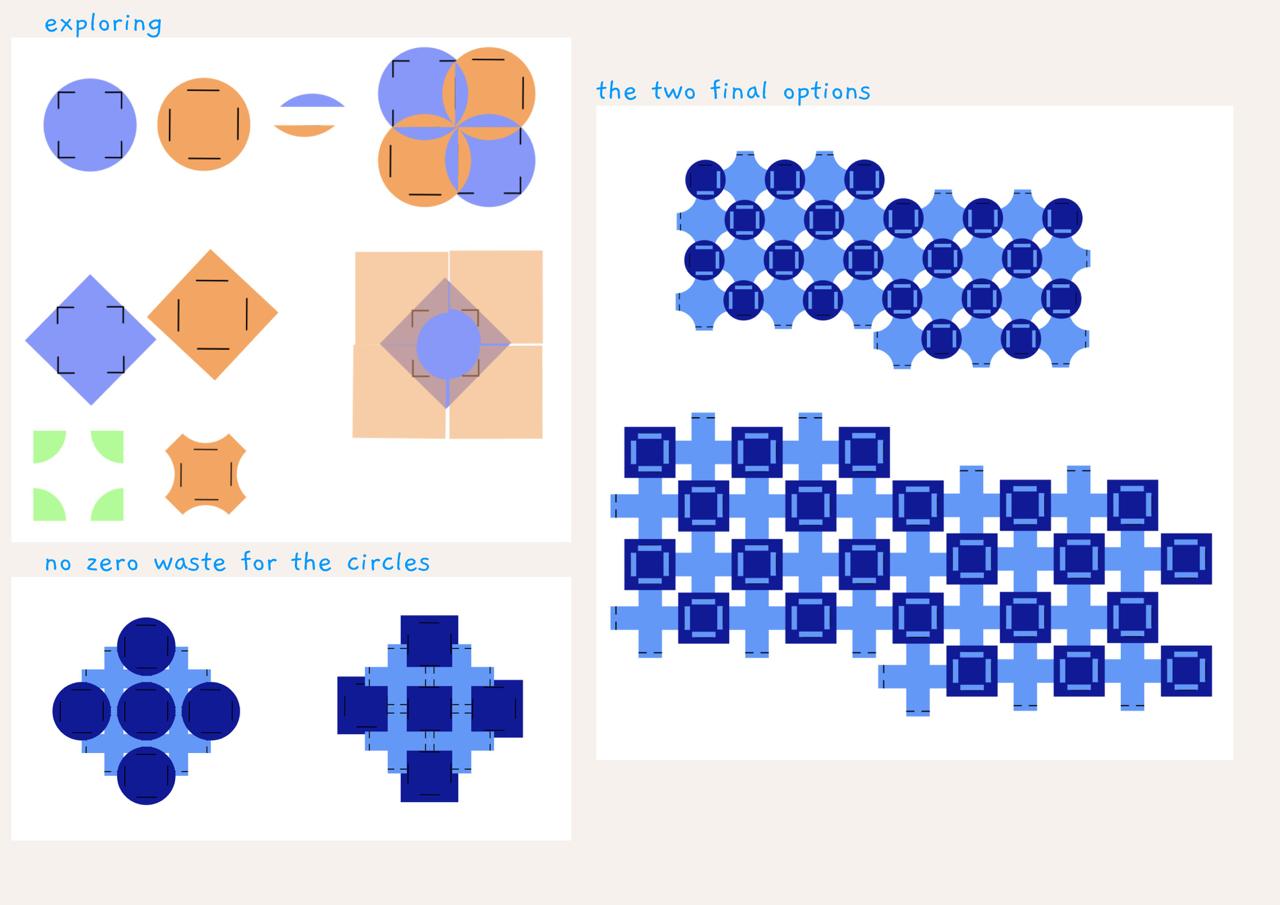
I started by making some designs in Inkscape. I started by replicating the circles made by Claudia Simonelli in 2018. From there on, I adjusted the shapes and had different options, but none that were really speaking to me yet. I started exploring with the edges of the squares and how those could create circles. But this shape was still not as exciting as the circles and crosses from my references were to me.
So… one option left: just making the circles and crosses. That worked well, and as seen in the picture, here is where the inspiration for the coffee cup came in. The thing that was missing with these two options was the zero waste, and that’s a very important part for me. I went back into Inkscape and cut out the circle from each corner of the square, this created the rounded crosses.
I wanted to try out the way of connecting these pieces, so I used paper to cut the shapes and try the connection.
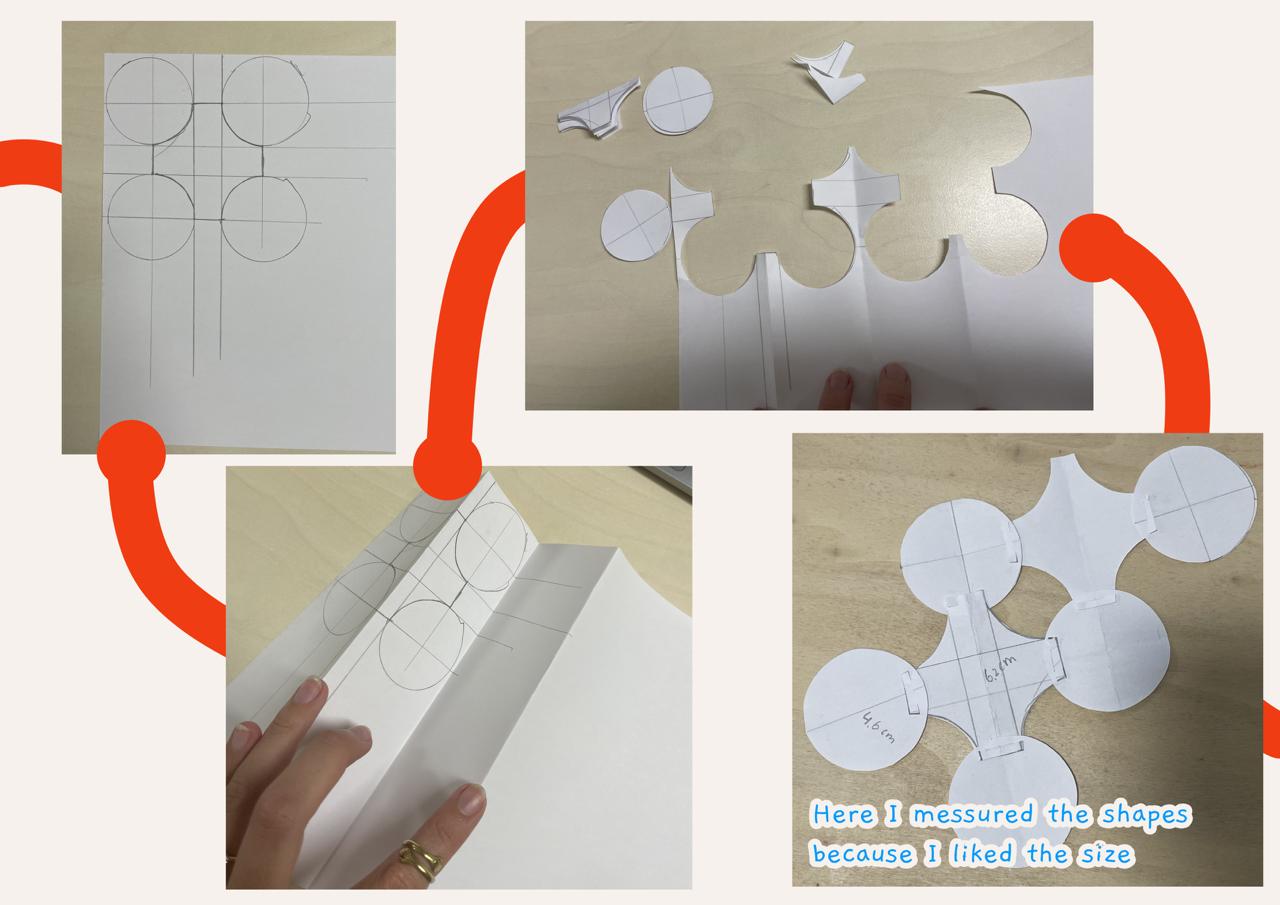
Because of my initial inspiration and after asking people around me, the circles and crosses are the option that I took into Fusion 360.
Translating the design to Fusion 360
I had never worked with this program, so the tutorial by Claudia Simonelli was a good start and made it clear how to work with the sketch feature.
To create zero waste, the way of nesting is an important part. So I started by making the circle. After the paper experimentation, I measured it, and the circle was 4.6cm. For the cross, I added a square to Fusion with the height (and same width) of the cross, 6.2cm. At this point, I needed to cut out the exact circle at each corner. To do that, I made four copies of the circle and placed them on every corner. I used the trim tool to remove the lines inside the circle and then the unnecessary lines of the circles themselves.
I used the points to assign the sizes again, so that wouldn’t change while adding on the cutting lines. The outside pieces of the crosses were 1.6 cm, so I decided to split them up into 0.5, 0.6, and 0.5 cm. This means the cuts in the circle need to be 0.6 cm to make the shapes connect well. I added the distance between the cuts and the outside line, so that measurement would be the same on the circle. This distance was 0.35 cm.
When I added the circular pattern to get the cuts on every outer edge, the cuts didn’t line up with the outside edge. To fix this problem, I assigned a measurement to all the outer edges to make sure the cross was not crooked. This fixed the problem, and I could move on to the next step, making the cuts in the circles. The cuts needed to be 0.6 cm, so I created a line with that width and a distance of 0.35 cm from the edge of the circle. With the circular pattern, I added the other three cuts evenly over the circle, and those modules were finished.
I exported the file as a DXF file and opened it in Inkscape to make the lines red and set the width to hairline. Like this, the laser cutter recognises where to cut.
Laser cutting
Before I started the laser cutter, I chose the fabric I wanted to use for the bag. I laid out the different materials that we have at Halle des Valoristes, another location of the Lyon node.
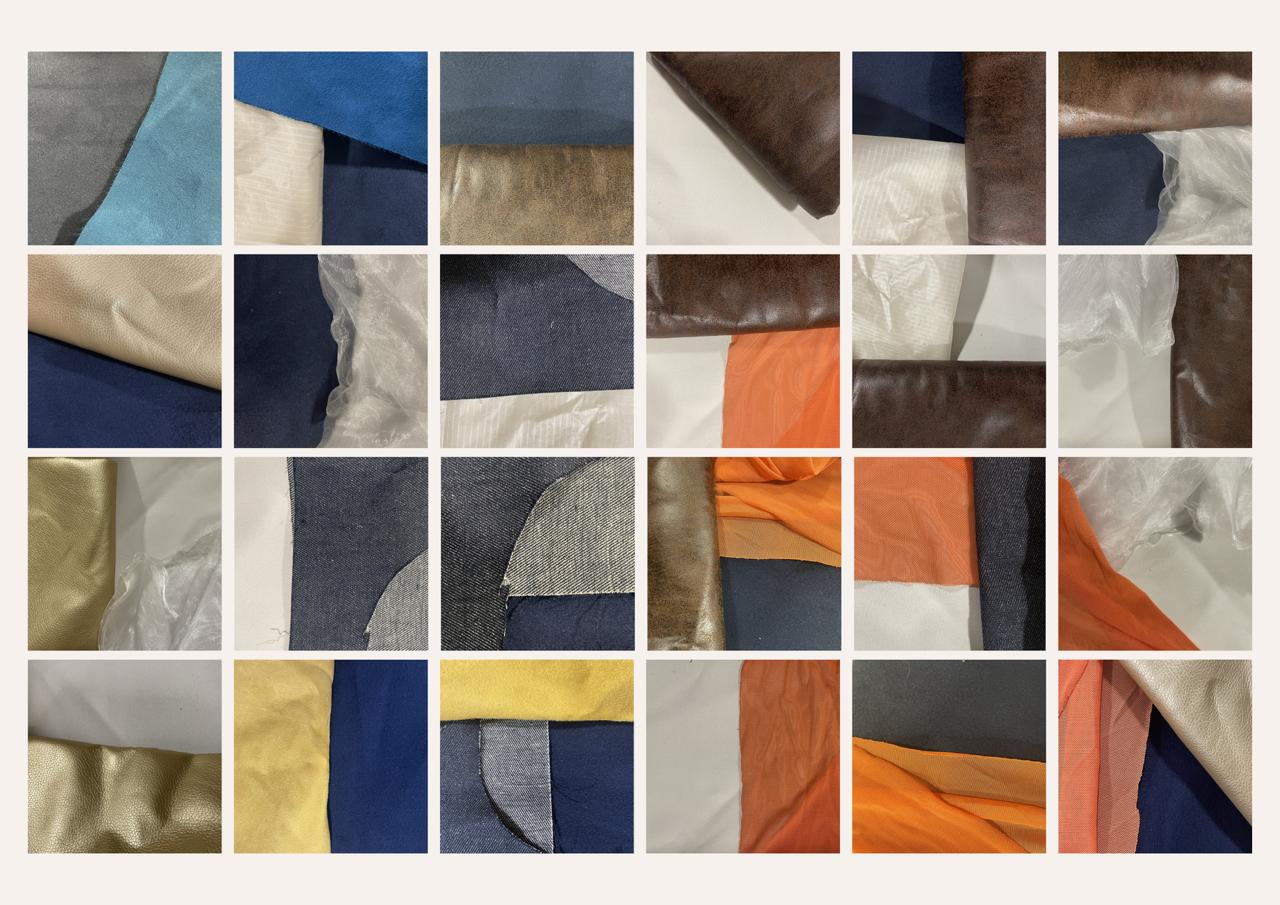
There were lots and lots of options. I still loved the jeans look, so I was still hoping to maybe do something with that. So I kept that in mind when deciding. The brown leather was speaking to me, so I needed to decide between those options. The blue had a lot of texture, and the white helped with the contrast of color (first row, 5th picture from right). At this moment, I was thinking of adding lining to the bag so the hole would be filled up and nothing would fall through the holes of the bag.
I nested the modules via Inkscape and made sure that double lines were made single so the laser would go there just once. In the file are 45 circles and crosses, here, you can download the PDF file.
I did some quick tests for both the brown leather and the blue woollen fabric.
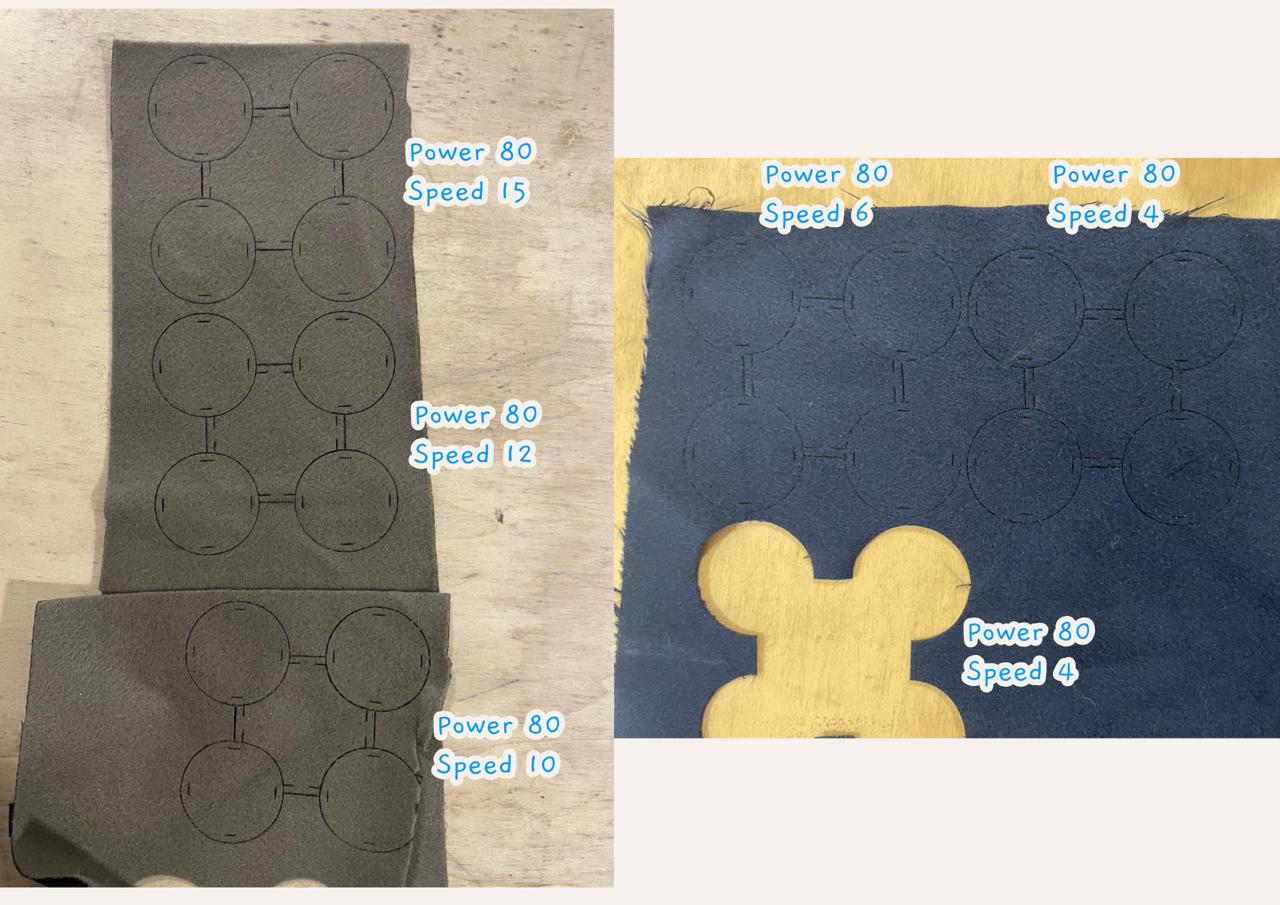
With the tested settings, I felt confident to cut the bigger file.
THE JEANS
I didn’t want to give up on the jeans idea. So as soon as possible, I placed some jeans in the laser cutter to see if it would work. First, I detected the components of the fabric by using the Matoha machine. You can place this on a fabric, and then it will show what materials it consists of.
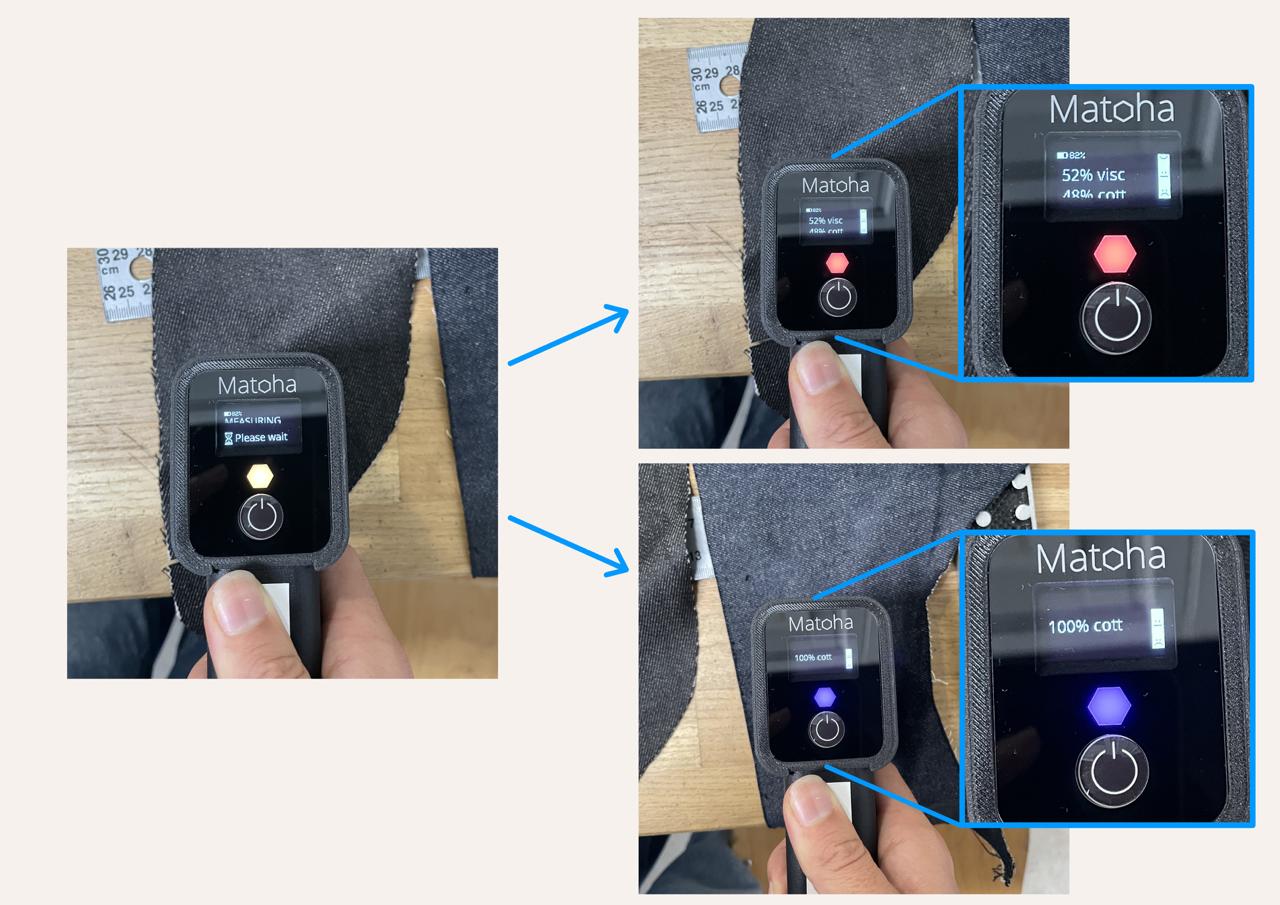
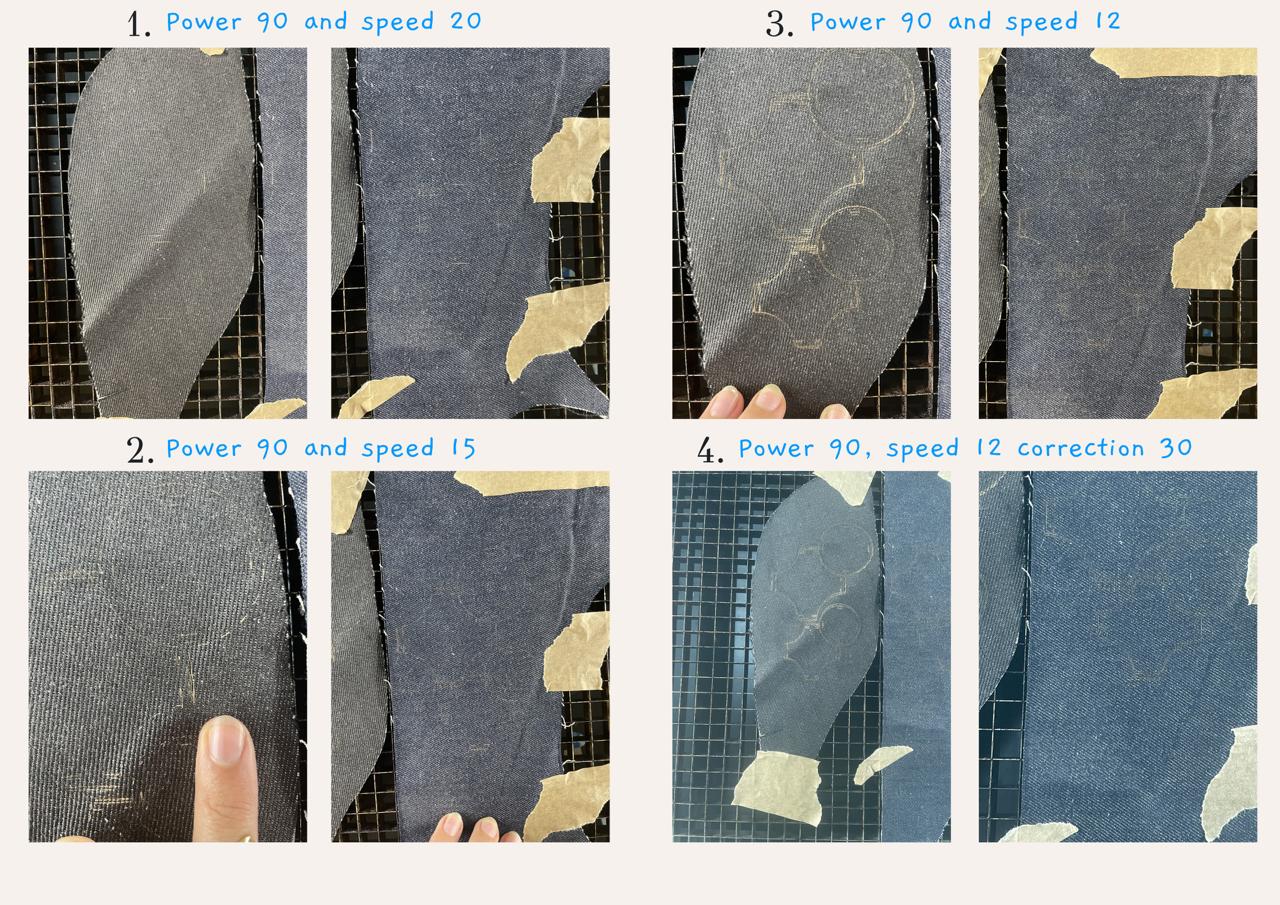
With this knowledge, we (Capucine and I) tried different settings for the laser cutter. It took quite some trying to go through the jeans, the final settings were power 90V, speed 11, and a correction of 40.
Keep in mind that we tried every time on the same piece, so these settings might not be correct.
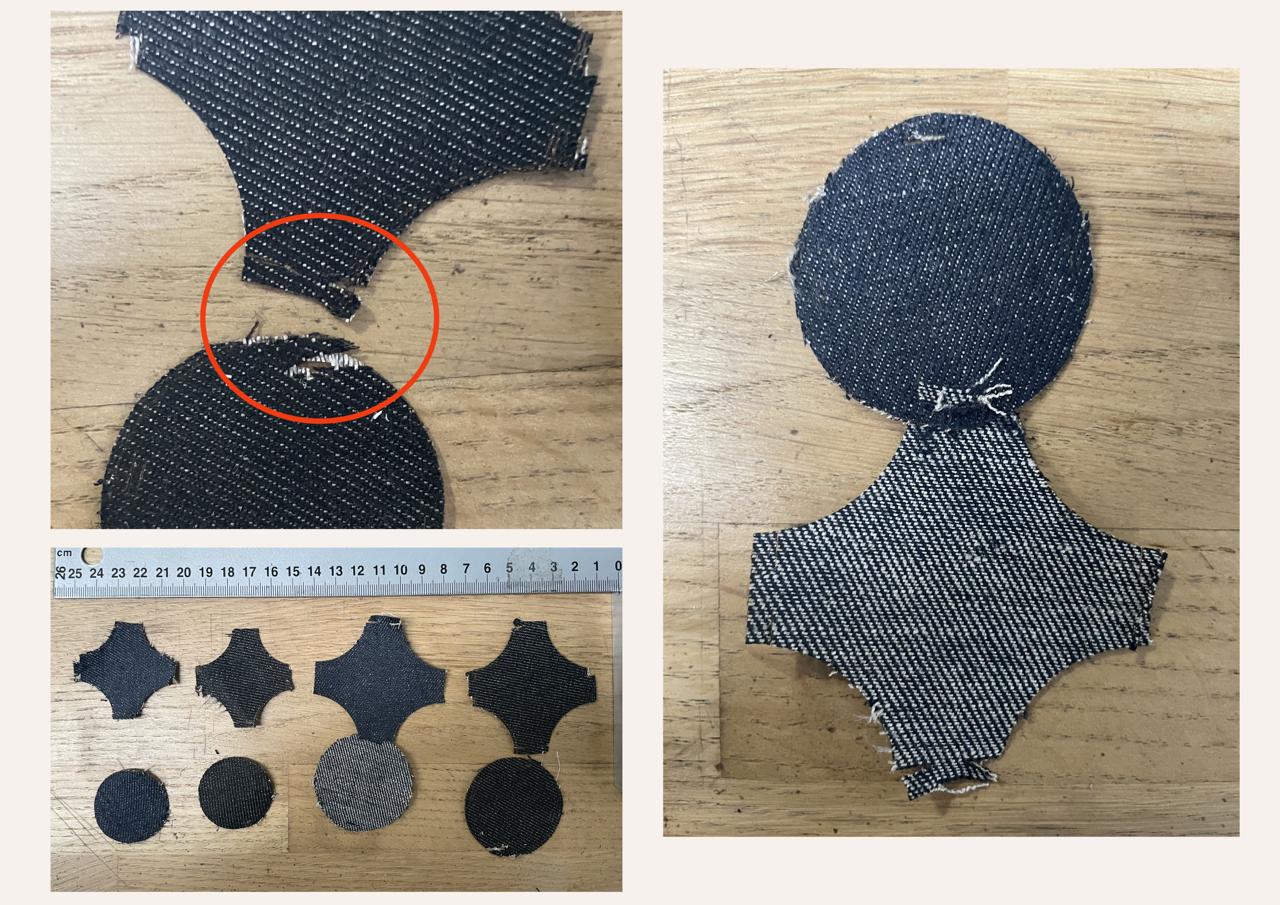
When I finally got the pieces, I wanted to assemble them, but the structure of the jeans was fraying as soon as I pulled them. I succeeded with one piece, the other two pieces broke. When I was trying this, I also played with the size and realized that making them smaller would be close to impossible to assemble the pieces, no matter what material.
Luckily, Pauline told me I could try with fusible interfacing/webbing. So I did that! We had lots of jean scraps lying around, so I picked a couple and laid them out on the interfacing. Next, I put the interfacing, jean scraps, and a protective layer on the heat press and pressed it in different spots so the jean would stick well to the interfacing.
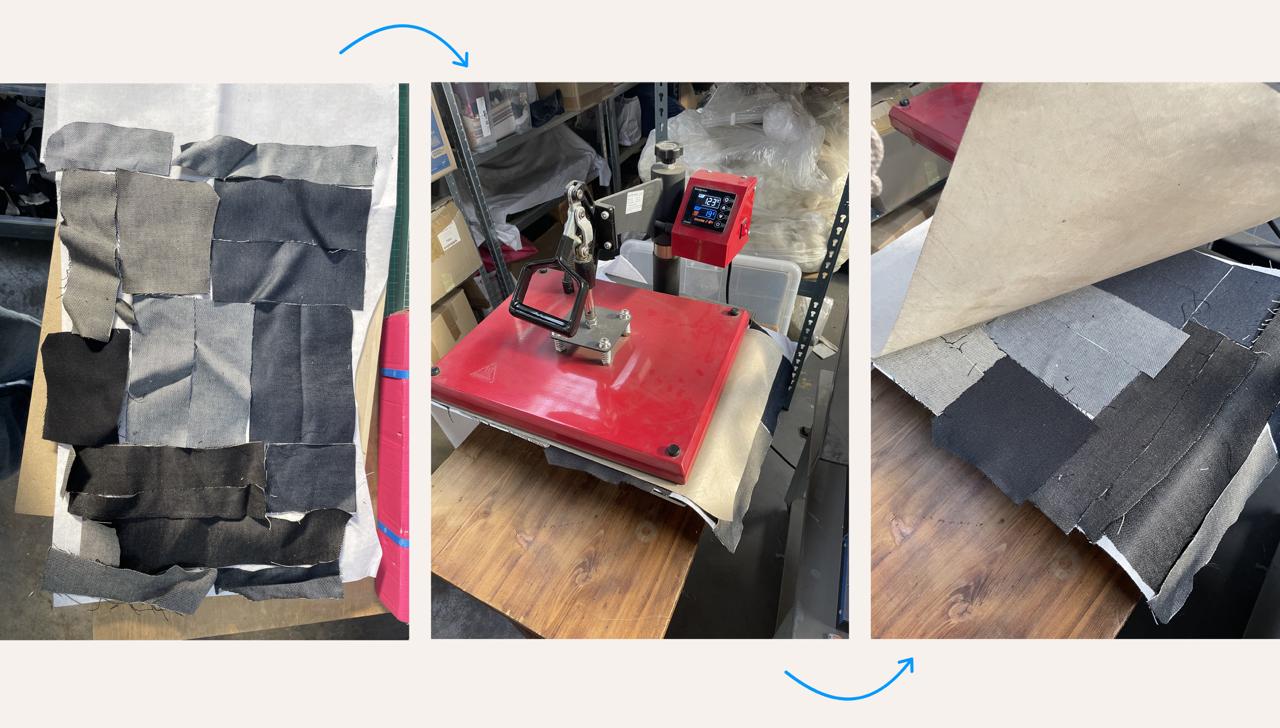
Then I repeated the laser cutting process. Very soon Pauline and I realized it was not cutting through the jean, so we changed the settings so the laser would go over every line twice. And this worked perfectly, it cut through all the pieces in one go.
Inside the bag
Because the design shows quite some holes, and that's not so convenient for a bag, I decided to make lining. I wanted the lining to be the contrasting color so the interlocking modules would really stand out. I wanted the lining to be made with the same interlocking system so it could connect to the outside of the bag to create a neat edge.
With those points in mind, it was an important step to make sure how the bag was going to look. In Inkscape, I placed all the modules in a grid, just like how they would interlock with each other. I created a simple pattern for a square bag.
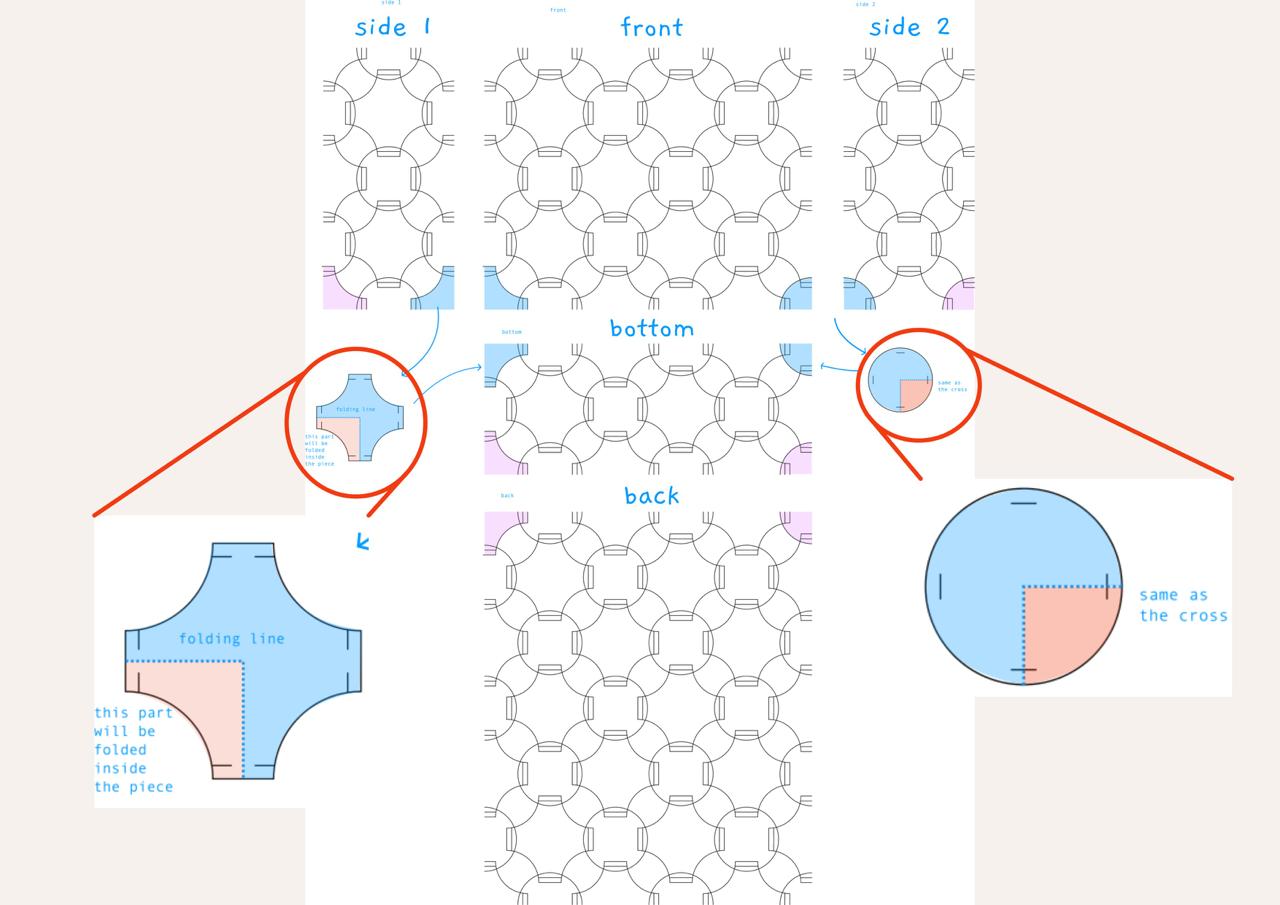
It consists of two side panels, a front and larger back panel, and a bottom of four modules. As you can see in the picture, the collored modules are corner pieces, they appear on the sides, front/back, and bottom. For this to work, I needed to make sure the pieces could do what the drawing was asking of them. I tried this with the paper pieces I made before and after with the fabric modules that were cut.
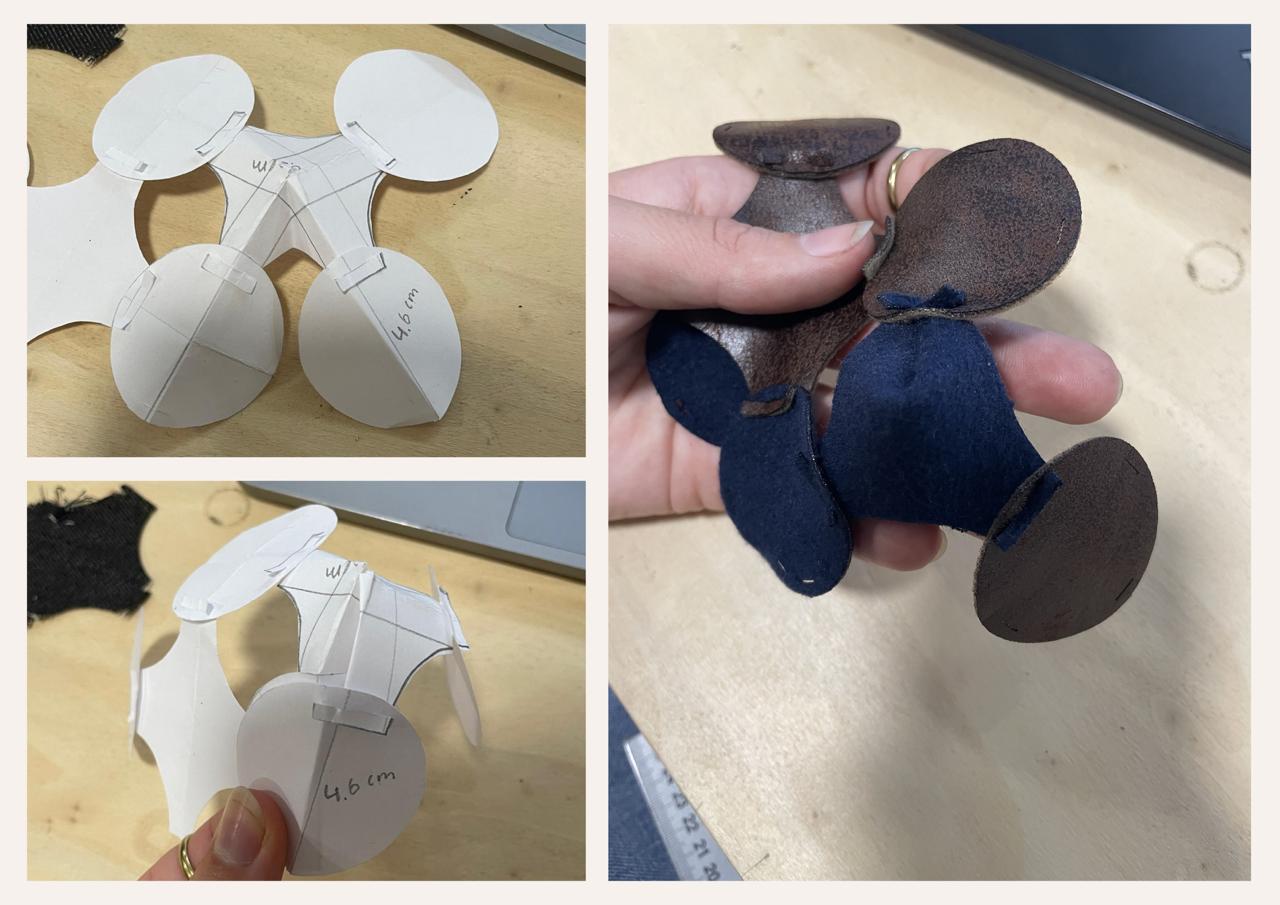
At this moment, I didn’t have enough pieces to try this with the circle as the corner. But I felt confident enough that it would work. So I could move on to the lining.
The lining was one of the hardest parts this week. Because I wanted it to connect to the modules and have the correct size. To achieve this, I placed a square in Inkscape over all the pieces to act as the lining. For the bottom, I wanted the front and back pieces connected at the bottom, and I made those pieces the same size. This meant that the longer back piece of modules was not fully covered, to fix that, the bag needed another piece of lining to connect to the back piece. The side did have the same size and would connect to the front, back, and bottom just like the modules.
Here I went into Fusion 360 to make sure the interlocking system would work out. I used the same sizes as the modules for the system. I started by making the connection between the front and back, next the back and the extra lining, and last the side pieces because they would attach to all of those. Because I wasn’t sure yet where the lining would attach to the modules, I didn’t add these male and female parts. Here, you can download this file.
I took out the fabric seen in the picture before and placed it in the laser cutter. I used the settings earlier chosen by Capucine Robert, power 95V and speed 50. These settings were working well for the big cutouts, but not for the tiny male and female parts. I lowered the speed to 20, and that worked perfectly.
Because it was such a thin material, it was very hard to interlock them together. They were also barely holding on to each other, so the tiniest pull was separating them already.
This material wouldn’t work. I needed to make a change in that, after the weekend, I went back to the lab and chose a stiffer material. At that point, all the modules were attached and had the form of the bag. I could take measurements and make changes to the Fusion 360 file. At this time, I also added the male and female parts of the modules so they would attach to the lining. Here, you can download the updated lining file.
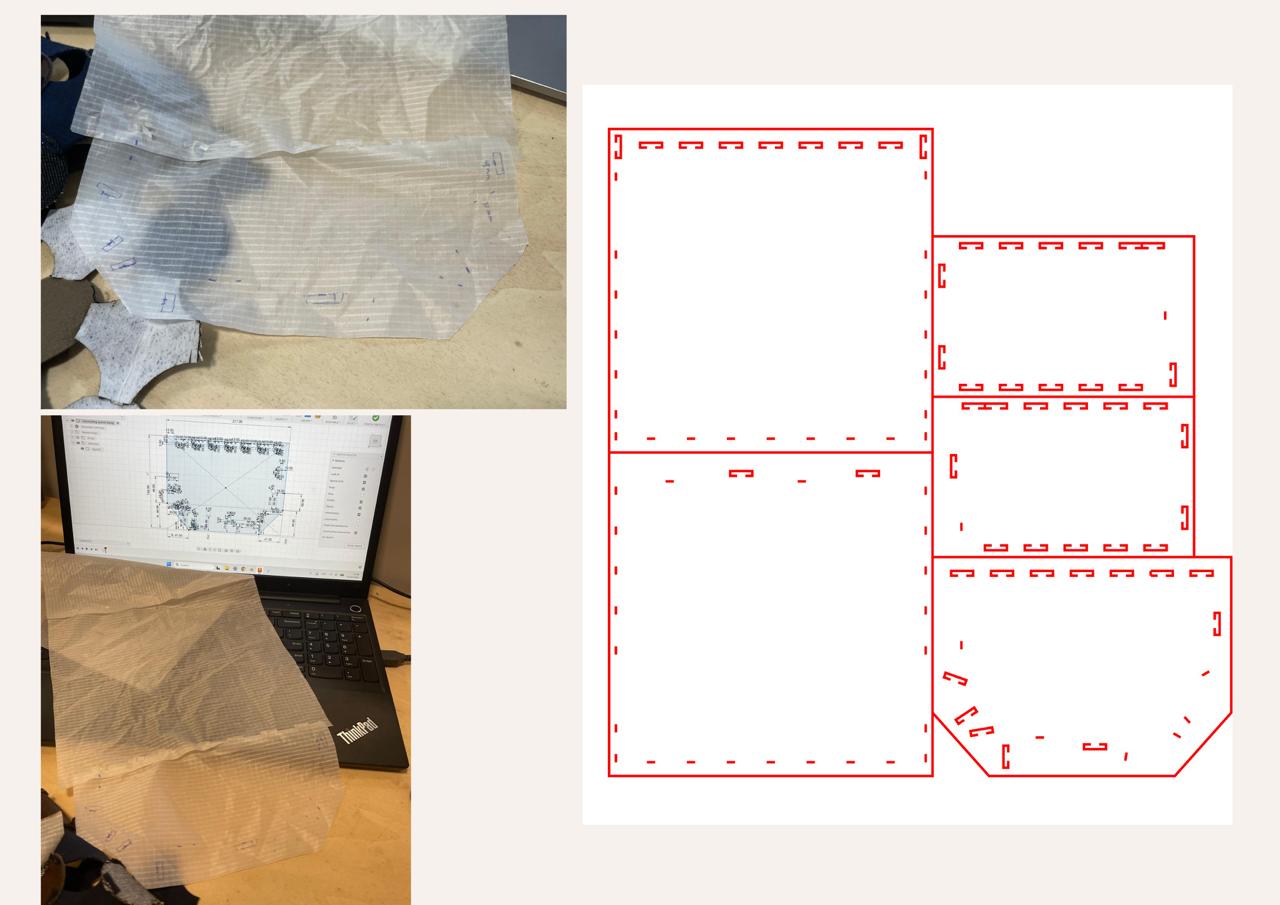
With the fabric of choice, I measured the consistency with Matoha again, and it came out to be 100% polyester. In the laser cutter, I made some tests to be sure it would cut through.
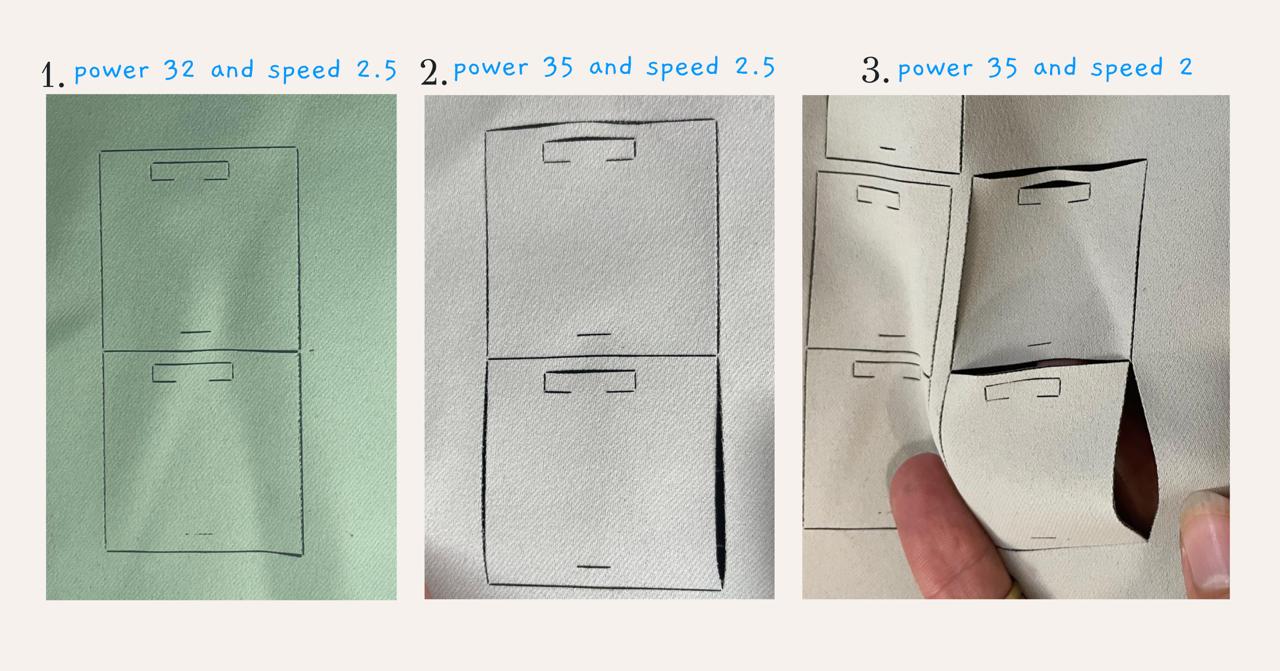
The setting of power 35V and speed 2 worked well, and I cut all the lining pieces. When assembling, I immediately noticed the difference and how much easier it was to assemble, and how the interlocking system would not fall apart, that was a very good feeling!
Assembling
Before I show you how I assembled the lining and the modules, I will show you how I assembled all the modules in the shape of the bag using the grid shown above.
I couldn’t start assembling immediately after I laser-cut all the pieces. Because of the heat, the woollen fabric went on to stick together after the laser passed, so I needed to cut all those pieces. That took quite some time, and more than I was expecting…
When that part was done, the assembling could start. I took random pieces from the pile and started attaching them. I made sure to follow the grid so I wouldn’t have to much or less pieces somewhere, what could result in an not alligning piece. I worked everywhere on it so I would finish in time. I took it to the bar, for example, and worked there the full time to get all the parts finished.
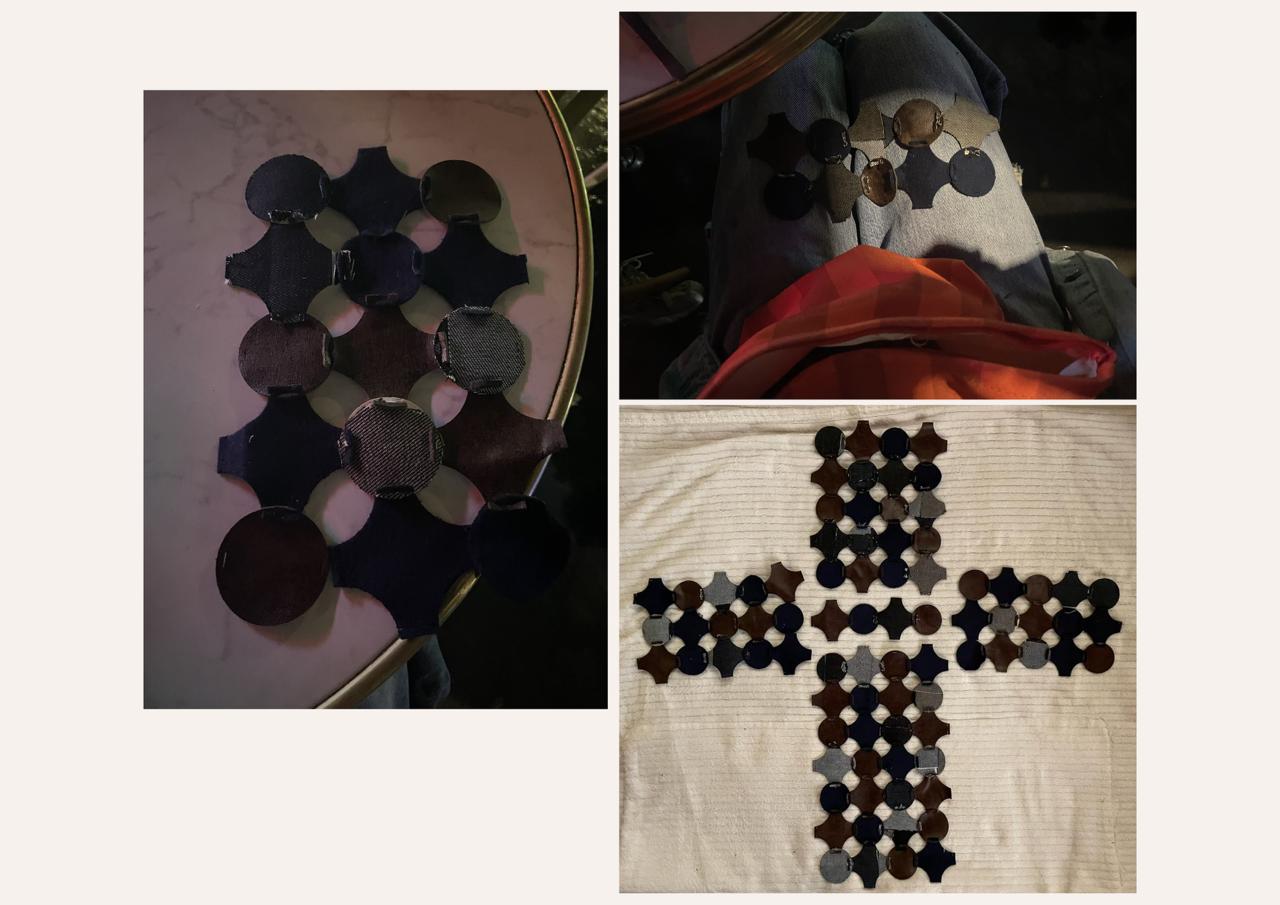
When I had all the different components done, it was time to make the corners, so the bag could be put together. In the video below, I show you how I attached the pieces and made the corners.
With the modules assembled and the lining there was one thing left. Assembling those pieces! I could push the lining into the bag and, on the sides of the lining, attach the modules.
The measurements were not quite right for the top part, and it made the fabric bulk up in some places. This is minimal, but if I were to make it another time in the future, I would measure again so the fabric would lay flat in every position and not bulk up.
I braided some roller skate laces together for the strap, and here I chose orange and white. I’m still very happy with the orange, it gives a good pop of color and goes very well with the blue. About the white, I’m a bit doubtful because it feels too bright for the bag, in my opinion. Maybe I will later change this to a more brown or blue color laces or yarn.
Results
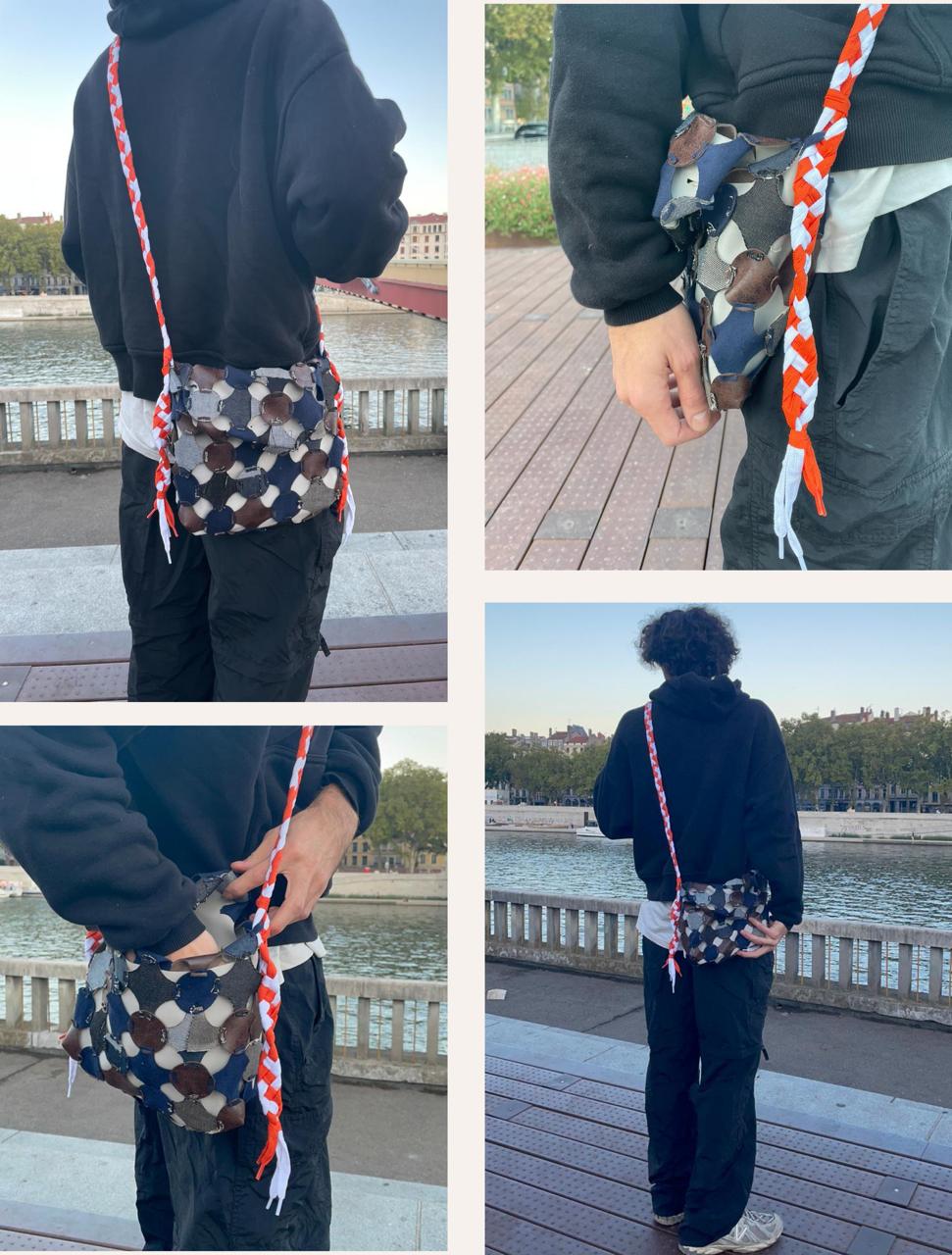
I’m very proud of this week’s work. I was very excited this week and had lots of ideas, which was nice but made the time pass by very fast. Here is the result: the bag made from interlocking modules, jean scraps, and a lining so you wouldn’t lose items!
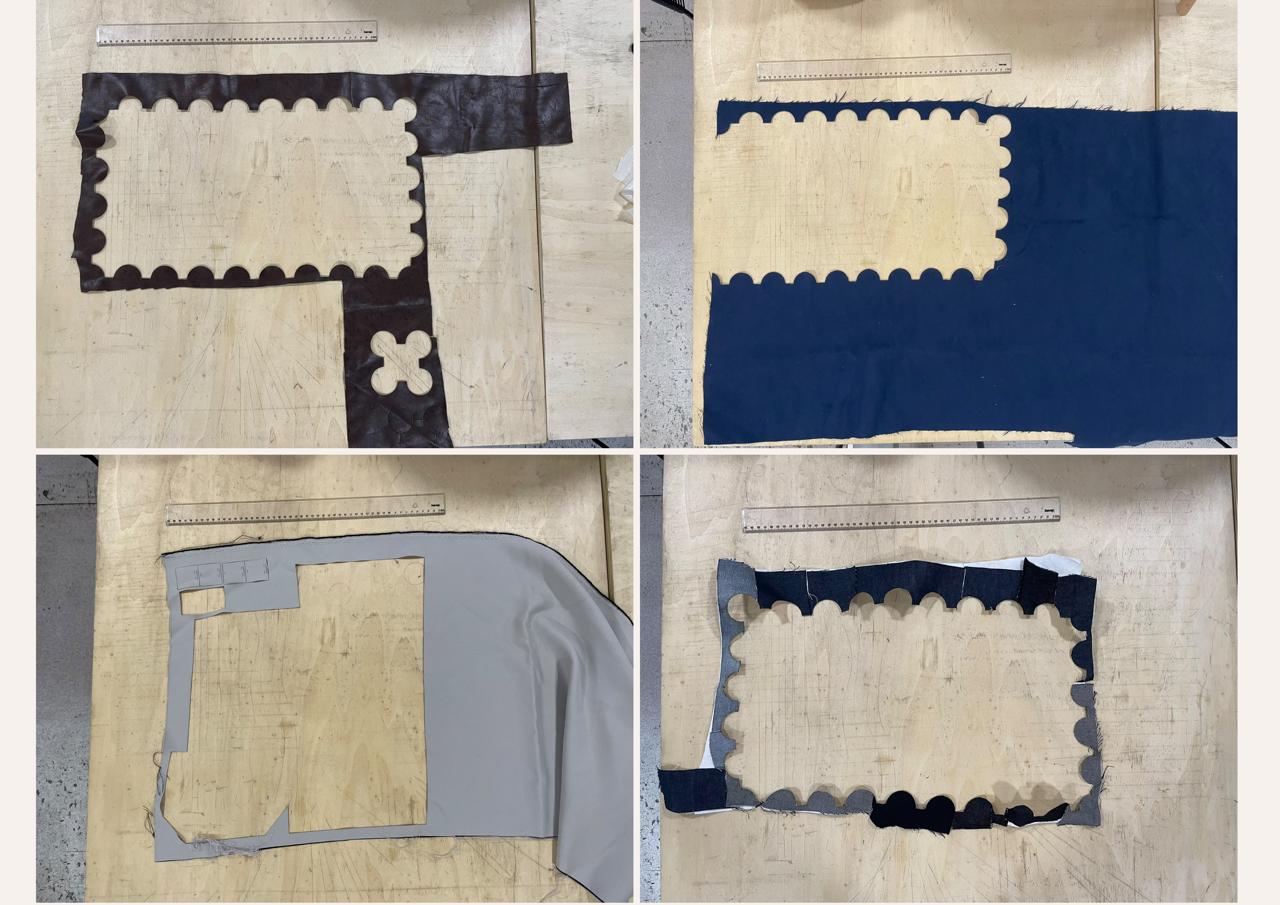
Because this week had the main point of zero waste for me I really wanted to add the waste I made by testing and for the final modules. When I revist this topic I want to think of ways to minimize the waste even more. So, it will be really 0 waste.
Downloadable files
- 45 circles and crosses modules
- Lining try 1
- Lining try 2 most updated
References
-
Wagaw, T., & Babu, K. M. (2023). Textile waste recycling: A need for a stringent paradigm shift. AATCC Journal of Research, 10(6), 376–385. ↩↩↩↩↩
-
Biyada, S., & Urbonavičius, J. (2025). Circularity in textile waste: Challenges and pathways to sustainability. Cleaner Engineering and Technology, 24, 100905. ↩↩↩
-
Tiles with flowers from ca. 1620 - ca. 1640 from Rijksmuseum ↩