E-Textiles
During this week, we started using electronics and learned the basics. I will explain the basics on this page shortly, then move on to what I explored. Finally, I built a tiny interactive circuit and documented it in the results; you can find it by clicking here.
Basics of electronics on textiles
During Liza Stark's lecture, we learned a lot about the basics of electronics. I tried to sum it up as briefly as possible below.
Ohm’s law
Ohm’s law describes how voltage, current, and resistance relate in an electric circuit. It looks like this:
V = I * R
Where:
- V is voltage in volts (V), the “push” that drives electrons through the circuit,
- I is current in amperes (A), the amount of electric charge flowing per second,
- R is resistance in ohms (Ω), how strongly a component resists the flow of current.
Ohm’s law is why LEDs need a resistor. Without one, too much current would flow and could burn the LED out.
Conductive materials
While using electronics with textiles, it’s important to know what materials to look for. You will look at resistance, stretchiness, solderability, the feel, and substrate + production process. For yarns and threads, you look out for as well resistance, solderability, and substrate + production process. Another property to look out for is the thickness of the yarn and thread. Then there are inks and tapes, keep with those in mind that bending can eventually break the circuit.
Input
Input is the information that enters the circuit. There are two types of input: digital and analog (think about a button and a sensor). Digital has just two options: on or off. Analog has a range of options: it depends on the amount of input received by the sensor.
Digital
Switches are digital inputs. They create a break in a circuit. Since the circuit is not complete, no electricity can flow to the components. Switches can be split into four groups: momentary, toggle, stroke, tilt.
- Momentary: they stay open as long as you hold them by pressing conductive materials into contact. Think of a button.
- Toggle: press, zip, slide two pieces of conductive material together, these stay open in one position and closed in the other.
- Stroke: close the circuit by pressing conductive materials into contact.
- Tilt: a conductive bead or pompom makes contact with conductive fabric patches based on its position.
Analog
Sensors are analog inputs. For sensors, we can use resistance to get a broader range of values. By allowing more current to the brightness of an LED, the frequency of a sound, or the speed of a motor. Sensors can also be split into four groups: pressure, bend, stretch, and potentiometer.
- Pressure: when pressed, the resistance decreases, allowing more electricity to flow through the circuit.
- Bend: resistance decreases as it is bent and more contact is made.
- Stretch: the more a resistive material is stretched, the more surface area it has to cover.
- Potentiometer: adjusts resistance by a conductive and resistive material through a wiper at different points in the circuit. The farther away, the more resistance.
Hardware to software
To connect the hardware to the fabrics, we can do that in three different ways: permanent, detachable, and isolated.
To make permanent connections, you can (for example, the LED) curl the legs of the LED and sew them into the circuit, then solder them onto the fabric if possible. Always cover knots and joints with fabric or hot glue. The detachable connections are made with hand-sewn snaps and conductive thread. Or a machine-sewn snap bonded with conductive fabric, a silicone wire, and a safety pin, or conductive thread insulated in paracord with a clip with conductive tape. And the last connection is isolated. Here there are six options: fabric (with iron-on adhesive), paracord, beads, tape, embroidery, and sew under.
Programming
There are many different boards you can use for an E-Textile or wearable project. The board you choose will depend on the functionality, form, and materials.
Arduino is a small, programmable board that you can connect to things like LEDs, buttons, and sensors. You write a short program, upload it over USB, and the board runs it on its own, for example, blinking a light or turning it on when it gets dark. The LilyPad is a version of Arduino made for sewing into clothing and fabric. It was designed by Leah Buechly.
Experimenting
After the tutorial by Jessica Stanley, I had my first digital circuit done. The next day, I followed the tutorial from 2021-22 by Emma Pareschi to experiment with the Arduino. All these tutorials made me understand the way the circuit works better.
Digital circuit
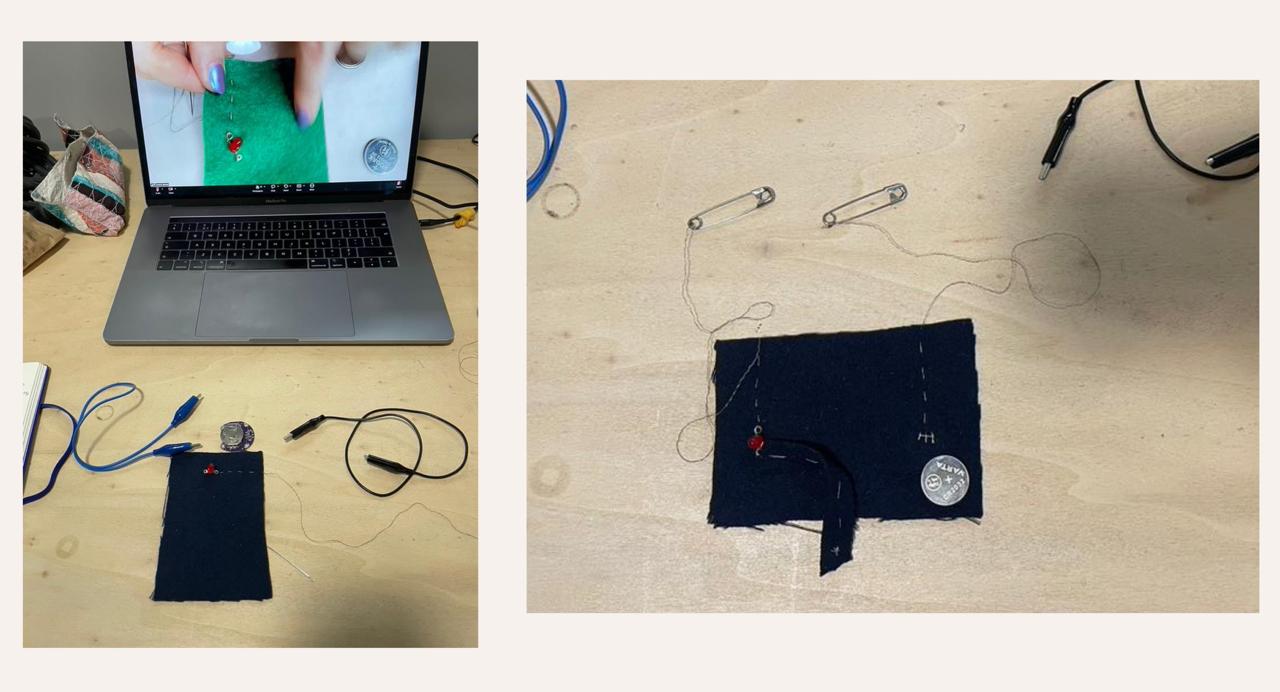
The digital circuit made during Jessica's tutorial needed some fabric (I used some felt), conductive thread, an LED light, a 3V battery, and two paperclips. The negative side of the battery was connected to one paperclip with the conductive thread. Where the positive side was connected to the light and after to the other paperclip. When the paperclips touch, the light turns on. Because I used some extra fabric to connect the thread to the positive side of the battery, I need to push down on the battery to make good contact.
Arduino
Emma's tutorial made me understand Arduino well, it was clear and good to follow. I used a breadboard for the first time and used the Arduino software to code the light. First, we attached the Arduino to a light.
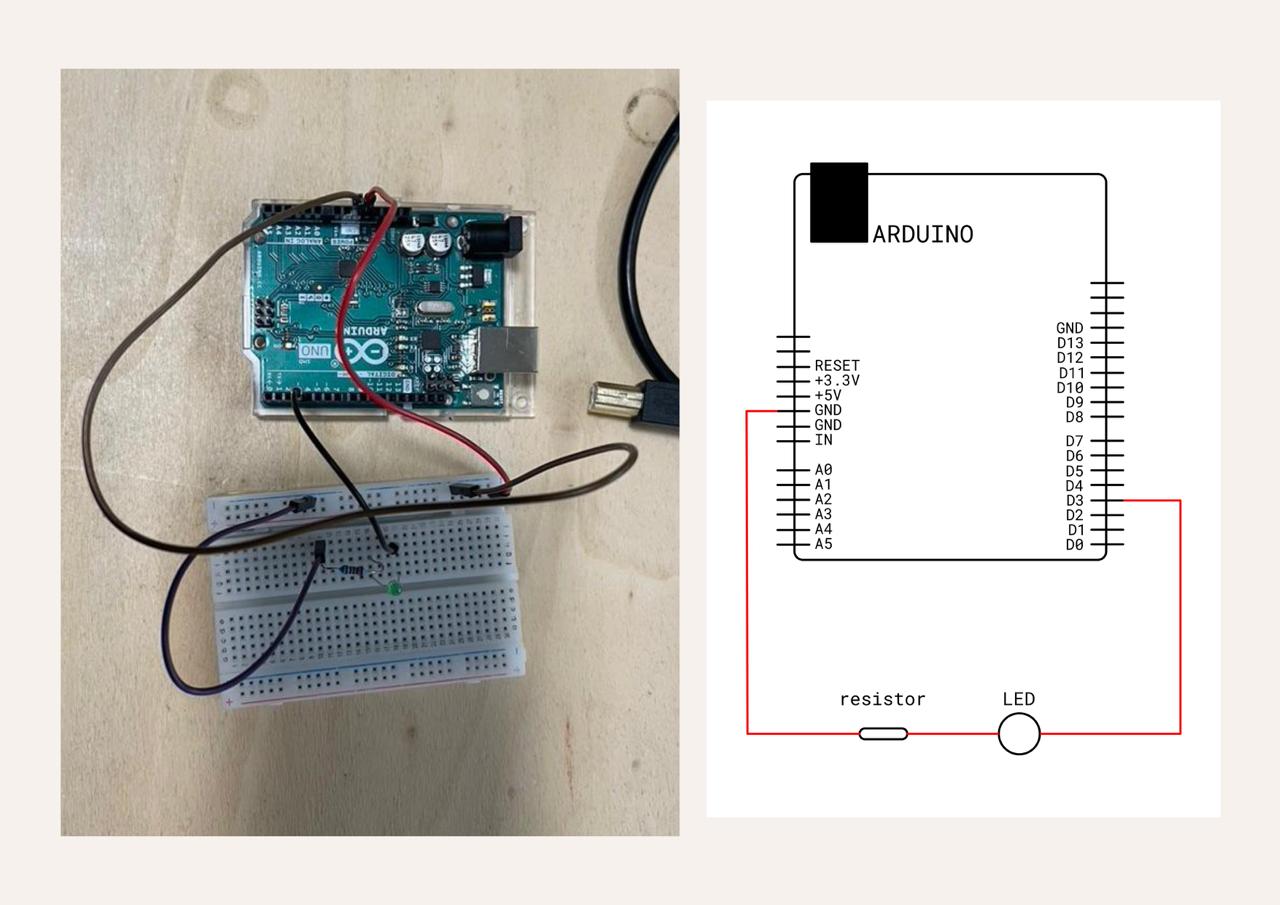
After checking that it worked, we added code to the Arduino so the light would blink.
Blinking code for Arduino
int pin_led = 3;

void setup() {
    // put your setup code here, to run once:
    pinMode(pin_led, OUTPUT);
}

void loop() {
    // put your main code here, to run repeatedly:
    digitalWrite(pin_led, HIGH);
    delay(1000);
    digitalWrite(pin_led, LOW);
    delay(1000);
}
We also made the light fade. It’s almost the same as blinking, but the levels are not set to high or low but are indicated by a number between 0 and 255.
Fading code for Arduino
int pin_led = 3;

void setup() {
    // put your setup code here, to run once:
    pinMode(pin_led, OUTPUT);
}

void loop() {
    // put your main code here, to run repeatedly:
    analogWrite(pin_led, 50);
    delay(1000);
    analogWrite(pin_led, 100);
    delay(1000);
}
The next step in the tutorial was to add a sensor. I found the sensor in the box of leftover projects at Le Textile Lab. I first tested it with my self-made digital circuit by adding the paperclips to the sensor. Here, I saw that when touching it, the light would turn on lightly, and when pressing harder, the light would shine brighter.
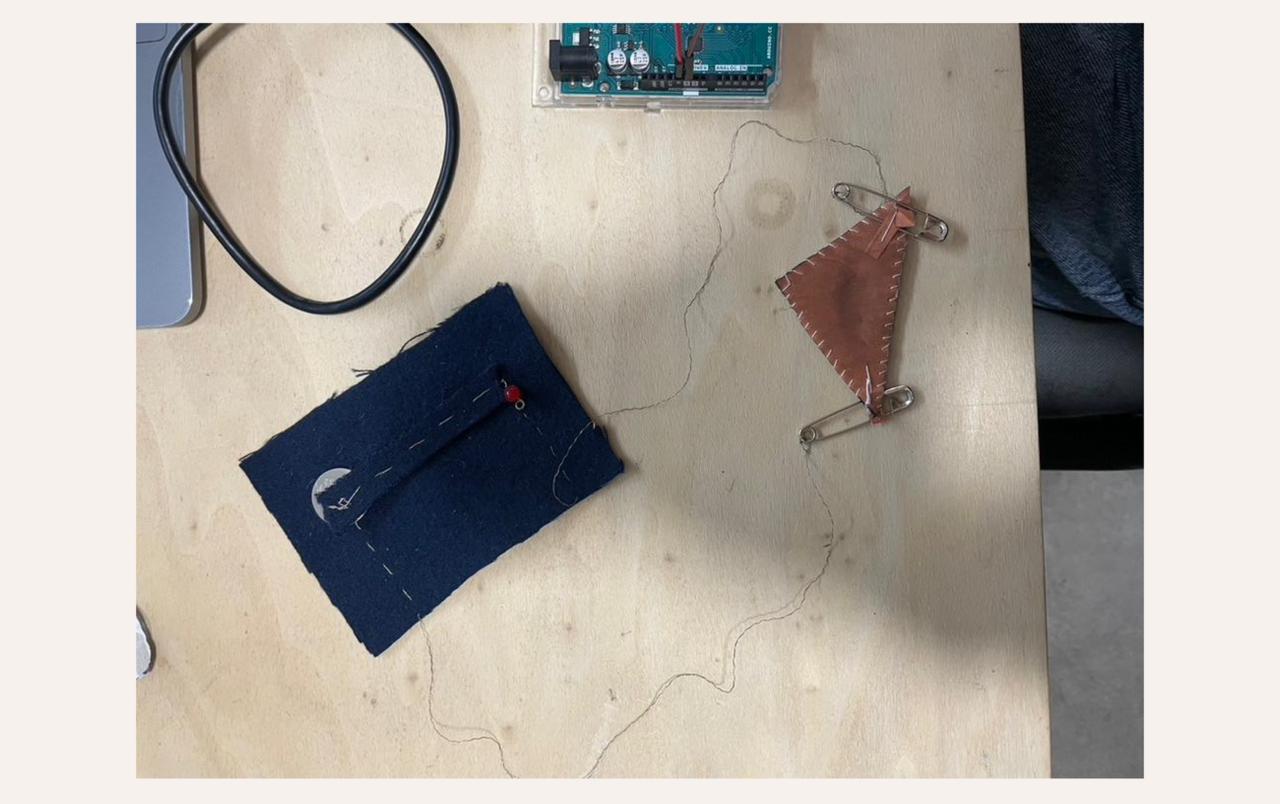
After testing, I could add the sensor to the breadboard/Arduino. It looked like this:
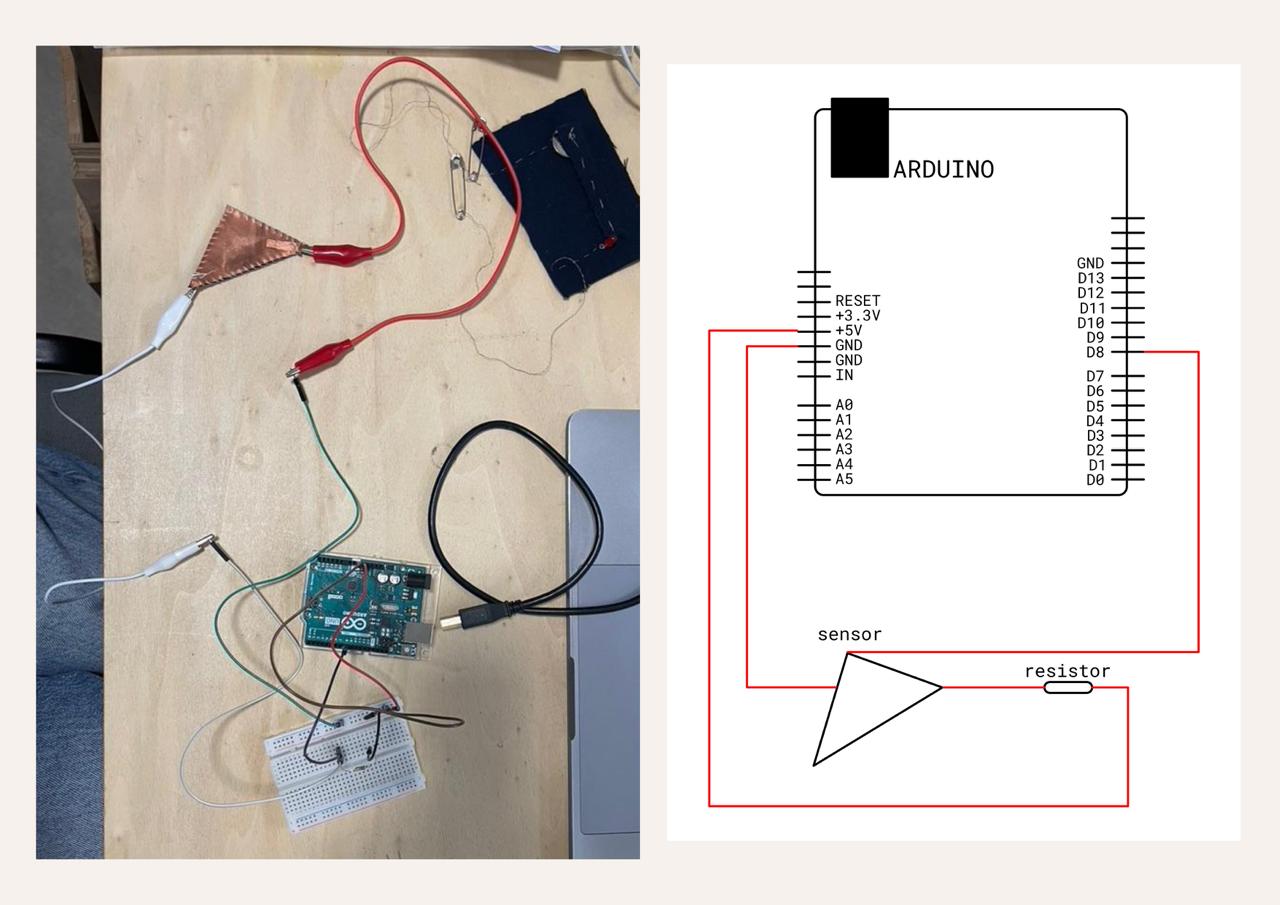
As you can see, the sensor is still attached to a digital pin on the Arduino, we will change this later. To see the values of the sensor, we need to change the code in Arduino and open the Serial Monitor.
Reading digital sensor for Arduino
int digital_sensor_pin = 8;
int digital_sensor_value = 0;

void setup() {
    // put your setup code here, to run once:
    pinMode(digital_sensor_pin, INPUT);
    Serial.begin(9600);
}

void loop() {
    // put your main code here, to run repeatedly:
    digital_sensor_value = digitalRead(digital_sensor_pin);

    Serial.println(digital_sensor_value);
    delay(100);
}
To make the sensor influence the LED, we need to add an LED to the breadboard and change the code.
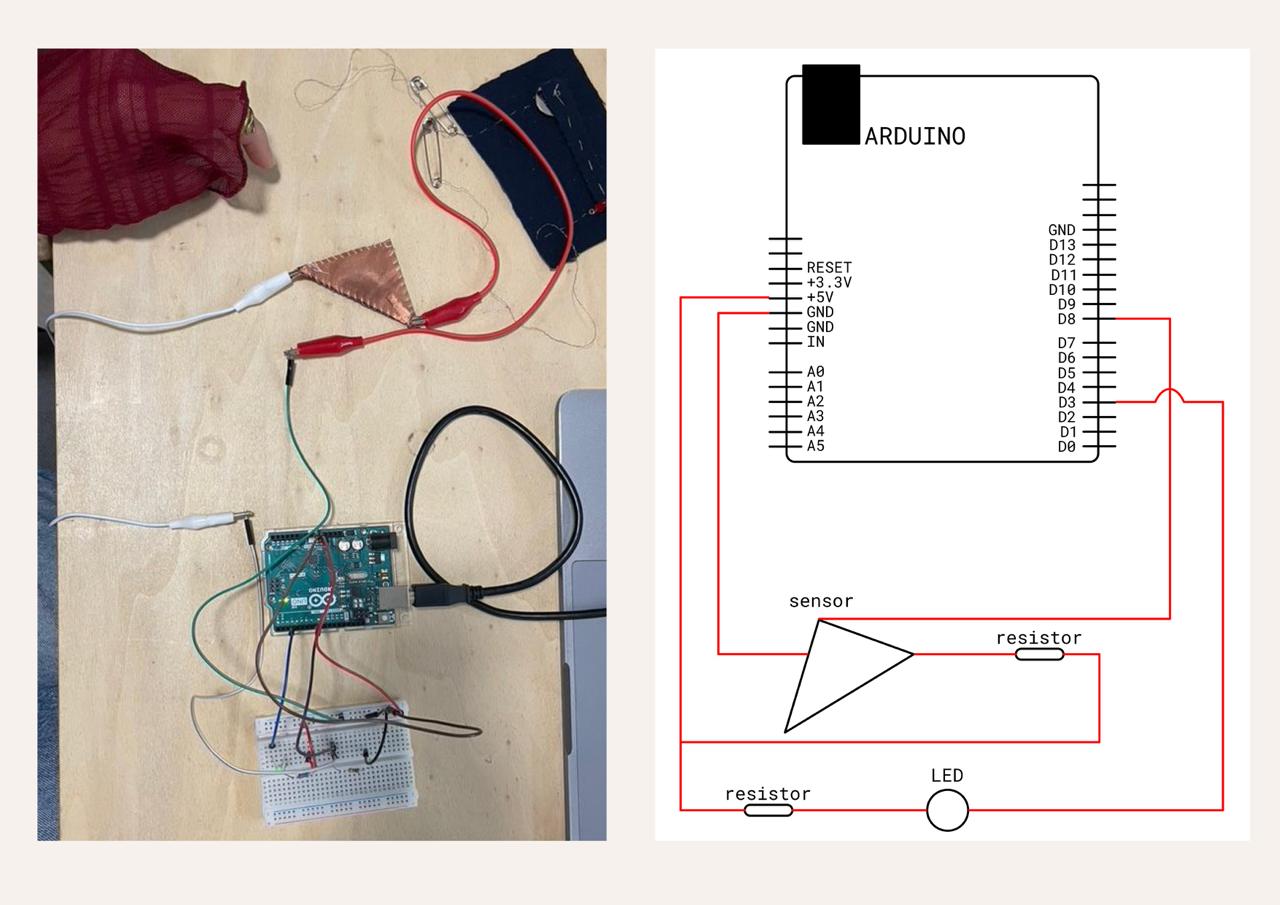
Digital sensor + LED for Arduino
int digital_sensor_pin = 8;
int digital_sensor_value = 0;
int led_pin = 3;

void setup() {
    // put your setup code here, to run once:
    pinMode(digital_sensor_pin, INPUT);
    Serial.begin(9600);
    pinMode(led_pin, OUTPUT);
}

void loop() {
    // put your main code here, to run repeatedly:
    digital_sensor_value = digitalRead(digital_sensor_pin);

    if(digital_sensor_value == HIGH){
    digitalWrite(led_pin, HIGH);
    } else {
    digitalWrite(led_pin, LOW);
    }
}
To take this further and bring back the fading, we can change the location of the sensor from digital to analog. For this, we need to change the code as well. First a check to see if the analog sensor works, so we make the reading code again.
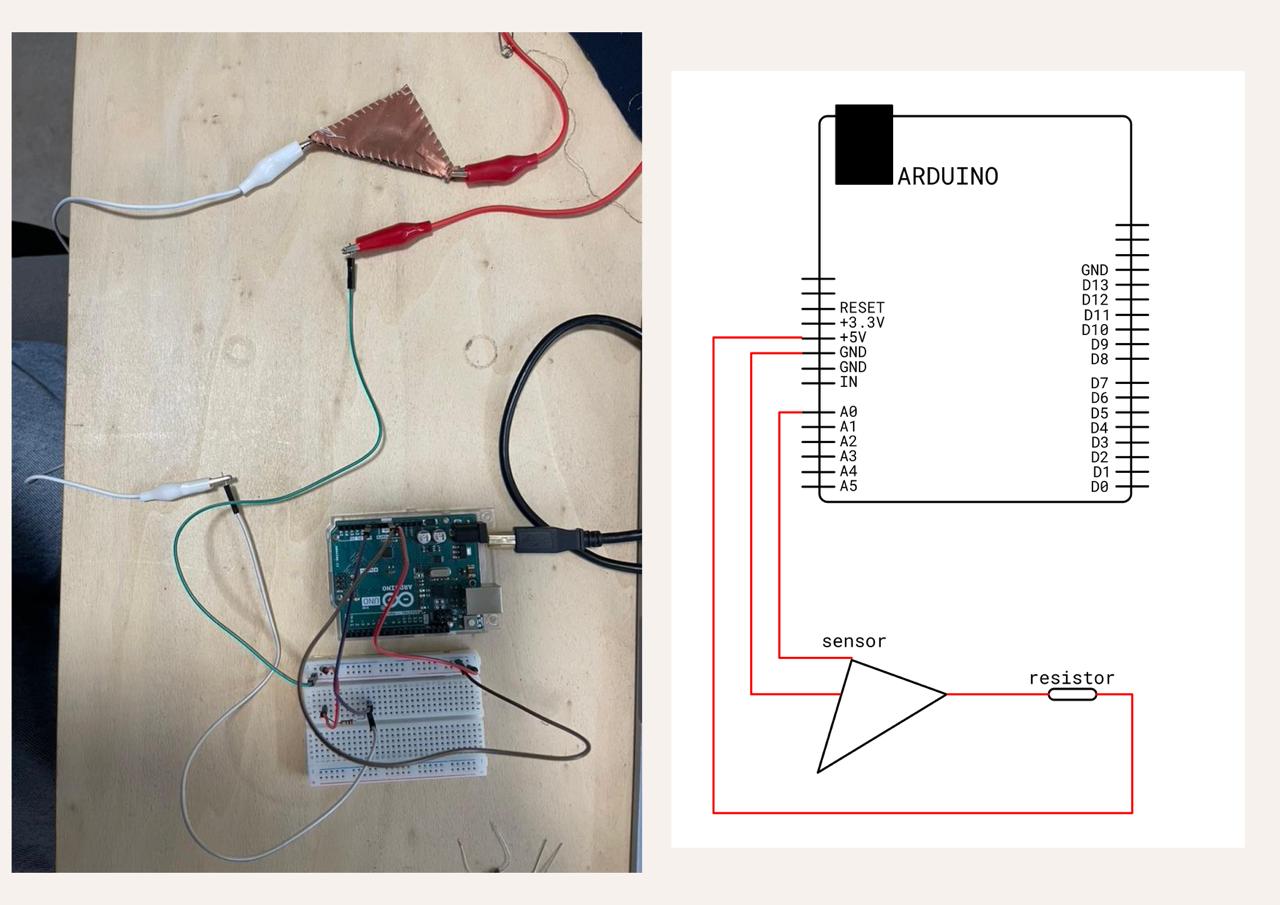
Reading analog sensor for Arduino
int analog_sensor_pin = A0;
int analog_sensor_value = 0;

void setup() {
    // put your setup code here, to run once:
    pinMode(analog_sensor_pin, INPUT);
    Serial.begin(9600);
}

void loop() {
    // put your main code here, to run repeatedly:
    analog_sensor_value = analogRead(analog_sensor_pin);

    Serial.println(analog_sensor_value);
    delay(100);
}
This changed the incoming numbers in the Serial Monitor. The numbers incoming at the digital monitoring are just 1s and 0s (on/off); for analog, these numbers are in a bigger range; for me, it was between 700 and 940. These numbers are important to make the connection to the LED light. But first, add the LED back on the breadboard.
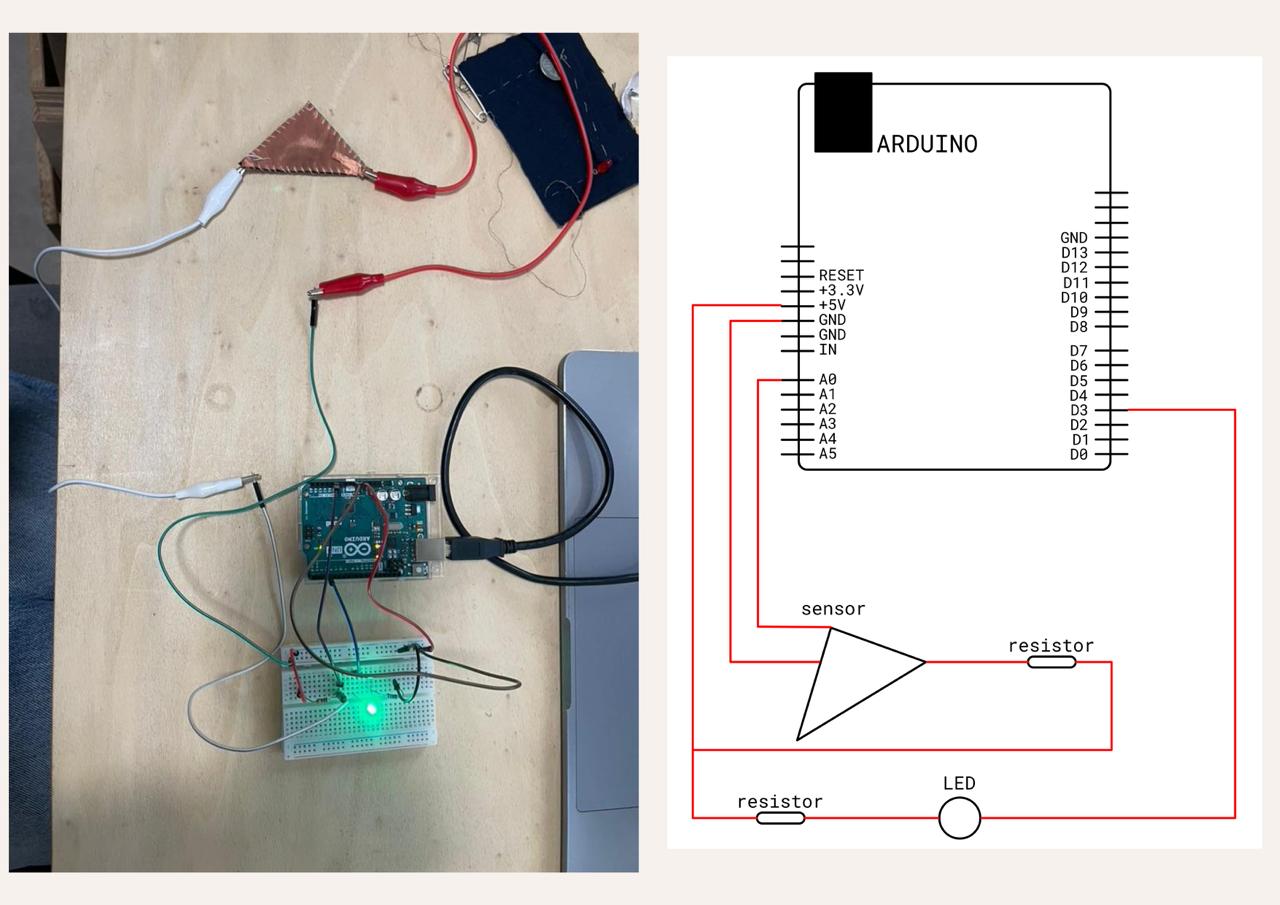
Analog sensor + LED for Arduino
int analog_sensor_pin = A0;
int analog_sensor_value = 0;
int led_pin = 3;

void setup() {
    // put your setup code here, to run once:
    pinMode(analog_sensor_pin, INPUT);
    Serial.begin(9600);

    pinMode(led_pin, OUTPUT);
}

void loop() {
    // put your main code here, to run repeatedly:
    analog_sensor_value = analogRead(analog_sensor_pin);

    analog_sensor_value = map(analog_sensor_value, 700, 940, 0, 255);
    analog_sensor_value = constrain(analog_sensor_value, 0, 255);

    analogWrite(led_pin, analog_sensor_value);
    Serial.println(analog_sensor_value);
    delay(10);
}
After following all the tutorials, I decided to make a tiny, cozy, autumn-inspired circuit.
Process
During this time of year, combined with lights, there is really just one thing I’m thinking about. The cold weather outside and being cozy and warm inside. I remember the evening walks we went on back home in the Netherlands, after dinner when it was getting dark. Walking past lots of homes with cozy lights inside and longing to be back home and jump on the couch underneath a blanket. That is the feeling I had when designing the circuit.
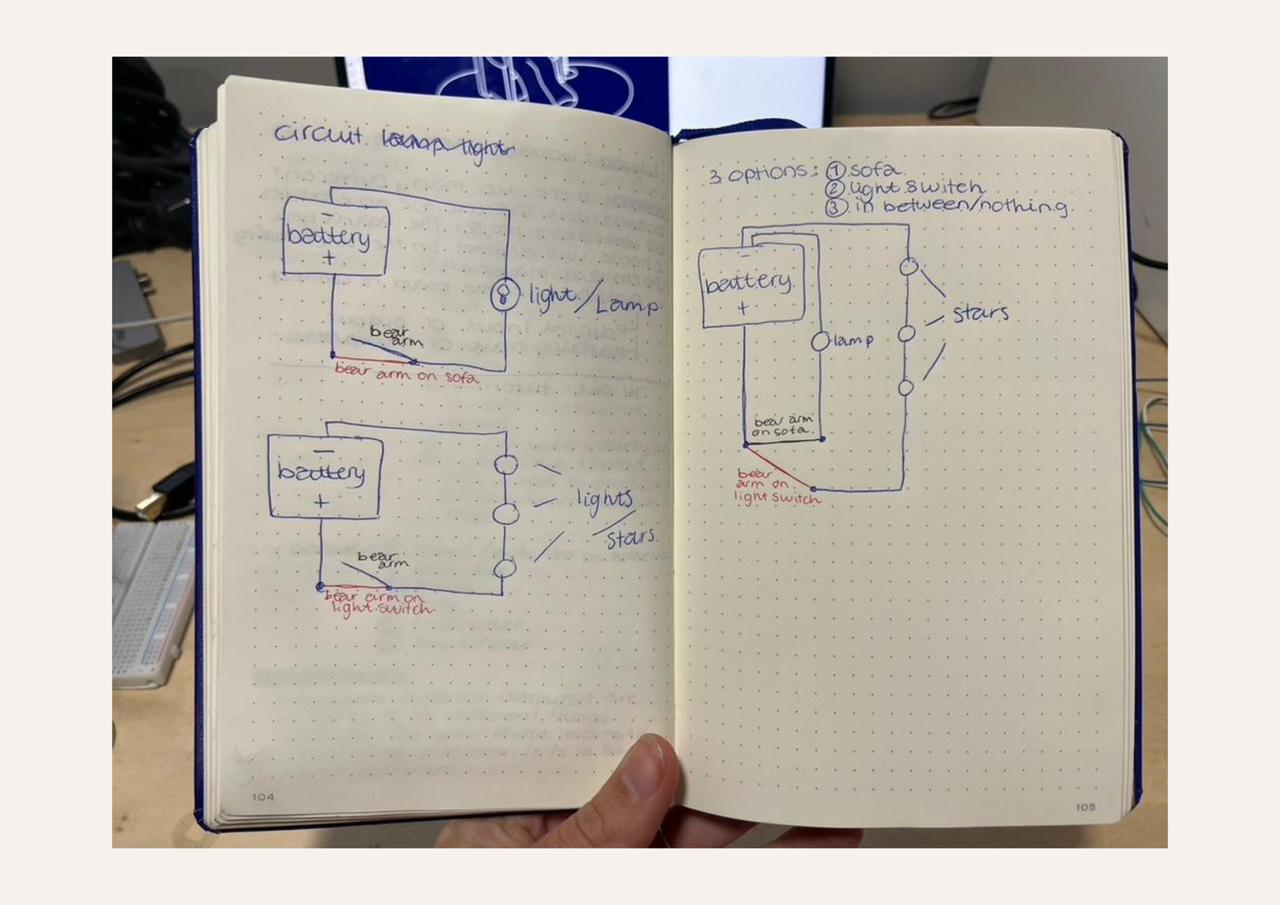
I had the idea to make a chilling bear on a big comfy chair and a light that would turn on and off depending on where the arm is.
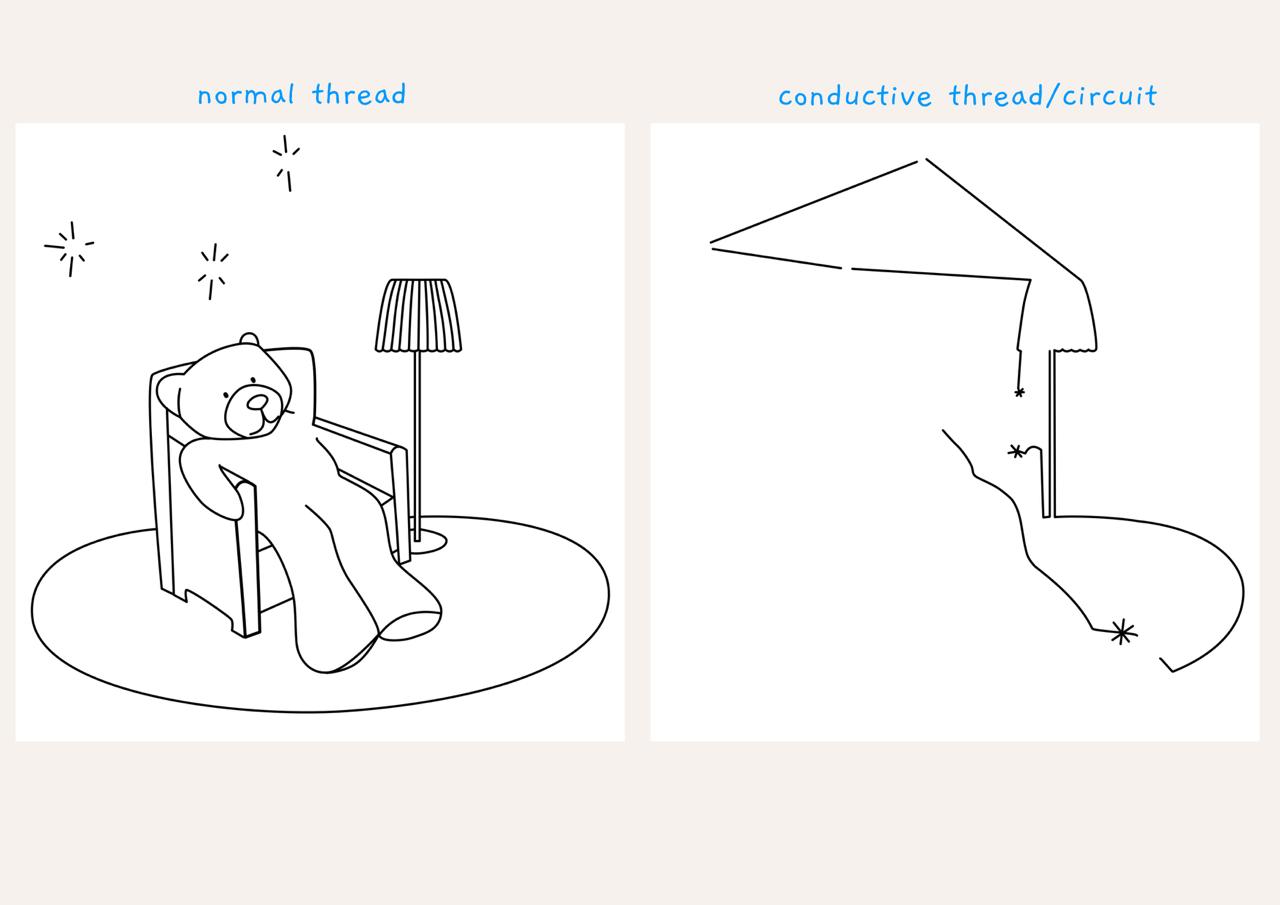
While making the circuit, I wanted to test myself and add on to this lamp. That’s why I added the stars, so when the bear turns off the lamp, the stars turn on. I made seperate drawings of the circuit and then added them together. Here, I was already doubting whether the stars in the series would work like that. I tested them on the initial circuit they were in with my battery, and they all worked, so I had the confidence.
Embroidery Machine
The next day, I went to the other location of Le Textile Lab and embroidered the circuit and my design on some fabric.
The circuit was embroidered first, and the design afterwards, to cover some parts of the conductive thread. I tested the connections with my digital tester from the first tutorial, and they all worked except for the connection from the end of the stars to the battery. I reinforced the stitches in between with some conductive thread and made sure it wouldn’t touch any other parts.
Afterwards I added the lights and tested again if they worked. All the lights were working individually, but the stars wouldn’t turn on together, so here is a problem.
Before fixing this problem, I added the conductive fabric to cover the battery and make the bear's arm. I tested if this works by adding the battery to its place and placing the arm on the chair to turn on the lamp. And that worked, so all the connections except for the stars were working.
To see if the problem with the stars was because they are in series, I used Tinkercad before making changes to the fabric.
Tinkercad was showing exactly that the lights wouldn’t work in series and that I should make it a parallel circuit. So that’s what I changed on the fabric. I did this by hand because I didn’t have access to the embroidery machine over the weekend. I made sure the stitches were not touching each other and creating a short circuit.
I added a cover on the arm and the battery pouch to clean up the design and cut it to a square.