Circular Open Source Fashion
Ideation & Inspiration
Design Constraints & Initial Concepts
To begin my open source circular fashion project, I set s few simple design constraints for myself to guide the my work. I wanted to focus on the zero-waste design aspect of the topic, as well as keeping my design simple, with just 1-2 modules.
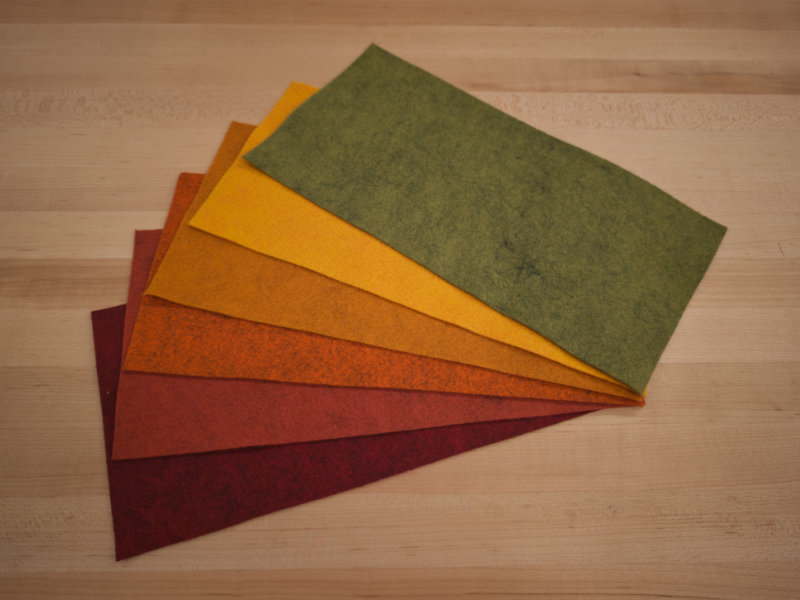
I didn't initially have any ideas for the week's project, but when I saw the felt options that we received, the color reminded me of fall leaves. Given that we're currently transitioning into autumn and the leaves are beginning to turn colors in New England, I thought it fitting to create leaf modules that could be strung together and used to create fall decorations, as tacky as they can be.
Artist Inspiration
Thinking about zero-waste design, I was drawn to M.C. Escher's work and tessellations as a whole as a technique for perfectly nesting modules on the laser cutter.
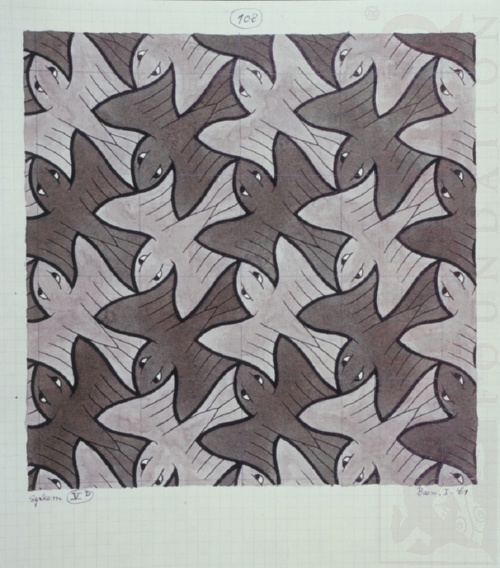
Simple tessellation ('System V(d)' by M.C. Escher)
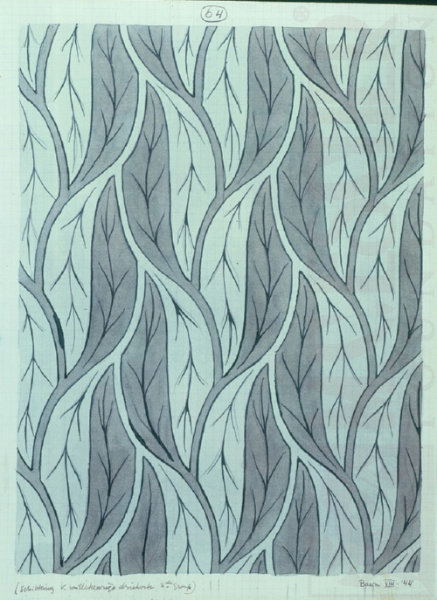
Leaf/plant tessellation ('Picture from arbitrary triangles, 3rd group' by M.C. Escher)
Leaf Inspiration
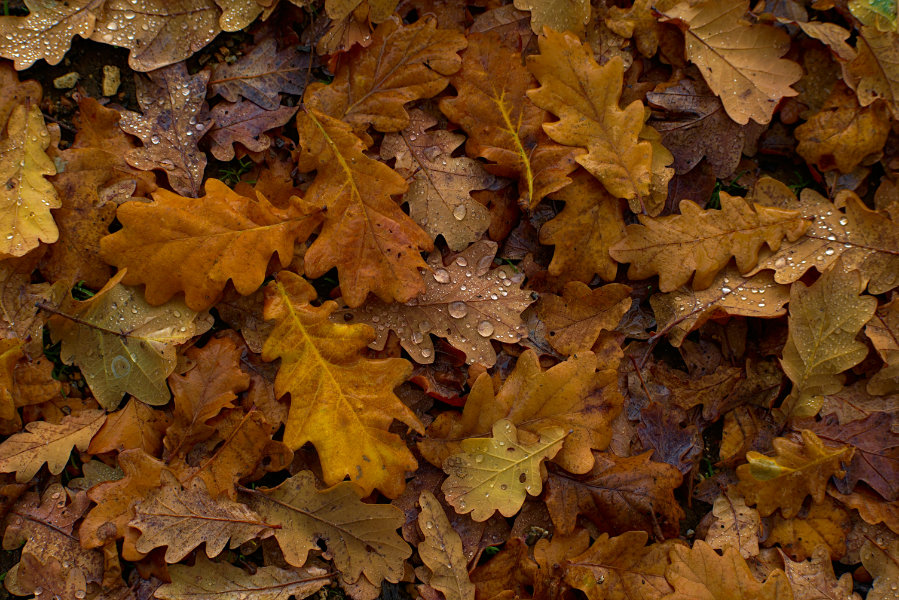
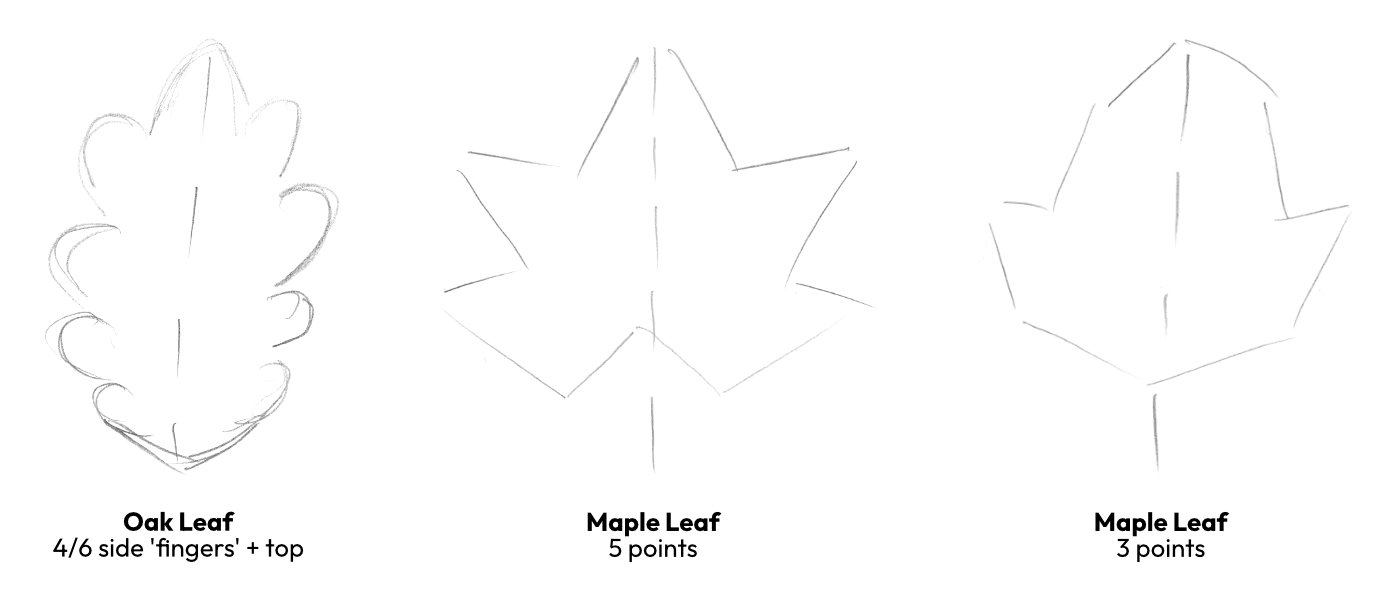
Since I was working with the idea of creating my own leaves, I found photos of leaves on Unsplash to reference while simplifying the shapes down to their basic forms to tessellate. I started with oak leaves, as their rounded 'fingers' seemed like a good starting point, but quickly shifted to maple leaves, which are what I think of when I imagine the leaves turning.
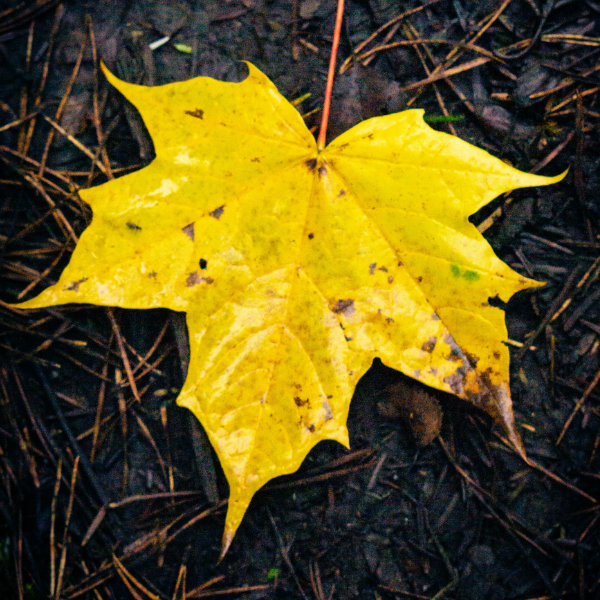
5-pointed maple leaf (credit: Illiya Vjestica)

3-pointed maple leaf (credit: 'Mariah Hewines')
Tools
- Affinity Designer 2 (rough 2D design)
- Tiled.art (tessellation generation)
- Inkscape (fixing tiled.art export)
- Rhino3d (accurate 2D design)
- Fusion360 (tutorials)
- Blender (tutorials)
- Adobe Mixamo (tutorials)
- xTool Studio & xTool P3 laser cutter
Material Testing
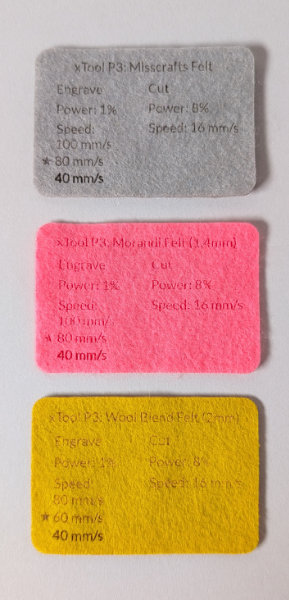
After the global lecture on Tuesday, Kim Ducharme and I spent the afternoon test-cutting felt in the laser cutter to prepare samples with the cut and engraving parameters needed for each material moving forward. With our xTool P3, we started using the included 1mm felt settings as a base for our 1.2-2mm felts, then increased the power until the materials cut through. We stuck to lower power, low speed, but throughout the week learned that higher power, higher speed should still be safe for thin materials. For engraving, we came up with 3 settings for each material and marked one as recommended. For all of our felts, the final cut settings were 8% power and 16mm/s speed.
Tutorials
Parametric Design in Fusion360
On Wednesday we gathered as a group to follow Claudia Simonelli's tutorial on the basics of module design in Fusion360. I had used Fusion enough in the past to be create the basic modules once I knew what I was trying to make, so I bounced between classmates helping them to use the software and understand constraints. The main issue we all came across was moving/copying, where sometimes the selection would move properly, ad other times it wouldn't even though no fixed points we selected. I think what might have been happening was that certain features in the sketch were hidden and therefore not selected, but I would have to do more testing to be sure.
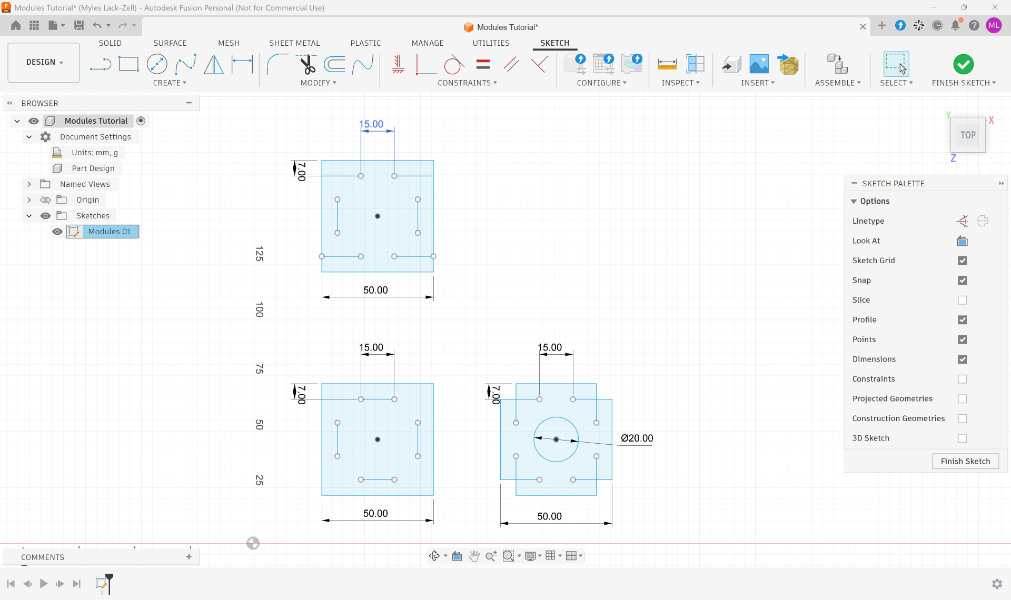
After the tutorial, we cut the modules designed by Sherry Lassiter and Kim to test how a basic attachment would work in felt. Thinner tabs easily bent and disconnected, while modules with thicker tabs formed a much stronger connection.
Clothing in Blender
In this week's Blender tutorial, we built off of the previous week's human modeling by beginning to explore the creation of clothing using 2 methods: offset meshes and digital 'sewing'. To start, we offset and thickened the human body mesh to create a bodysuit, then extruded parts of it out to add details.
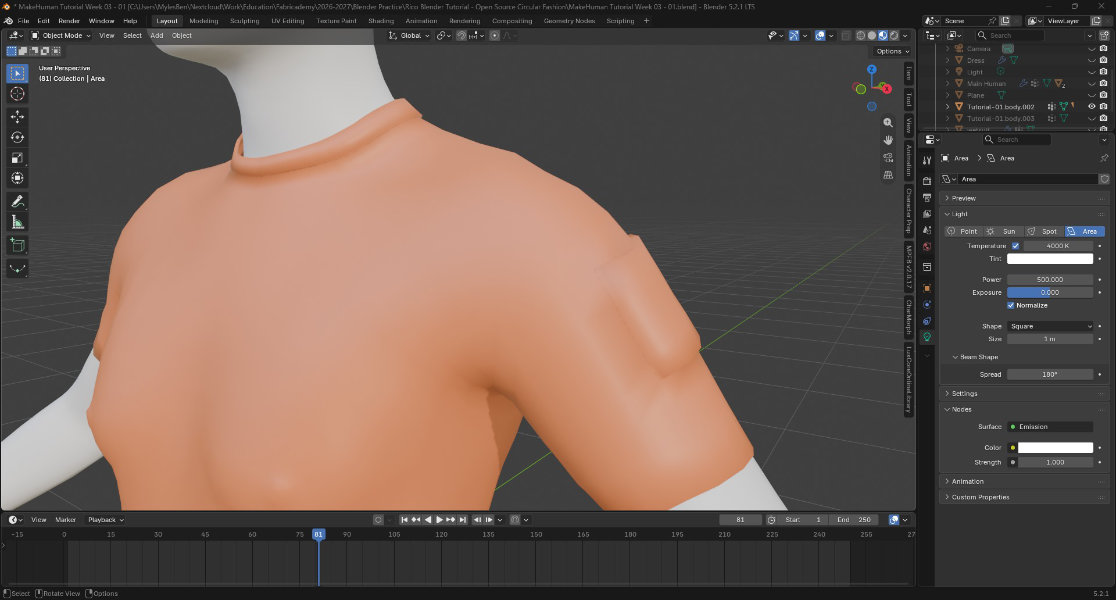
For the digital 'sewing', We modeled a flat piece of 'fabric' from a plane, extruded it out, then deleted the side faces. This resulted in soldi front and back pieces with just lines connecting them that could later be stitched together using cloth physics.
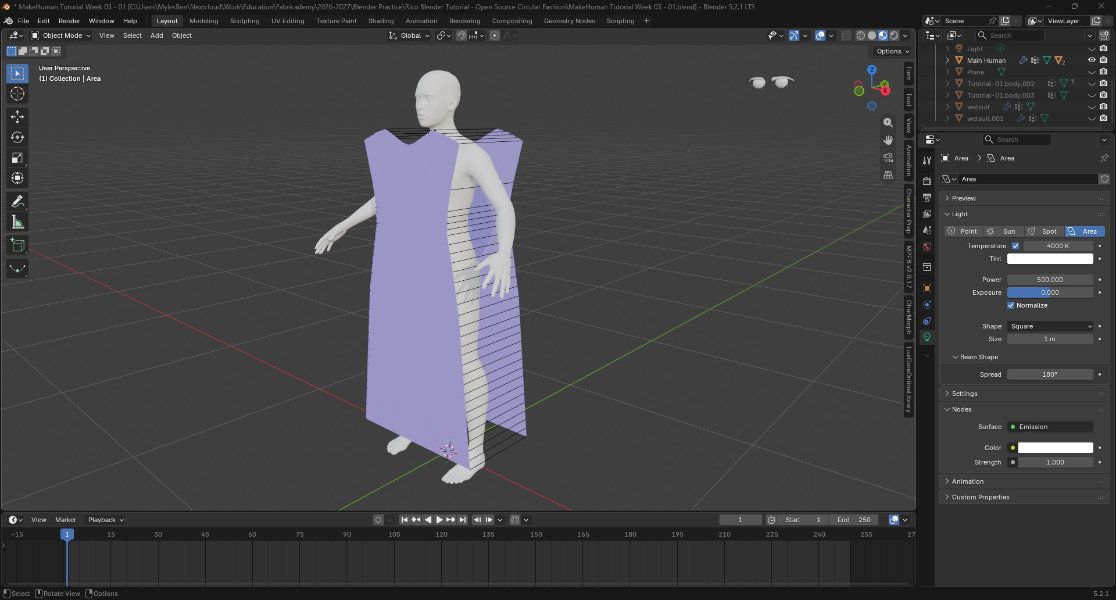
Pre-physics 'sewn' dress
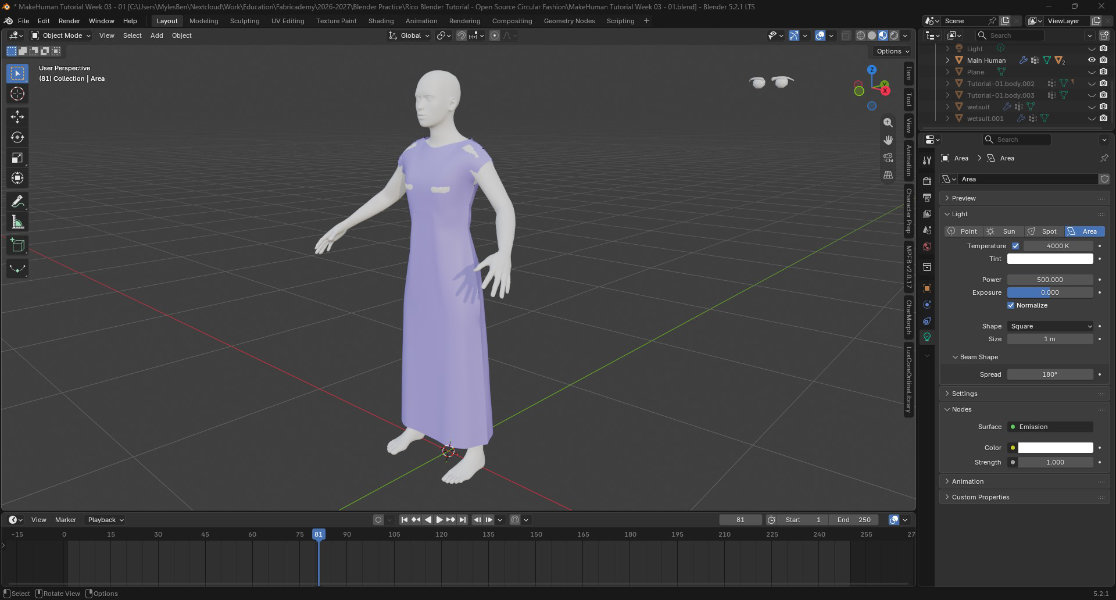
'Sewn' dress with physics
We also quickly exported an FBX file of our character to Adobe Mixamo to create a quick animation, then brought it back into Blender to add lighting. This process could be used to animate characters and then render them pout nicely in Blender in the future.
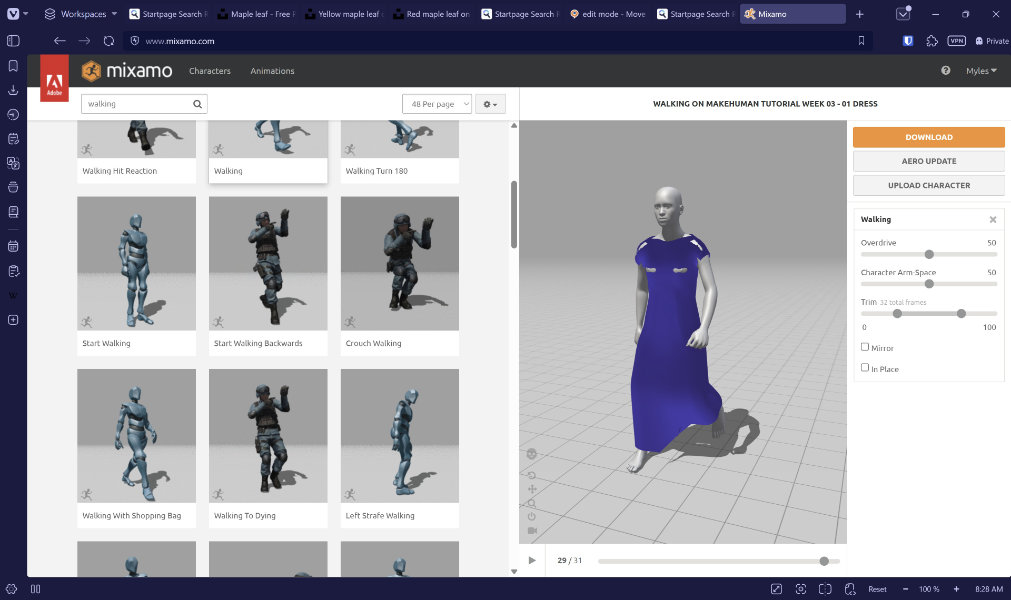
Mixamo editing
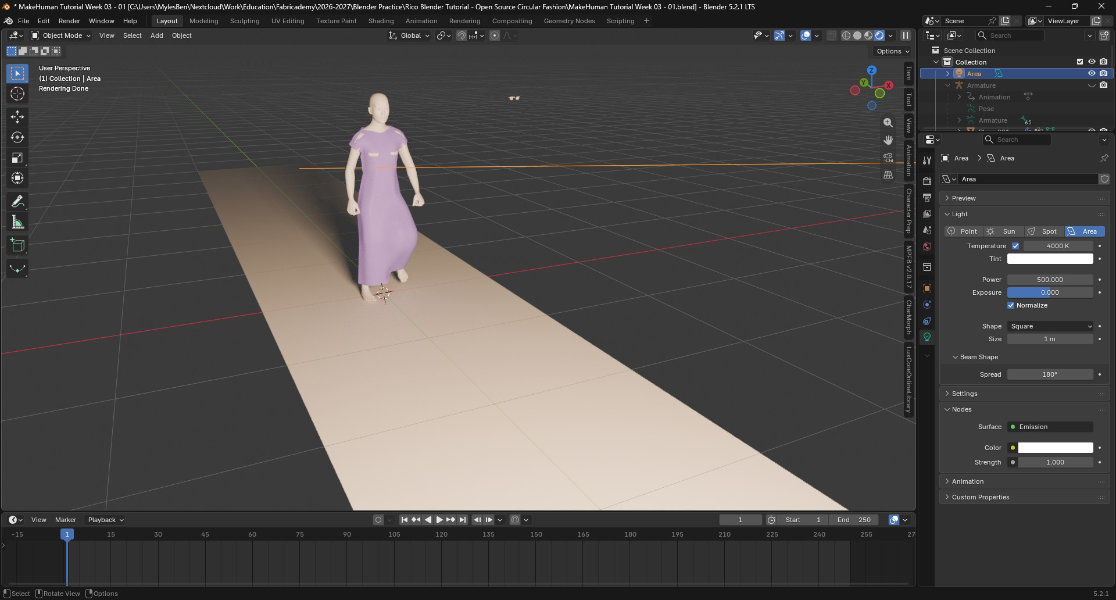
Animated character lit in Blender
The tutorial was just an introduction, and while I didn't get the sewing and collision physics working as well as I would have liked, I'm interested in exploring the combination of modeling 3d clothes and then applying the cloth physics to them.
Tessellation
Since I was focused on the tessellation side of the project and creating a recognizable shape, I began my prototyping with the outline rather than attachment methods. To start, I looked at the leaf photos I had gathered and simplified them down to basic shapes.
Tiled.art Generation
I used the tiled.art webapp to generate leaf tessellations. The software allows users to select a base tessellation to start with, then add and move control points to adjust the shape. Since I wanted to create leaves, I experimented with different mirrored options and narrowed my selection down to the "1-way hexagons, with inner mirror" and "2-way hexagons (with inner mirror), rotated" base shapes. What base shape you select is dependent on the final shape you want to reach, so it's good idea to try out a few options. With the 2-way hexagons, I was able to create a more intricate leaf-like design, but it didn't read as a maple leaf as well as the simpler 1-way version.
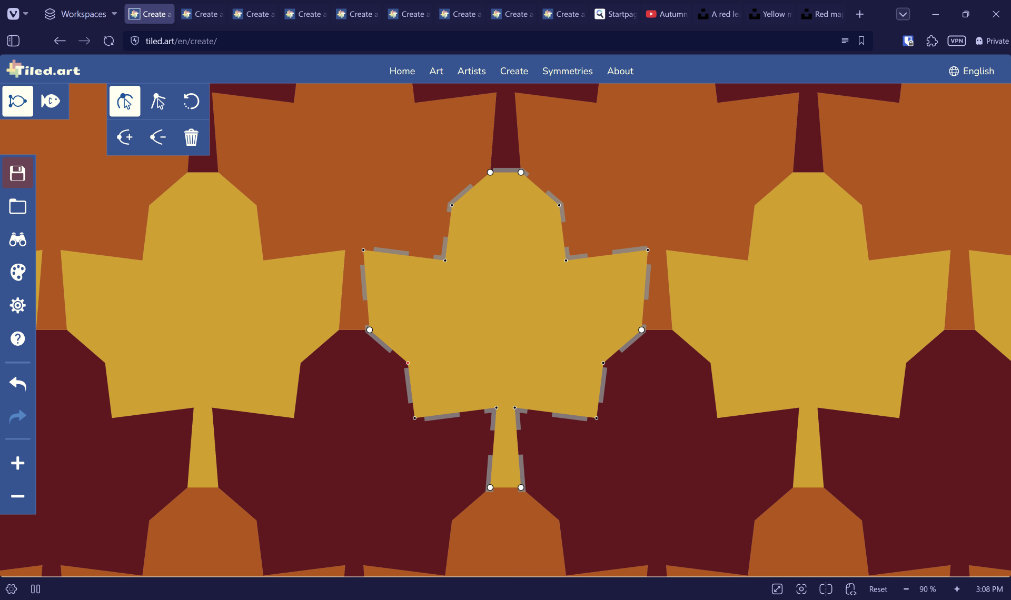
1-way maple leaf design
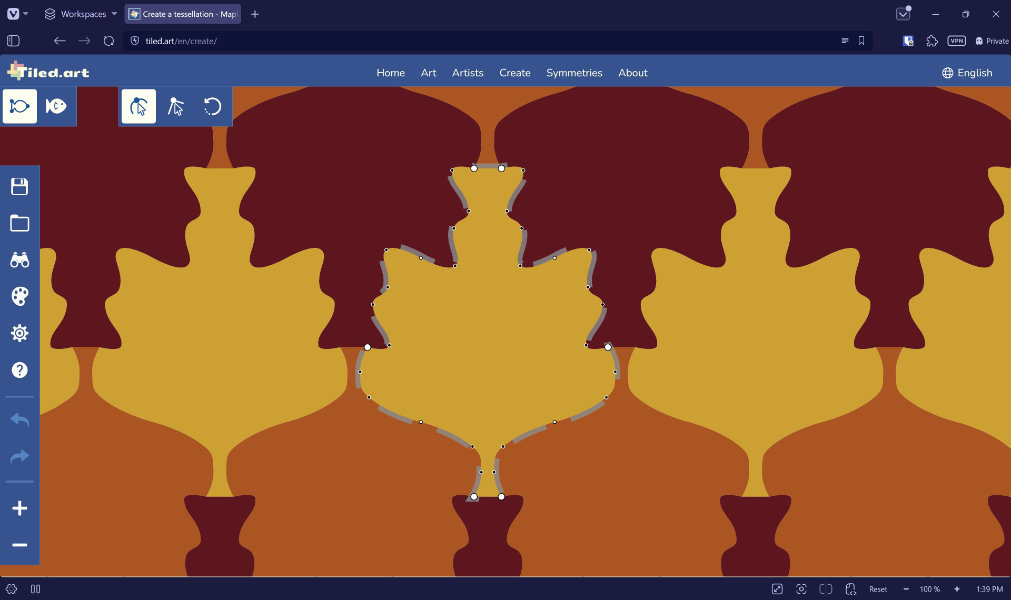
2-way leaf design
To create a tessellations, I chose a starting point on the website, set colors by clicking the paint palette button, and then began shaping the tessellation. In the software, white points on your shape are permanent but can be moved to change object proportions. To add new points, you click on the shape outline then drag the new point to wherever it's needed.
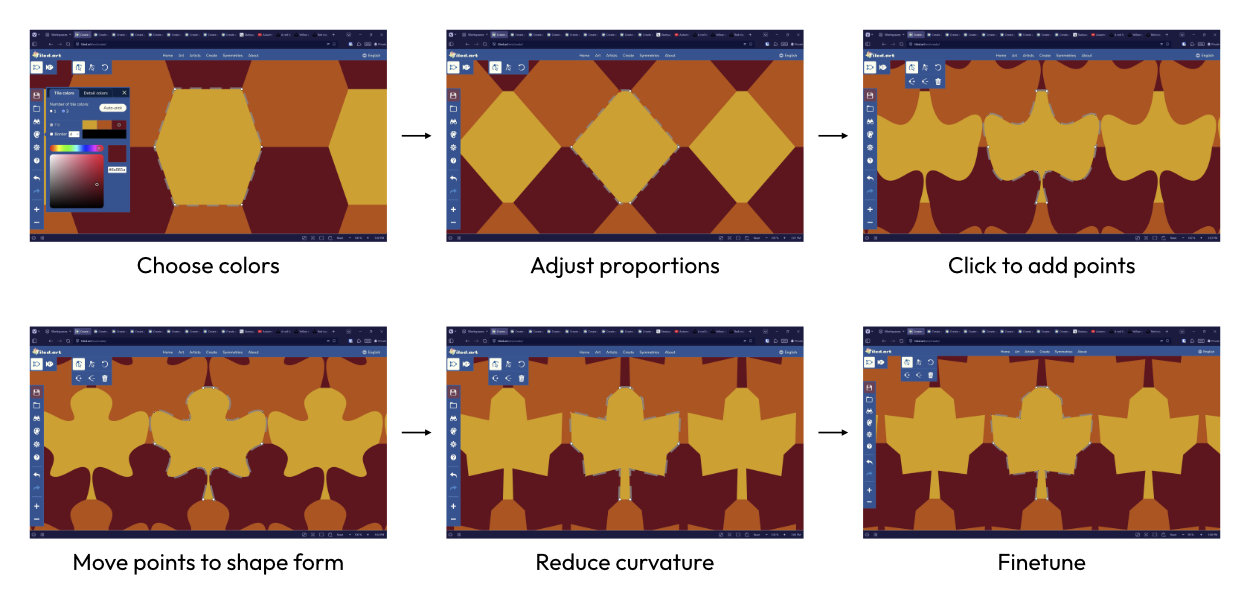
After reaching a shape I was happy with, I saved my working file and exported the shapes of the tessellation as SVG. The resulting file showed up blank in Affinity Designer and Fusion, so I used Inkscape to re-export as "plain SVG" before importing the file in other programs. Tiled.art can also generate animations showing the transformation of a tessellation from basic shape to final form, as shown in the video below.
Tessellation formation animation generated by Tiled.art
Paper Prototyping
Since I had designed the tessellated shape digitally, I prototyped the interlocking attachments by quickly adding cut lines in Affinity Designer, without properly aligning everything, and laser-cutting paper versions. While editing the outline, I realized that I could make the top point of the lead sharper as long as I added a corresponding cut into the bottom of the stem.
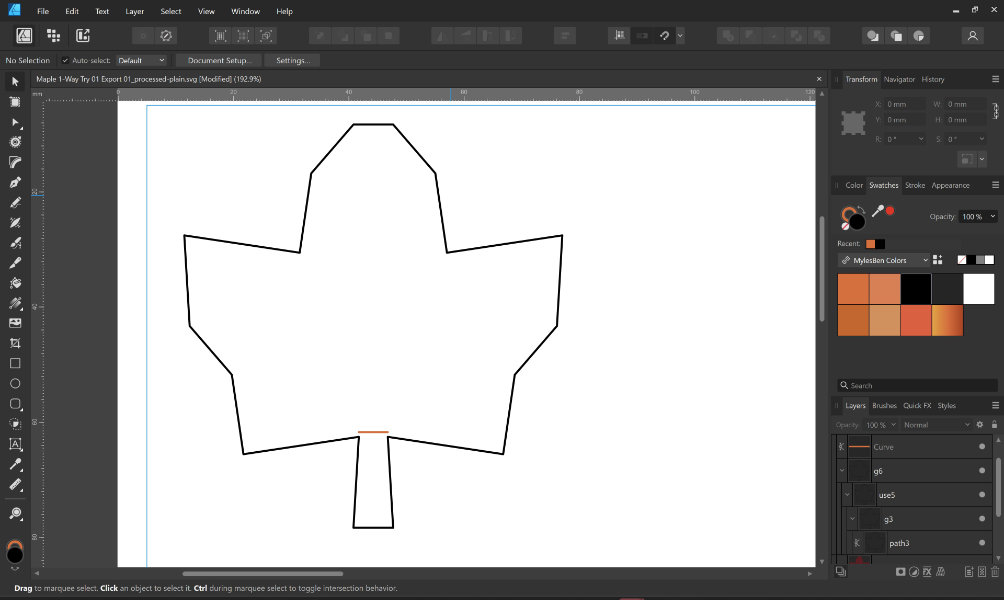
Scaling to ensure 5mm minumum stem width
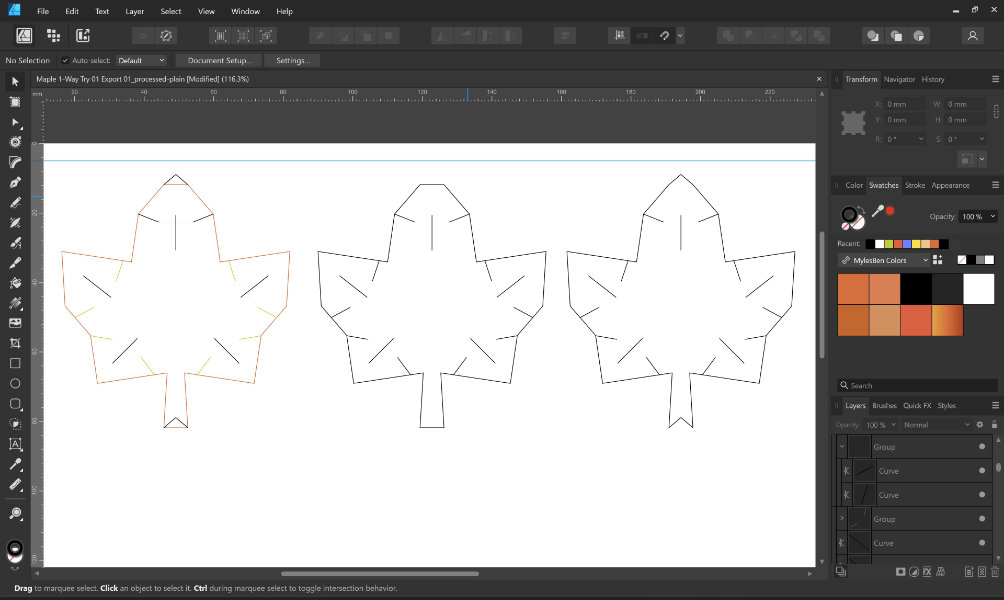
Rough slot/tab cuts and pointed leaf tip
While attempting to test out building a 3D form by making connections that required bending the leaves, I found that the paper just buckled and began to tear, so I stuck to flat layouts with the material and quickly moved to testing on felt.
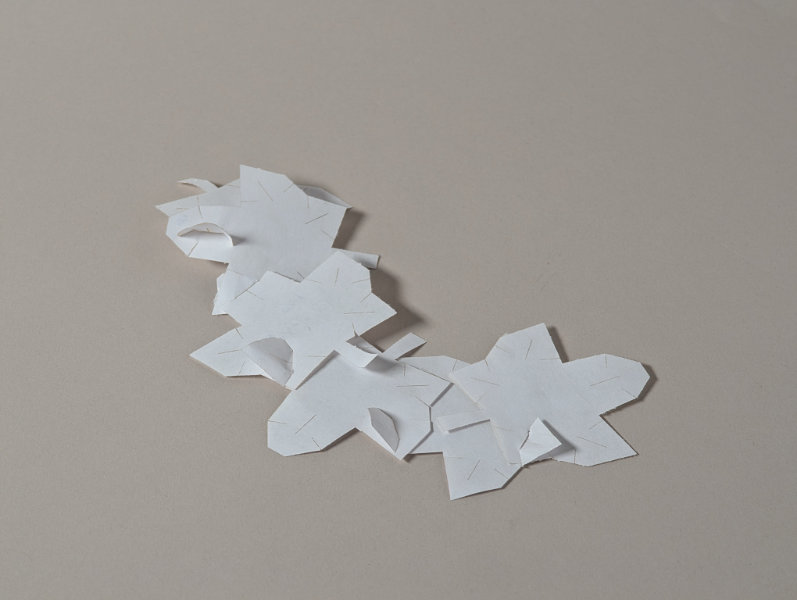
Flat paper modules
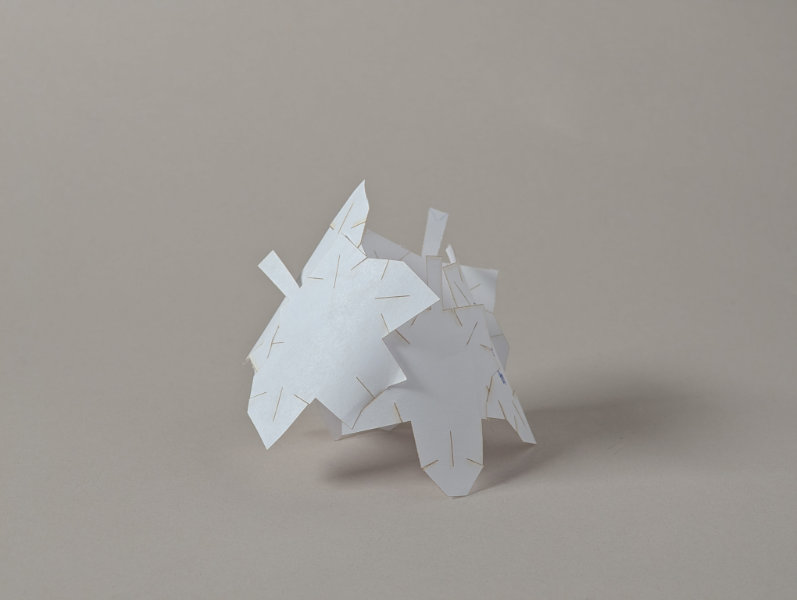
Curled paper prototype
Accurate Attachments
Fusion Attempt
To create my final attachment cutouts with more accuracy, I moved from Affinity Designer to Fusion360, imported the outline DXF, and began adding angle dimensions and equal size constraints to lock the tessellated shape down and allow for easy scaling. I thought I might be able to fully constrain the shape without needing to fully rebuild it mathematically from hexagons, but this turned out not to be the case. Fusion wasn't the best choice for my project anyway, as I only had a single module and therefore didn't really need parametric modeling to ensure synced changes between multiple parts.
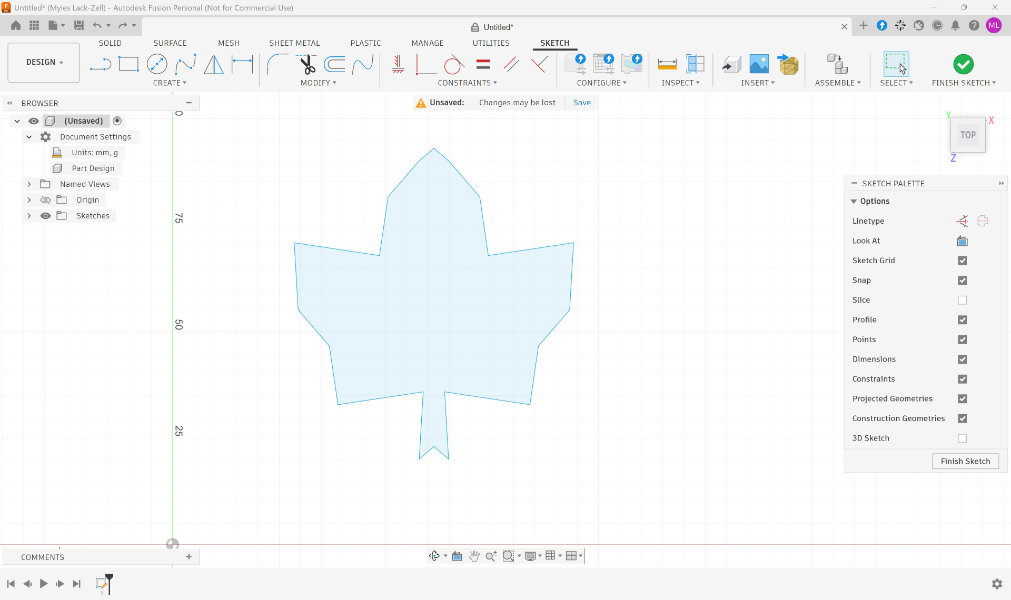
Imported SVG
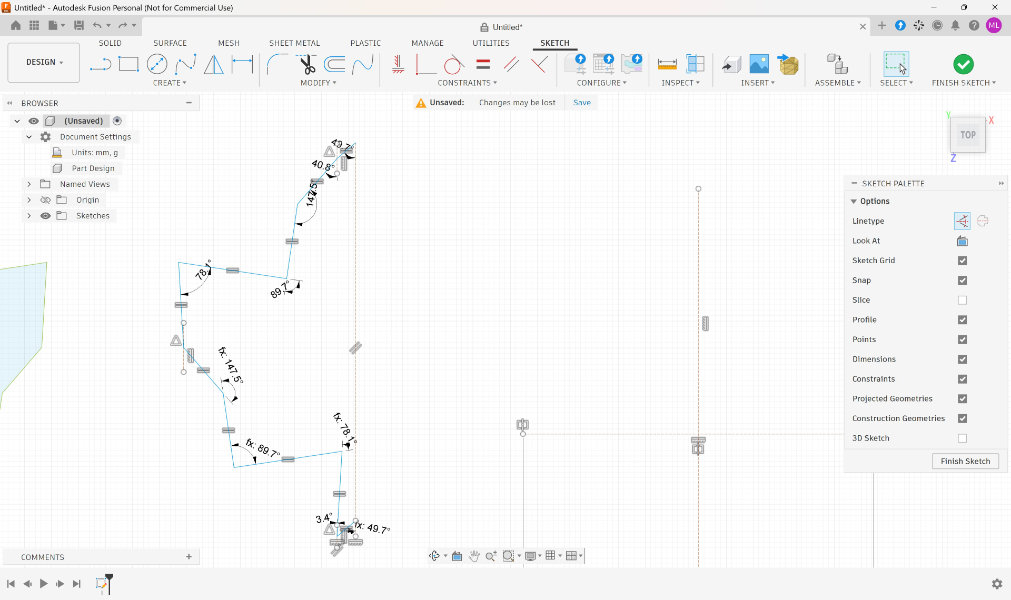
Constrained but still breakable shape
Moving to Rhino
I had been avoiding using Rhino3d since I would need borrow a lab laptop every time I wanted to work on my projects, but it really was the best fit for easily moving curves without relying on bounding box snapping. I imported my maple leaf outline SVG and then rotated and scaled it to test layouts that would fit the small felt pieces we had in the lab. I tested both horizontal and vertical layouts and found that neither perfectly filled the space I had, so I used 'Scale1D' to squish/stretch the leaves slightly before deciding which design to continue with. I decided to move forward with the vertical layout that produced slightly larger leaves.
*Note: In the process of taking screenshots to show the scaling process, I accidentally deleted the wrong set of leaves, didn't realize, and did all of my attachment design work on the leaves that weren't stretched. If final layouts don't show as filling the frame right up to the margin, this is the reason.
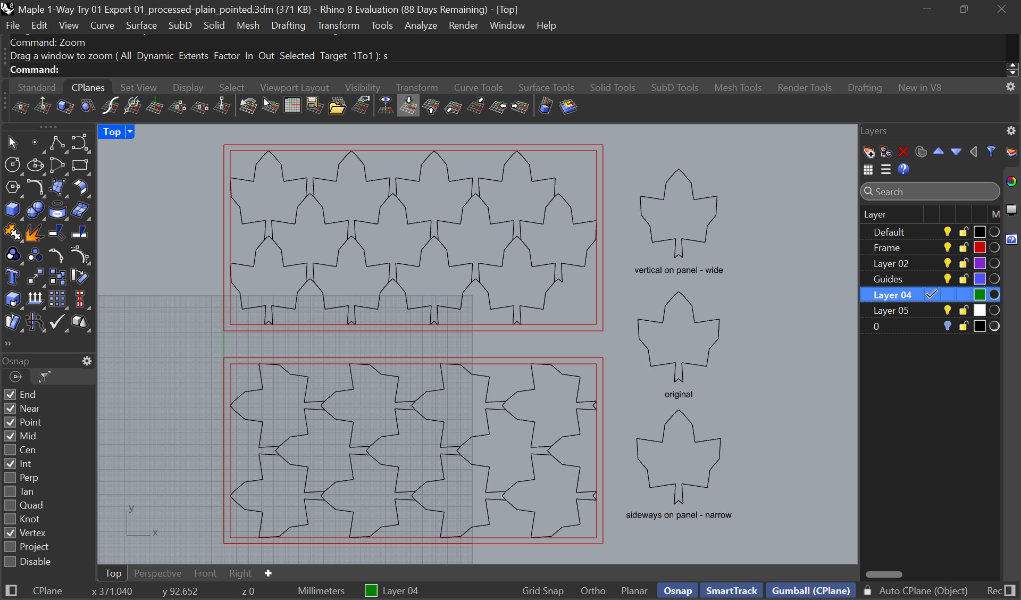
Once I had my final maple leaf outline, I added vertical and angled guidelines on a new layer to help decide where to place slots on each point of the leaf. Working only on the left side, I placed slots and angled tab lines on each leaf tip. I could then mirror the new curves over to the right side and group the cutouts separately from the outline.
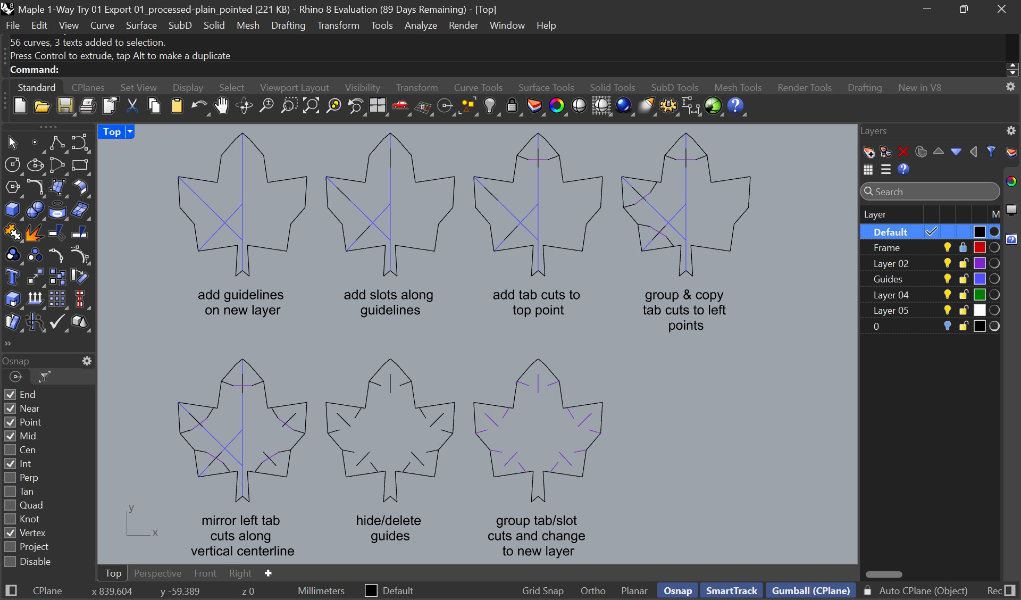
Felt Testing
To get a better sense of how my design would work with the final material, I cut out a few test pieces in felt and attached them. I found that, with slots the same width as the tab necks (10mm), the pieces fit together easily but didn't form a strong connection. The felt would stretch during assembly or when pulled, leading to the tab becoming narrower than originally designed.
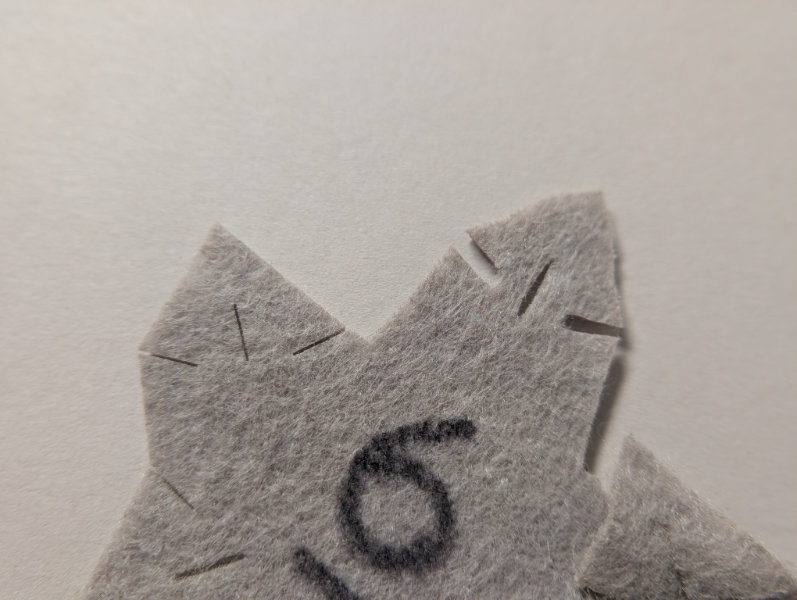
Given that I couldn't make many changes to the tessellated outline I was working with, I decided to see if making the slot cut smaller would make the attachment between modules stronger. I tested 8mm and 6mm slot widths, both of which were an improvement.
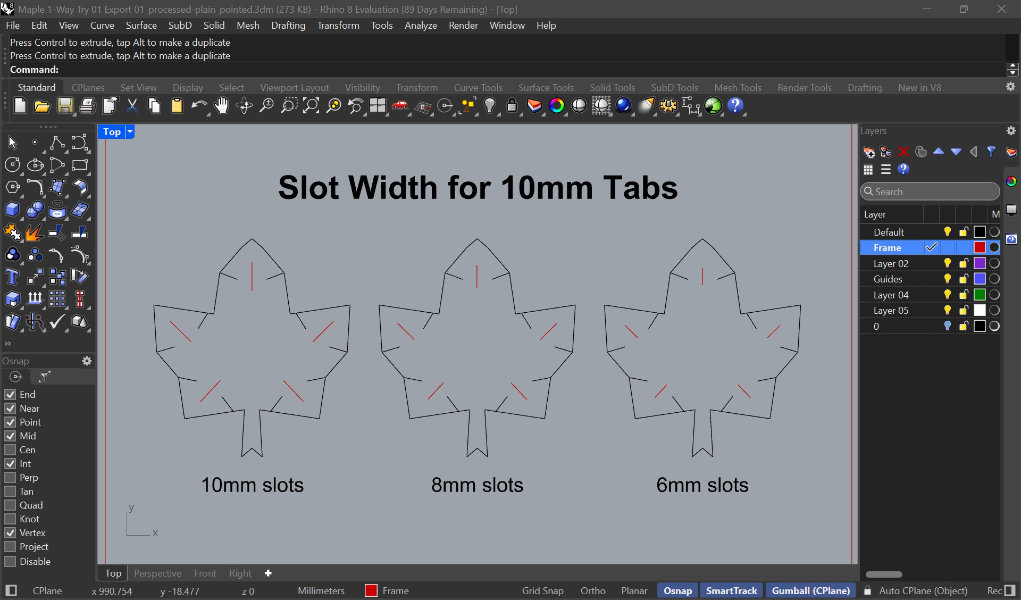
The 6mm slots made assembly more difficult but were significantly stronger, so I moved forward with the smallest slot size.
6mm slot stretch test.art
Final Layout
With the leaf module designed, I placed them into a felt-sized frame to prepare for laser-cutting. I tried the command 'SelDup' to remove duplicate lines, but it didn't find any. Since leaving overlapping lines didn't produce a worse edge in testing, I moved forward with the extra lines in place. I remembered there being a way to flatten a file but couldn't find the correct command until Anastasia brought up 'Make2D'. In the future, this is the command I will use.
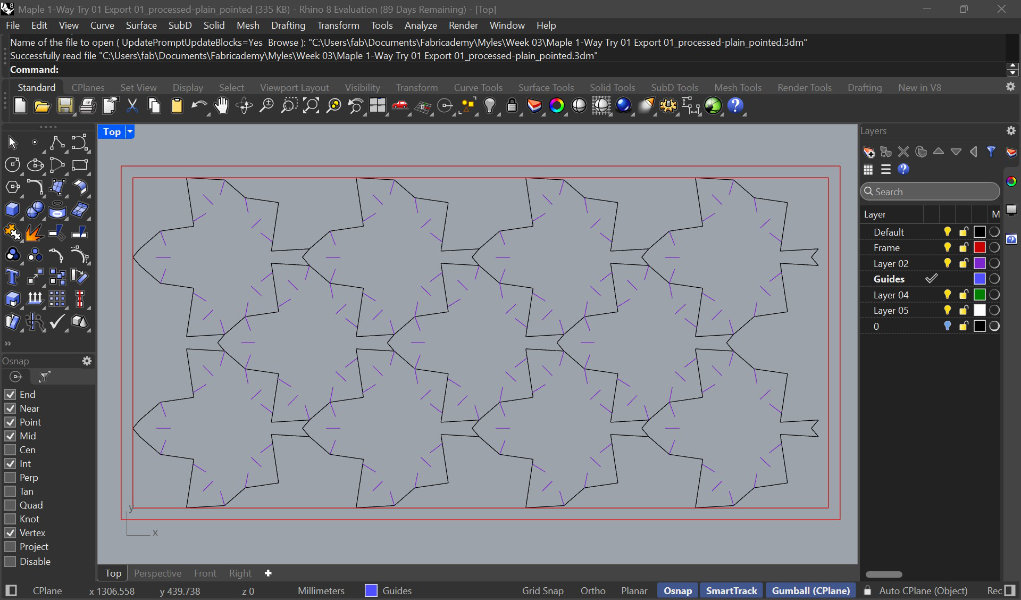
The maple leaf pattern was fully tessellated and zero-waste, but it couldn't fit perfectly onto a rectangular piece of fabric. I knew this from the start and planned to use the border material as a strand that leaves could hang from, but it wasn't until I went to the laser cutter that I realized I should add attachment points to the half-leaves on the border.
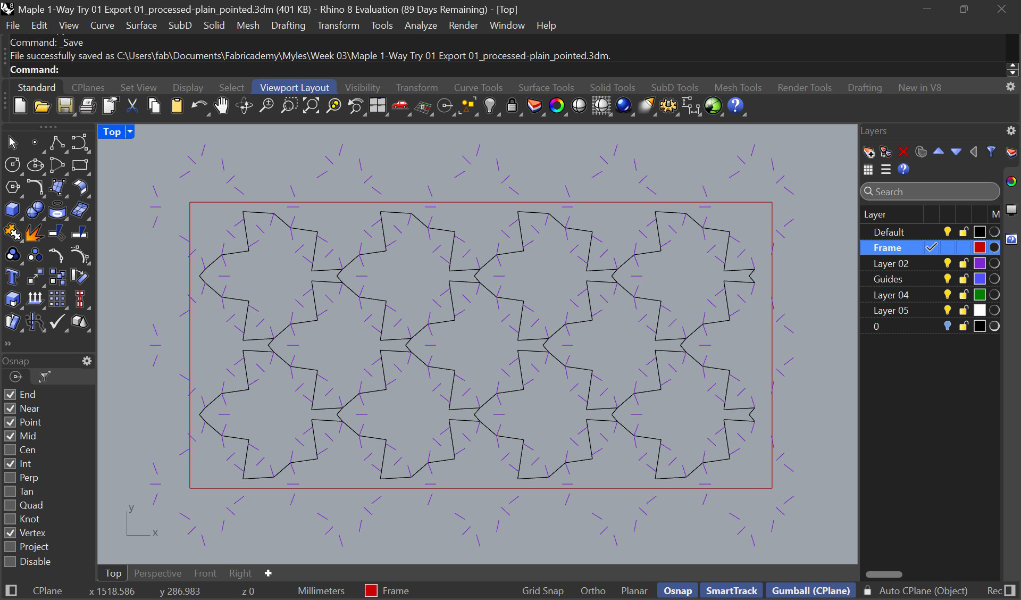
Copied attachment lines over
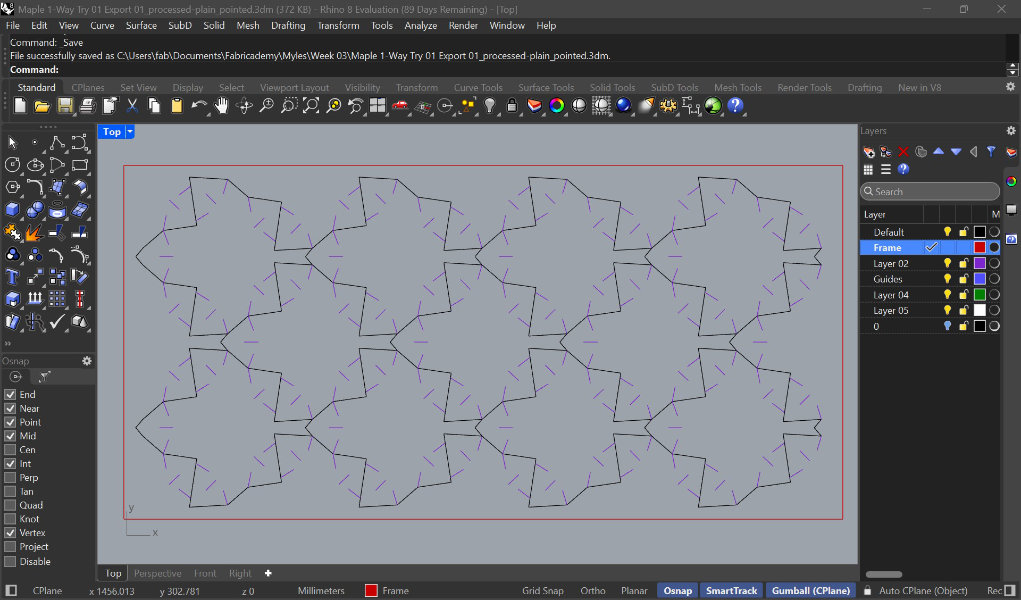
Deleted 'out-of-bounds' attachments
Laser-Cutting
With my design finalized, I could begin producing the final modules. I had chosen 6 colors of felt and each piece was fairly small, so I cut two at a time using the slow, low-power setting that we came up with earlier in the week.
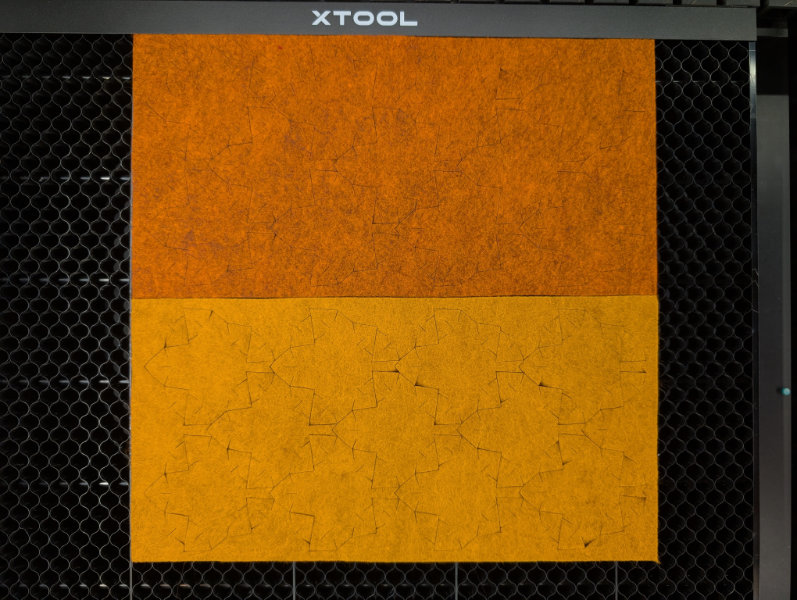
The result was a pile of 66 leaves and a lot of waste material, but if this same pattern were cut out of a larger panel, there would be a much lower percentage of waste.
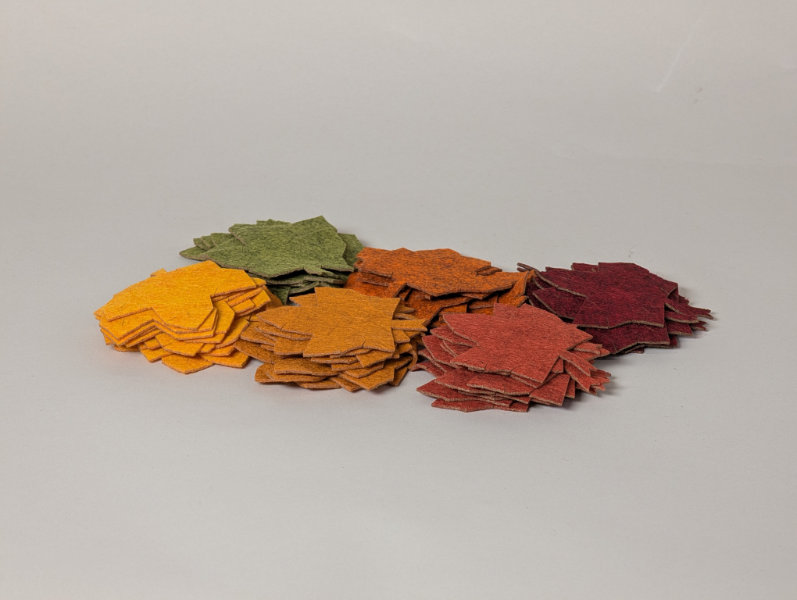
Final leaves
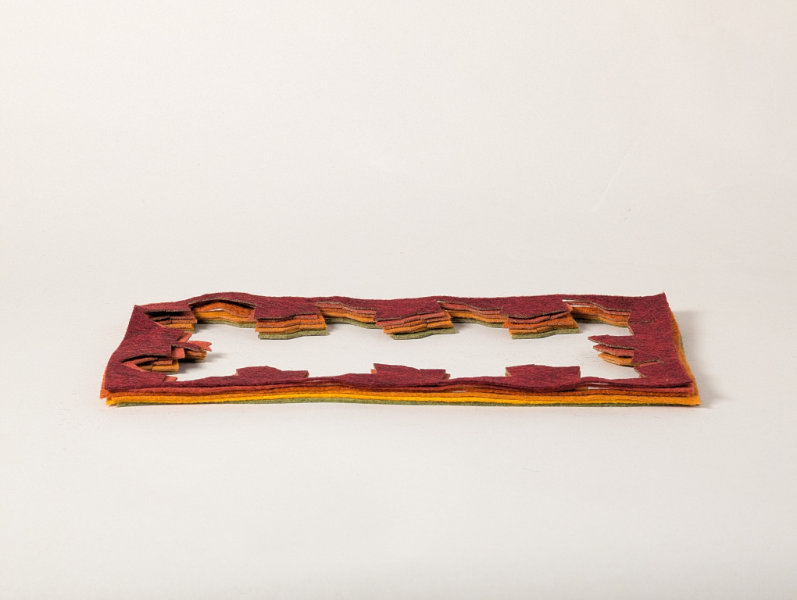
'Waste' material
Assembly & Object Designs
Zero-Waste Design
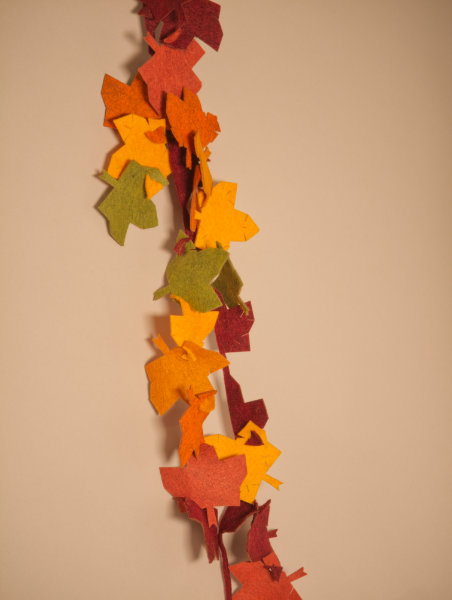
To make this module design truly zero-waste, I turned the border from the laser cutter into a strand off of which leaves could be hung. I cut it open with scissors to become a strip, and then added more notches in the corners for attachment. After making my leaf hat, I hung the extra leaves on a strand to create a large garland as a fall decoration.
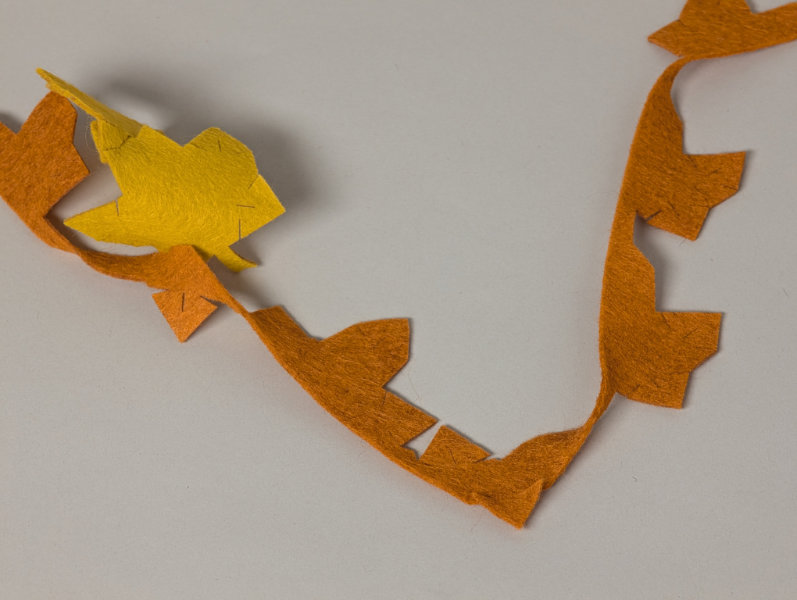
'Waste' strand with additional tab
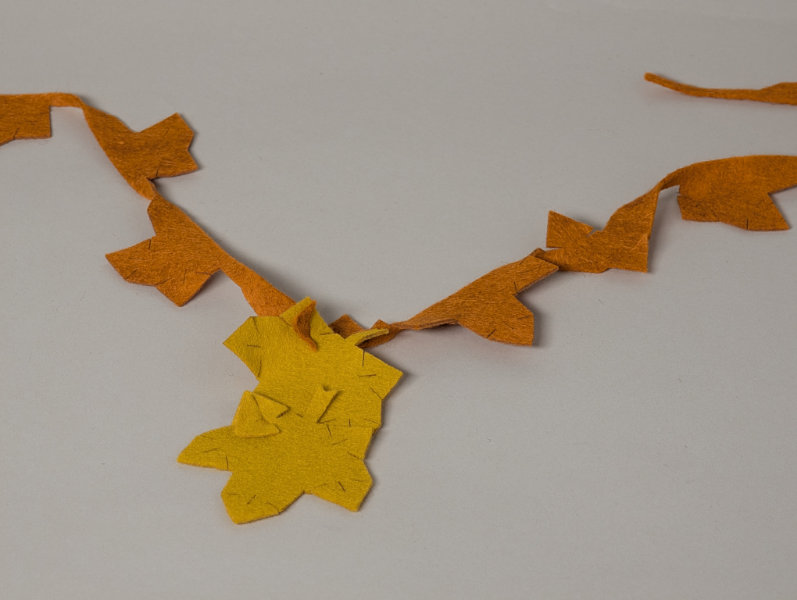
Leaves hanging from strand
Configuration Exploration
I had planned to attach leaves in 1D (a line) to make a leaf crown or garland.
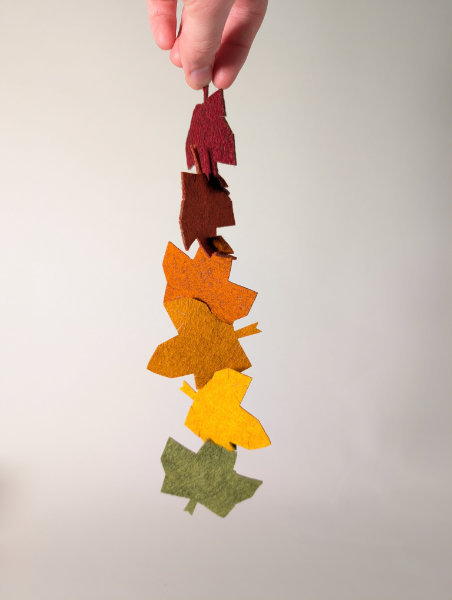
I also tried working in 2D (a surface) by choosing a center module and building out from there.
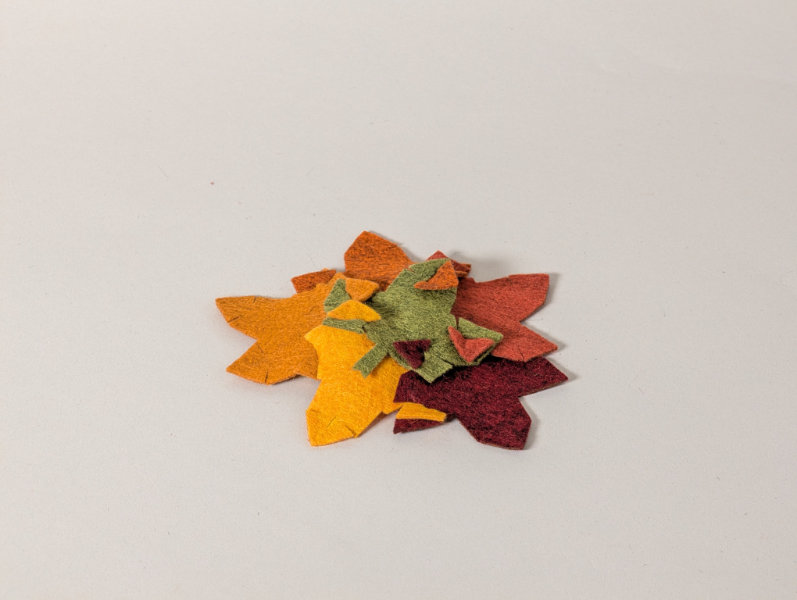
What I didn't expect from testing with paper was how I could create a 3D form with texture by connecting modules by 2 points at a time, a process which resulted in the top leaf puckering slightly. A ring of modules could be almost flat (8 pieces), or curve down (6 pieces).
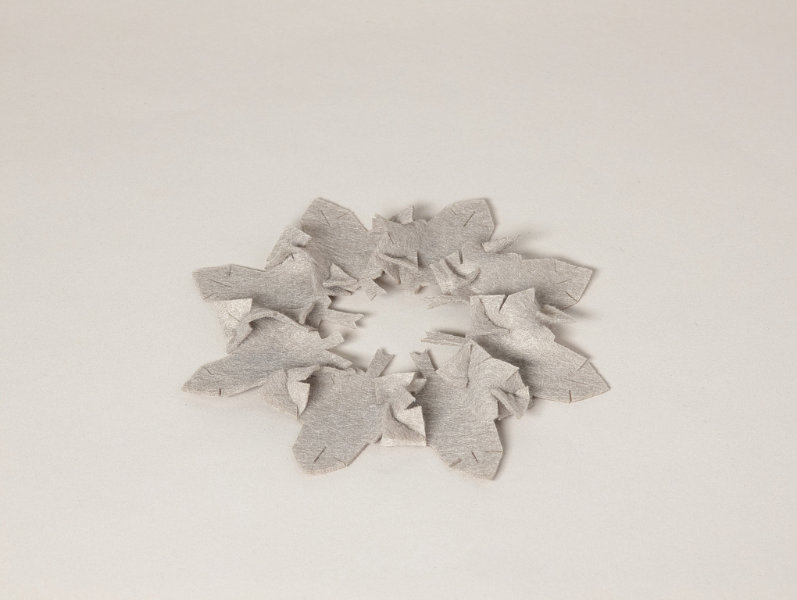
Leaf Hat
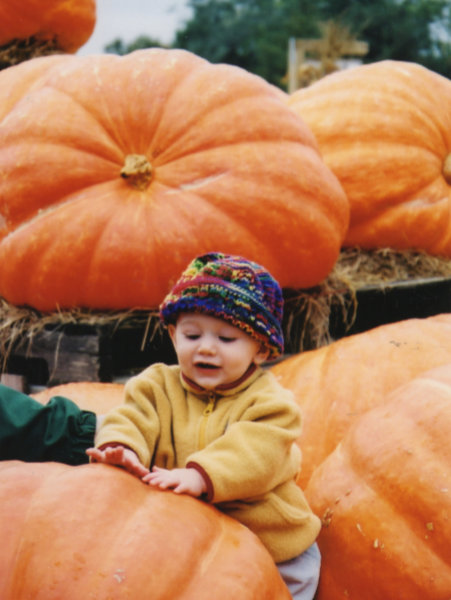
With this interesting textural configuration, I decided to start building out more layers to create a fall leaf hat, a modern reimagining of the colorful 'pumpkin patch hat' I used to wear at the pumpkin patch when we visited each year.
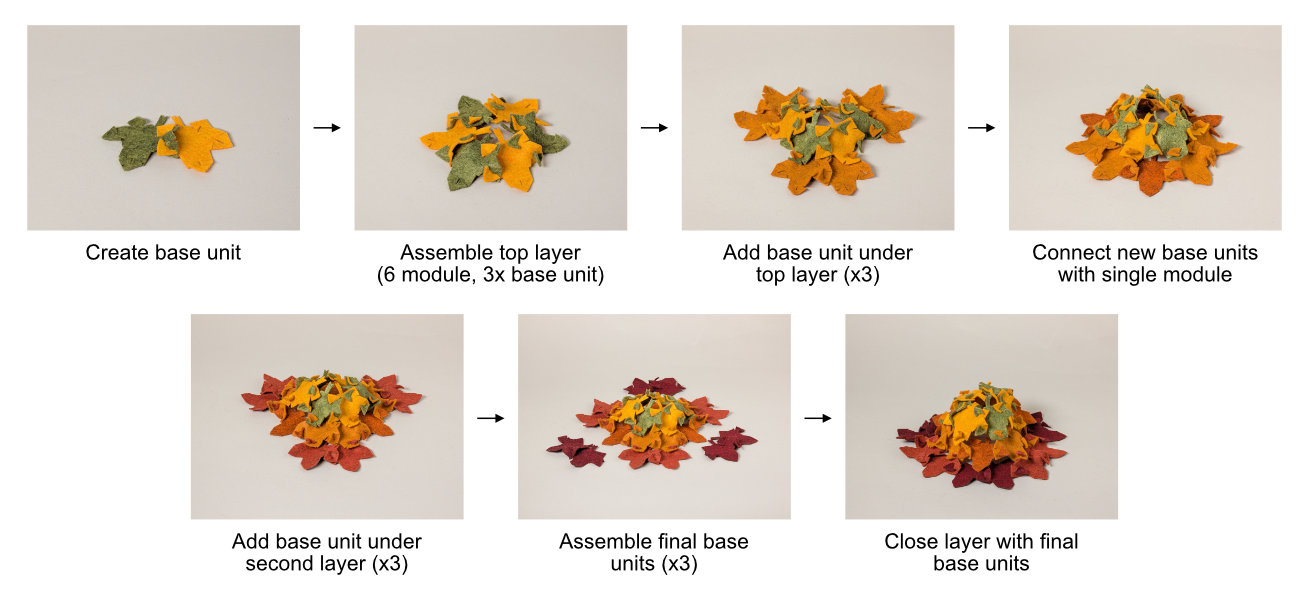
Using the textural double linked attachment to create a base unit of 2 modules, I then linked 3 units together to form the 6 module ring as the top of the hat. For the second layer, I added a new base unit under each existing section, then closed the layer's ring by attaching a single module in each gap. For the final layer, I repeated the process but inserted a base unit (2 modules) in each gap instead of a single module.
Final Results
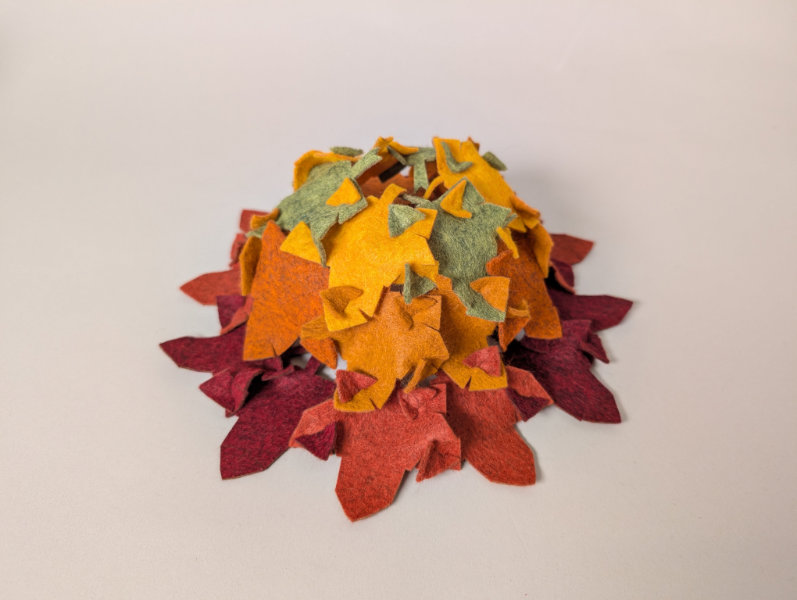
The final hat is definitely a little funny-looking, but it captures the season and reminds me of fun times. The felt construction actually helps the piece to stay on the head, as it sticks to hair and can even withstand some head shaking.
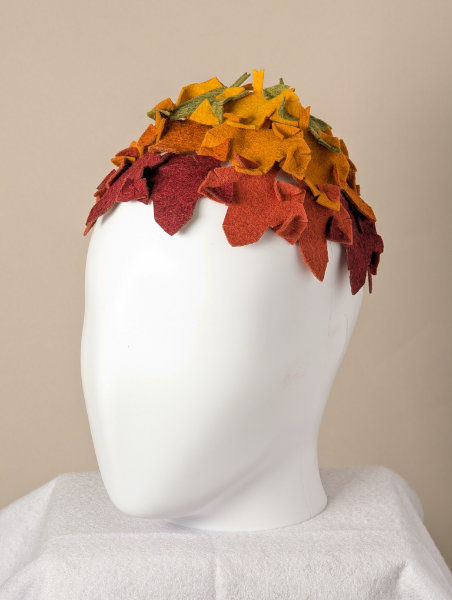
Modeled on mannequin (front)
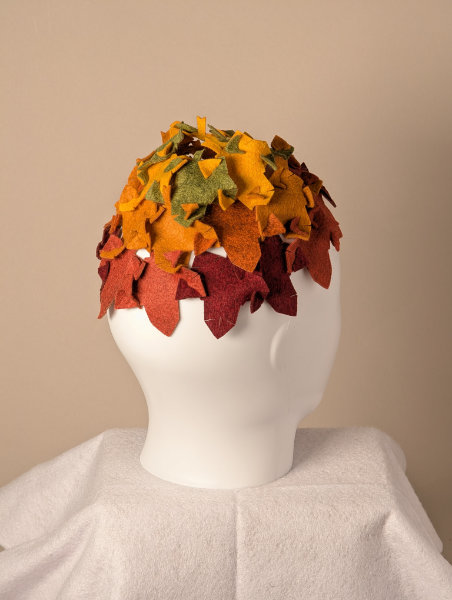
Modeled on mannequin (back)
With the extra leaves and a 'waste' strand, I also made fall hanging decoration.
Reflection & Thinking Towards the Future
I'm happy with the project itself given the quick turnaround, but I definitely have ideas moving forward if I were to continue. While I didn't initially plan on the leaf modules being designed to create surfaces and 3D forms, I would like to experiment more with what they can build. If I were to revisit the hat, I would think about making the first layer a little larger and possibly adding a fourth layer. The hat does stay on my head, but it could be made larger to actually sit over the head.
I spent this week trying simplify my project and documentation process to better fit into the week. I worked with the materials and developed a project idea as I went rather that striving to create something that might not have been feasible, which worked to an extent. I plan to continue with the really simple projects for now, but I'm also thinking about my documentation process. I find it helpful to gather content and then write up the full narrative at the end, but perhaps I should be stopping a bit early each day and writing up a section. I could also rely more on images and not include as many details.
One of the ways I got into working on my project was pushing one of the tutorials out to later in the week instead of going through all of the tutorials first before starting on the project. I will have to reassess each week, but it's probably a good idea to give myself some time each day for the project rather than setting aside just 1-2 full days for it, that way I have time to process what I'm doing.