Computational Couture
Week06: Students checklist
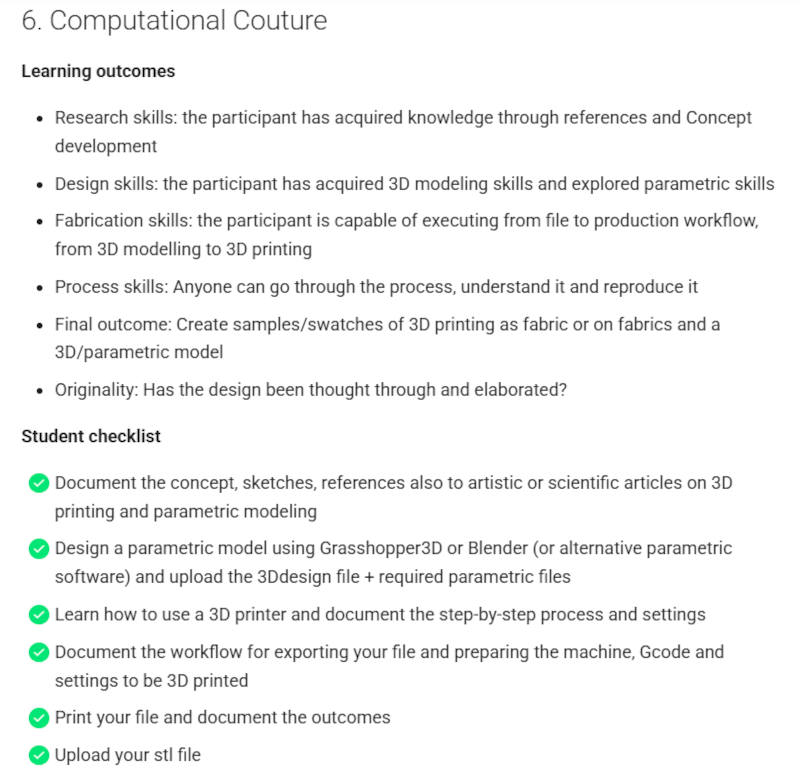
Image Source: Fabricademy Handbook
1. Objective
This week, we dove into the world of Computational Couture, kicking off with an inspiring lecture by Julia Koerner. Originally from Vienna, Austria, Julia has been based in Los Angeles since 2012 and operates cutting-edge studios in both cities. Her commitment to sustainability is truly remarkable: her LA lab is entirely powered by solar panels, running all 3D printers on solar energy, while her Vienna studio is similarly backed by renewable energy. Defining herself as an architect, designer, and innovator, Julia also serves as an assistant adjunct professor at UCLA. Her design philosophy bridges two worlds, seamlessly translating breakthroughs in fashion into architecture, and vice versa. Throughout her lecture, she introduced us to advanced 3D printing technologies—including SLA, DLP, PolyJet, and SLS—and showcased how she utilizes Rhino as a parametric design tool. For our own projects, we will be working with the open-source software Blender. What truly fascinated me about Julia’s journey and methodology is how deeply she roots her work in the natural world. She has meticulously curated a visual catalog consisting of photographs and 3D scans of California’s natural systems. By examining marine life, aquatic organisms, and the complex surface textures of fungi, she captures more than just external aesthetics; she translates their inner structural logic into intricate, organic designs. Driven by a passion for sustainability, she also introduced us to groundbreaking innovations like glass and sand 3D printing. It was incredibly inspiring. She wrapped up her lecture by focusing on FDM printers, which are the exact machines most of us will be utilizing this week.
2. References, research & inspiration
Research and Inspiration: Julia Koerner's Methodology
As a core reference for this workflow, the procedural and research-driven approach of designer Julia Koerner was highly influential. Koerner extensively studied the biodiversity of marine life and mountain ecosystems in California. By analyzing natural systems, documenting her findings through photography, and even utilizing 3D scanning technology, she meticulously mapped out growth patterns in corals, the textures of fish skins, and the morphology of various organisms. This intensive research culminated in a comprehensive catalog of biological structures that serves as a direct foundation for her product design and use of parametric designs.
This research methodology is deeply fascinating and mirrors my own preferred approach when exploring new subjects or technical interests. Having already applied this nature-marine-inspired, documented strategy here in the Fabricademy program, I intend to fully adopt and integrate this precise framework for my final project.
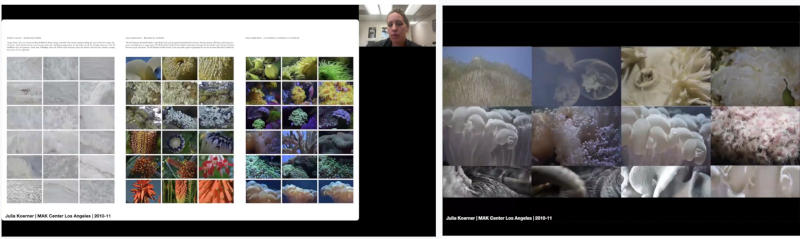
Image source: Julia Koerner’s nature catalog illustrating biodiversity and growth patterns/Screenshot from lecture
Watch this week's global lecture by Julia Koerner on Vimeo
In connection with Julia's lecture, questions were raised regarding how to tackle parametric design within the span of just a single week. This applied both to managing the design phase—whether modeling procedurally in Blender or utilizing Rhino and Grasshopper—as well as efficiently executing and managing various test prints on the 3D printer.
To tackle this week's assignment, I am following Julia’s personal blueprint for success shared at the end of her masterclass. Here is the framework with some extras:
The Recipe by Julia Koerner
- Step 1: Map Your Assets. Identify your available resources. What kinds of printers do you have access to in the lab? (FDM, clay, etc.)
- Step 2: Define the Boundaries. Embrace your limitations and constraints. Carefully consider your materials, maximum print height, and overhang limits within your specific setup.
- Step 3: Explore Existing Work. Research the current landscape to see what has already been achieved. Dive into Instagram and explore the hashtag
#fdm3dprintingfashion—it is a rapidly growing field with a wealth of inspiration. - Step 4: Embrace Simplicity. When experimenting with computational couture for the first time, start with the absolute basics. Begin with simple prototypes and basic geometric shapes like circles. With only a week to complete the project, don't lose time trying to write massive, complex scripts. Keep your designs clean and iterate from there.
Adding to this, a final piece of advice from my remote instructor, Louise Massacrier:
- Step 5: Sample Generously. Aim to create at least 2—ideally 3—test samples. If you scale them down to 5x5 cm, you can easily produce 4 to 5 variations to experiment with.
- Step 6: Experiment with Textures. Try 3D printing onto a variety of fabrics, such as stretch materials, mesh, and tulle. Printing on flexible, stretchy textiles is particularly exciting, as it can dynamically transform your flat 2D design into a striking 3D effect.
Moodboard and Visual Research
To anchor this workflow in tangible references, I conducted visual research across Pinterest and browsed relevant hashtags as suggested by Julia on Instagram, seeking inspiration for clean, minimalist parametric designs. In alignment with this methodology, I deliberately chose simple geometric forms that mirror structures found in nature. These will serve as foundational, small-scale samples to build a physical reference library in the lab for future projects.
My dedicated Fabricademy board is fully accessible for further reference, archiving my visual discoveries and serving as my personal digital pinboard. Much like Julia maintains her own curated miniature collections of biological specimens, this digital and physical archive functions as a continuous research catalog for material experimentation.
Indsæt moodboard her
3. Tools
Chapter 4: Process and workflow –
4.1. Parametric 3D Patterns on Textile (Blender)
This chapter documents the procedural workflow for creating a parametric overlapping circle pattern in Blender, designed for 3D printing onto mesh fabric (e.g., tulle or netting) using PLA filament and TPU filament.
I initiated my workflow by inspecting the Week 06 inventory box to review the materials purchased in accordance with the Fabricademy material list. Inside, I found a dark blue mesh fabric and a spool of TPU filament. Having not yet had the opportunity to experiment with printing in TPU, I decided that this was the perfect moment to do so.
4.2. Blender Geometry Nodes Setup
To ensure the fabric remains flexible yet structurally intact, the pattern must overlap completely, creating a singular, interconnected "armor." Placing individual elements manually is inefficient. Instead, a procedural network was constructed using the Geometry Nodes workspace:
- Grid: Acts as the primary foundation, defining the exact boundaries of the design. The parameters were locked to
Vertices X: 4andVertices Y: 4to generate a perfect 16-point matrix matching a 10x10 cm printing footprint. - Instance on Points: This node distributes instances of a custom shape onto every vertex provided by the Grid.
- Mesh Circle: Serves as the primary pattern primitive. The radius was increased until the boundaries of neighboring circles intersected.
- Mesh to Curve & Curve to Mesh: A dual-node conversion process. By turning the mesh geometry into a curve, we can use a second curve shape to sweep along it, giving the flat lines structural, physical thickness.
- Curve Circle: Connected directly into the
Profile Curvesocket of the Curve to Mesh node. This controls the cross-sectional thickness and extrusion width of the plastic lines (Radius set to0.005mto0.01m). - Realize Instances: Positioned at the very end of the node chain right before the
Group Output. This forces Blender to translate separate virtual instances into one single, unified 3D mesh object capable of being calculated for export.
4.3 Troubleshooting & Known Issues
❌ Issue 1: "Modifier cannot be applied - Object does not contain a mesh"
- Symptom: Attempting to lock the geometry by clicking Apply on the Geometry Nodes modifier under the Modifier Properties (wrench icon) menu triggered a hard error.
- Root Cause: The viewport pattern was still technically treated as a collection of virtual "instances" (clones). Blender cannot convert virtual data streams into static 3D geometry without an explicit instruction.
- Fix: A
Realize Instancesnode was injected directly into the topmost, final output cable running fromInstance on PointsintoGroup Output. This successfully collapsed all clones into tangible mesh data, allowing the modifier to apply cleanly.
❌ Issue 2: Grid Collapsed into a Single Ring (Loss of Scale & History)
- Symptom: Executing the global command
Ctrl + A> All Transforms to hardwire the 10x10 cm dimensions caused the 16 circles to completely break and compress directly on top of each other, forming one thick ring. - Root Cause: Using All Transforms on an active node object resets the background
Group Inputmetrics to zero, completely wiping the grid layout data. - Fix: To bypass dependencies on volatile external inputs, the tombed
Group Inputnode was deleted. It was replaced with an unlinked, nativeGridnode connected straight into the workspace. This hard-coded the 4x4 matrix parameters directly inside the node data stream.
❌ Issue 3: Disconnected Star/Circle Segments in PrusaSlicer
- Symptom: Exporting a pattern with thin settings to PrusaSlicer resulted in a fragmented preview. The slicer automatically deleted intersecting points and sharp star tip vectors, identifying them as too narrow for a standard 0.4 mm brass nozzle.
- Fix for Future Re-creations:
- Increase the Radius values on the
Curve Circlenode to fatten the physical filament trace path. - Enlarge the
Mesh Circle(or reduce the layout Grid size) to push intersections further into each other, guaranteeing thick, unbroken boundaries in the final.stl.
- Increase the Radius values on the
4.4 ⚠️ The Golden Rule: Save Prior to Modifying Properties
Applying the Geometry Nodes modifier via the wrench panel is a permanent "baking" process. Failing to save a dedicated .blend file before confirming this step introduces catastrophic project constraints:
- Destructive Automation Wipe: The entire node pipeline disappears from the lower interface workspace. It translates directly into plain vertices and faces. You lose all ability to alter circle counts, wireframe thickness, or scale parametrics dynamically.
- No Point of Return: If an issue is flagged inside PrusaSlicer later and the Blender file has already been overwritten or closed, the mathematical model cannot be recovered. The entire project must be reconstructed manually from scratch.
The Standardized Core Workflow:
- Complete all parametric tweaks until the 3D viewport matches specifications.
- SAVE THE PROJECT (
File > Save Asas a.blendfile). This serves as your non-destructive project master blueprint. - Navigate to Modifier Properties and click Apply to bake the mesh geometry.
- Export the resulting asset via
File > Export > Stl (.stl). - CRITICAL: Immediately hit
Ctrl + Z(Undo) once in Blender. This safely restores your node pipeline on-screen while keeping your exported.stlfile fully intact on your drive. Re-save your working workspace.
4.5 Transitioning to a Parametric Star Pattern
To expand the project framework, the circle template was swapped out for an 8-pointed geometric star array. While the underlying pipeline remained identical, processing a sharp vector shape instead of smooth circles introduced critical data type, scale, and slicer thickness challenges.
4.5.1 Resolving the Curve Data Type & Scale Discrepancies
- The Curve Trap: Replacing the
Mesh Circlenode with a nativeStarnode initially caused the 3D viewport to go completely blank. This occurred because theStarnode outputs a Curve data type. The existing pipeline still contained a legacyMesh to Curvenode. Passing a curve stream into a node expecting a mesh broke the hierarchy. - The Fix: The obsolete
Mesh to Curvenode was deleted. TheStaroutput was linked directly into the mainCurve to Meshnode, resolving the data conflict. - The Invisible Scale: The default dimensions of the newly loaded star template were massive (
Inner Radius: 1m/Outer Radius: 2m). Because the layoutGridwas limited to a tiny 10x10 cm textile footprint, the star vectors expanded way outside the viewing matrix. - The Fix: The boundary parameters inside the
Starnode were manually scaled down to reflect physical object boundaries:- Points: Set to
8for a dense geometric matrix. - Inner Radius: Lowered to
0.12 m - Outer Radius: Lowered to
0.15 m - Note: By minimizing the delta between the inner and outer radius, the stars morphed into thick, bulky polygons with massive footprints, which is essential for stable FDM filament extrusion through texturing pores.
- Points: Set to
4.5.2 Troubleshooting: Fixing Flat Geometry and Artifacts (The Slicer Shortcut)
- The Flat Geometry Issue: Initial exports resulted in lines that were too thin and lacked a dedicated vertical profile (Z-axis height), making it impossible for the plastic to sink safely into the weave of the mesh netting.
- The Extrude Artifact Trap: Attempting to solve this in Blender by placing an
Extrude Meshnode before the instances were generated caused severe structural distortions, stretching the star lines into hollow, vertical accordion-like sheets. - The Efficiency Fix (The Slicer Shortcut): Due to strict time constraints and to bypass complex node repositioning loops, the model was baked flat in Blender and exported as a 2D-plane
.stl. The critical structural modifications were handled directly inside PrusaSlicer:- Adding Z-Height: The model was selected on the virtual print bed, and the Z-Axis Scale Factor was scaled up independently. This stretched the model upward, forcing a uniform 2.0 mm thickness across the entire pattern.
- Laying the Fabric Pause: The final G-code toolpath was sliced with a hard-coded Print Pause (M601) at Layer 3 (0.6 mm). This allows the printer to establish a rigid plastic base coat, anchor the mesh fabric flat with masking tape during the pause, and then fuse the upper layers directly through the fabric pores upon resuming.
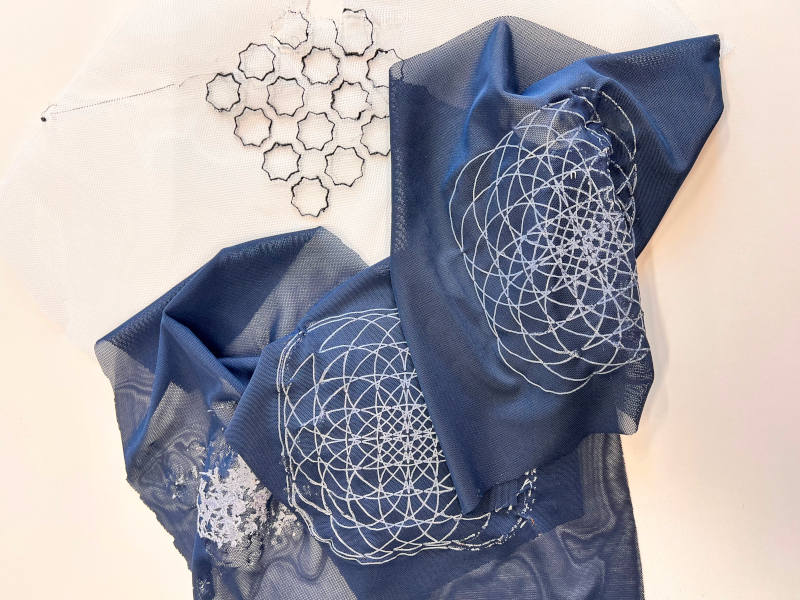
Image source: Tina Grønbech
¶...
5. Results
Material Experimentation Log (Samples 1–4)
To test the parametric designs, a series of material samples were fabricated using different filament-textile combinations, bed preparation methods, and slicer modifications.
| Sample | Design / Shape | Filament | Textile Base | Bed Preparation & Fixturing | Notes & Troubleshooting |
|---|---|---|---|---|---|
| #1 | 4 Overlapping Circles (2x2 Matrix) | White PLA | Black Tulle / Netting | Standard bed sheet. Printing paused at Layer 3; fabric secured tightly using binder clips and magnets. | Successful bonding. The manual fabric suspension method worked effectively. |
| #2 | 4 Overlapping Circles (2x2 Matrix) | Black TPU | White Tulle / Netting | Textured PEI bed sheet. Sprayed with window cleaner to prevent permanent bonding. Fabric secured with clips/magnets at Layer 3. | Critical Warning: A textured bed sheet and window cleaner spray are mandatory for TPU; printing directly on a standard smooth sheet will ruin the build plate. |
| #3 | Optimised Overlapping Circles | White PLA | Black Tulle / Netting | Standard bed sheet. Paused at Layer 3; secured tightly with clips and magnets. | Blender Adjustment: The Curve Circle radius was increased (fattened), and the base grid spacing was reduced to create a thicker filament trace and massive overlapping fields. Sliced perfectly without fragmentation. |
| #4 (A) | 8-Pointed Star Array | White PLA | Dark Blue Mesh | Standard bed sheet. Paused at Layer 3; secured tightly with clips and magnets. | Workflow Adjustment: Due to time constraints, the 2D file was exported flat from Blender. The final Z-axis thickness (2.0 mm) was scaled up directly inside PrusaSlicer prior to printing. Successful print. |
| #4 (B) | 8-Pointed Star Array | Black TPU | White Tulle / Netting | Textured PEI bed sheet with window cleaner spray mitigation. | Failed Print: The print was structurally sound, but due to impatience, it was removed before the bed had fully cooled down. The warm TPU stretched and tore, destroying the sample. |
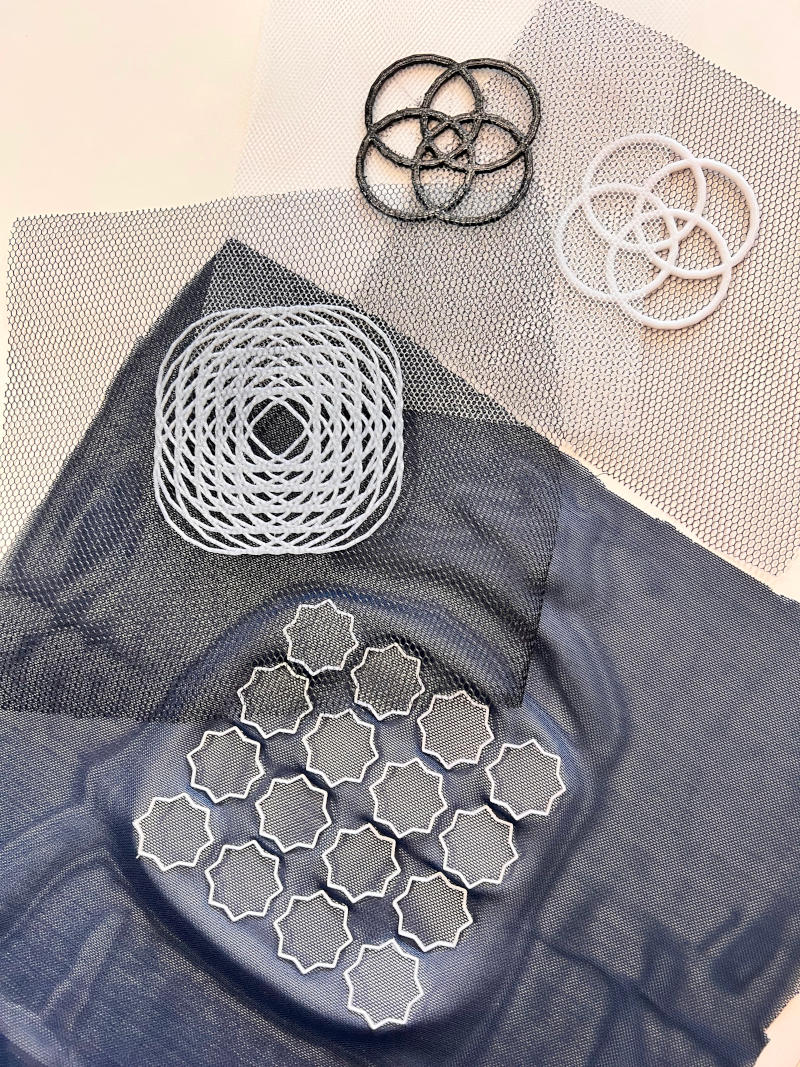
Image source: Tina Grønbech
Results & documentation
- Don’t forget to document the outcome including:
- Upload the photos & files on oscircularfashion
- Final result
- Photos from different stages
- Videos of movement or interaction, show how a material moves, something was assembled or the interaction
- Include measurements or a reference object to give a sense of scale
- Describe the (material) properties of what you made
- Comparison between attempts, if you did multiple experiments or generated multiple files before fabricating / deploying. You can use a table as shown in week 4
6. Weekly reflection & critical thinking
- What did I learn? What did I personally find interesting or surprised me?
- What would I do differently? If something "failed" do I know how else to tackle it now?"
- How does this connect to my final project or my learning trajectory?
- What are implications and possible applications, think also from the ethical or environmental aspect, how it could connect to your practice and project?
NuEval — final step
Go to NuEval and fill in the checklist, when not complete notify your instructor.
7. Fabrication files & References
-
File: Grasshopper definition.. ↩
-
Reference: Author; Title; Source; year ↩